









REST API Docs
WorkflowSMSEmailVoiceText-to-Speech (TTS)FaxWhatsAppRCSWebhooksAddress BookOpt-OutPartner APIAPIs, Libraries & SDKs
 REST API
 TypeScript
 SMPP
SMPP Python
 MCP
MCP .NET
.NET SMTP Gateway
 VBA
VBA Flexi API
 HTTPS API
 SOAP API
 Other Tools REST APITypeScriptSMPPPythonMCP.NETSMTP GatewayVBAFlexi APIHTTPS APISOAP APIOther Tools
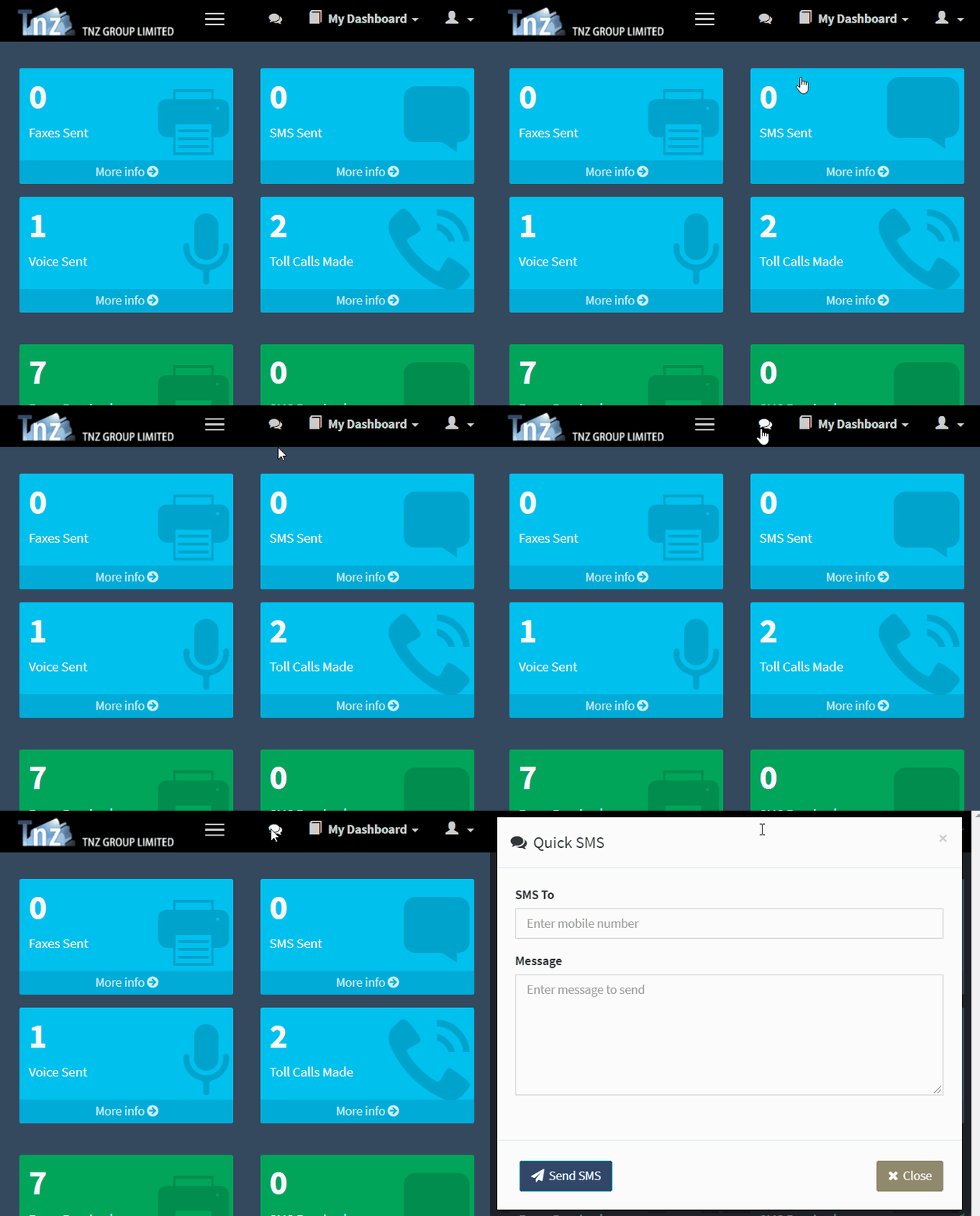
 The Online Dashboard provides users with a simple point-and-click tool to send an SMS.
Don't have dashboard access? You can add a dashboard login using your account administrator's login, or contact your TNZ representative to activate a new login.
The Quick SMS button can be found in the top-right corner.
This can also be accessed by viewing a message in View Messages | SMS Received.
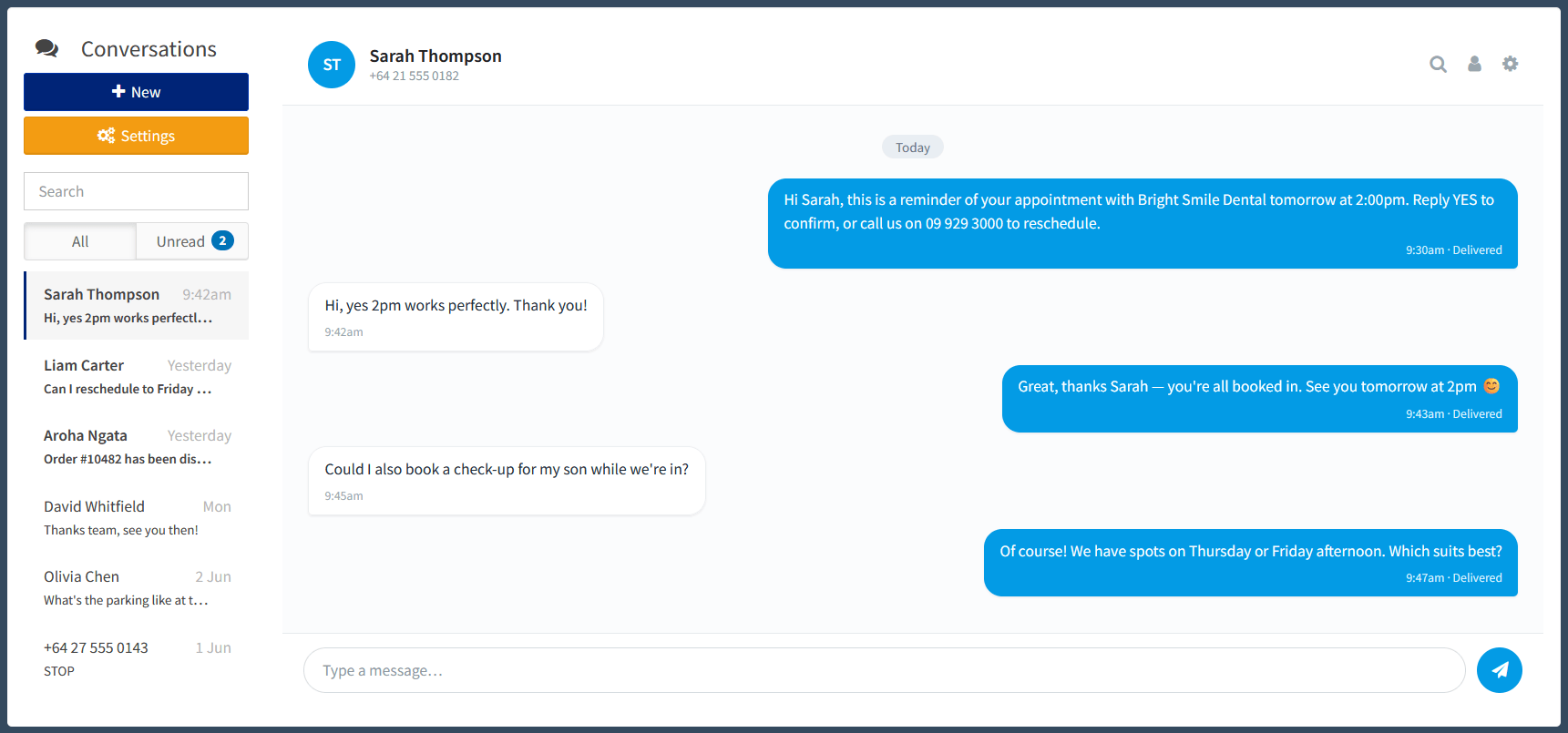
SMS Conversations lets you hold a 1:1 conversation with a mobile number. Every message you send, and every reply that comes back, appears together in a single window.
The full thread sits in one place. You can read back through the conversation at a glance.
The Send SMS tool can be found under New Message | Send SMS.
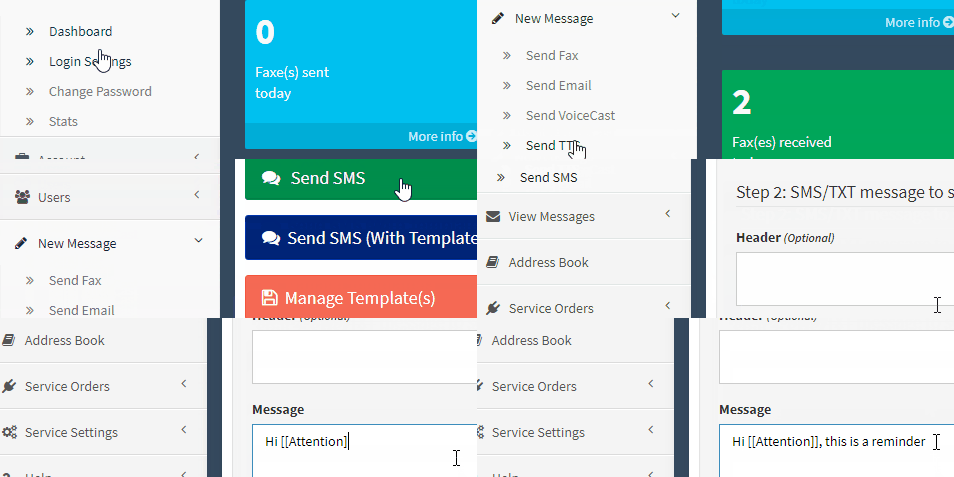
Optional, and can be automatically populated (saves you re-entering these every time). See the Adding an Outbound User guide.
To spice up your text, just keep an eye on the character count as these reduce your text to 70 characters per SMS Part!
Personalise your text messages with First Names and other custom values (pulled from the Address Book or your imported contact list).
Add short links, files and web-based landing, reply and opt-out pages.
You can send a new message, or select from a saved template.
The Send SMS tool can be found under New Message | Send SMS Broadcast.
This tool is similar to the Send SMS tool, designed with a simpler flow when sending promotional broadcasts.
See How To Send SMS Broadcasts for a complete guide.

Using the New Message | Send SMS | Recurring SMS function, you can queue a SMS message to be sent on a regular schedule (e.g. send hourly, daily, weekly, monthly).
This function allows you to send the recurring message to an individual mobile number, or an entire Address Book Group.
See the Recurring SMS guide for instructions.
Scheduled an SMS for later, or have a message still queued? You can cancel it while it is pending:
| 1. Go to View Messages and locate the pending message. |
| 2. Open the message. |
| 3. Select Cancel (Abort) to stop it sending. |
Once a message has sent, it cannot be recalled. To stop a recurring send, set its Scheduled Alarm status to anything other than Pending.
This video guide explains how to add contacts to the Address Book, then quickly send a broadcast message to those contacts.
When viewing the Address Book, click on a group, then click Group Maintenance to view the Group Code.
You can then send an Email-to-SMS by sending an email to group.%the_group_code%@sms.tnz.co.nz
The dashboard's built-in Calendar supports automated SMS reminders.
You can create a new calendar and set up personalised reminders, or you can sync with an existing Calendar (TNZ Calendar Synchronisation).
Other popular methods are Email-to-SMS, FTP and SMPP, and SMS API integration.
Ready to revolutionise your messaging?
Connect with people anywhere - boost engagement, responses and conversations.
20 credits over 14-days. No obligation. No credit card required.