















SERVICES | SMS | EMAIL TO SMS
Trigger an Email to Send an SMS
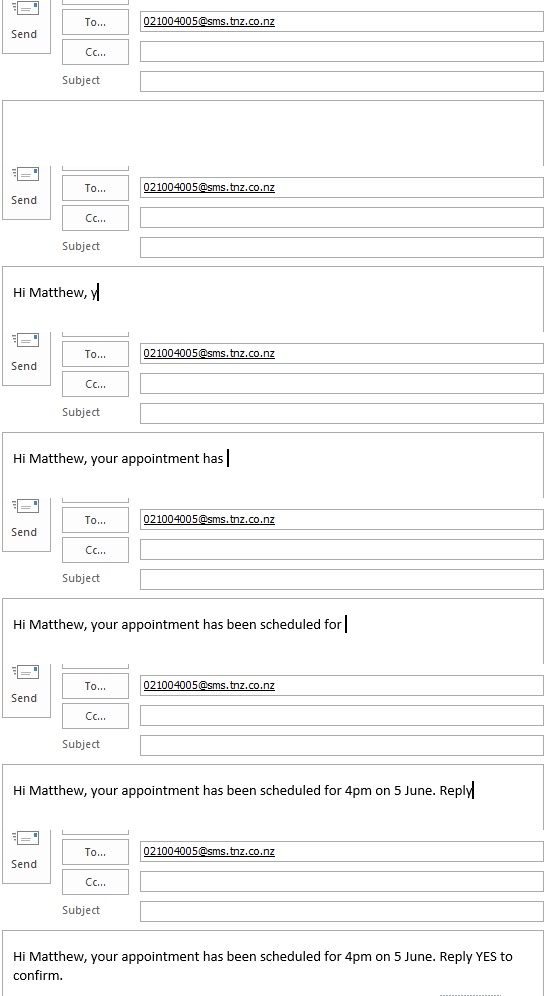
Sending text messages is an effective way to connect with customers, but it can be cumbersome if you don't have the right tools. With the Email-to-SMS service, you can create texts from a simple email.
Send an email containing your text message, and we'll deliver it to the mobile. Replies are sent back to your inbox. Simple.
START YOUR FREE TRIAL →
Why choose TNZ Email to Text?
TNZ's Email to SMS service offers a powerful yet simple way to turn any email into a SMS text message. Whether you're managing server alerts, monitoring critical systems, or handling emergency notifications, our service ensures your message is delivered instantly.
Just send an email to [mobile]@sms.tnz.co.nz and your message will be converted into a text. Support for Emojis 😊, Macrons "ā", Status Reporting and SMS Replies.
Speed of Delivery
Your message reaches its target in around 7 seconds. Perfect for time-sensitive alerts and notifications.
Economical
At just 10c per SMS Part to NZ Mobiles, it's an economical choice for high-priority communications.
Support for Voice
Increase the message urgency and send Email-to-Voice messages from your account with no added monthly fee.
Immediate Attention
Most SMS messages are read within 3 minutes, improving your message's effectiveness.
Local Touch
A local New Zealand support team ensures we understand the NZ market best.
Ease of Integration
No complex setup required. If you can send an email, you can send a SMS message.
Our $20 Starter Plan Offers You
Experience the difference with a complimentary trial. Discover how our messaging solutions can elevate your business communications. Free Trial. No credit card, no commitment.
- One platform, one subscription
- No Minimum Term
- 20 Team Members
- Dashboard, APIs & Integrations
- SMS, Email, Voice & Fax features
- $0 Set Up Fee
- $20 Monthly Fee
- SMS from 10c / SMS Part
How It Works
Compose An Email
Create a new email and put your text message in the body of the email. Learn more
Send to [mobile]@sms.tnz.co.nz
Replace [mobile] with the mobile number. Learn more
Message Received
Our system captures the email and sends the SMS message instantly.
I needed a basic SMS system that converts my IoT devices emails into SMS messages. TNZ's system met that need with no fuss or bother and it worked straight out of the box.
SMS Sending Numbers
Built-In Short Codes
When you send SMS in New Zealand, your messages come from a TNZ Short Code, a 4-digit number like 3003. One is assigned to you automatically based on your message type. It's instant and included in your plan.
Most businesses start here. Built-in Short Codes work well for appointment reminders, alerts, and general business messaging, with no setup required.
Dedicated Short Codes
If you're running keyword campaigns (e.g. "Text INFO to 3003"), want full inbound SMS from any NZ mobile, or are building long-term brand recognition, a Dedicated Short Code gives you exclusive ownership of your number.
Not Sure Which You Need?
Start with a built-in Short Code and upgrade if you need more. Talk to our team, we'll give you an honest recommendation.
Built-In Short Code
Included in your plan
- ✔ Automatically allocated based on your message type
- ✔ Ready in minutes
- ✔ Limited inbound SMS support (restricted to recent replies only)
- ✔ Mobile pays to reply
Dedicated Short Code
Available as an add-on, view pricing and details
- ✔ Your exclusive 4-digit, 5-digit or 6-digit number
- ✔ Full inbound SMS, receive replies from any NZ mobile, anytime
- ✔ Run unlimited SMS keyword campaigns (e.g. "Text INFO to 3003")
- ✔ Build consistent brand recognition across all your messages
- ✔ Choose Standard Code or Free-to-Text (free for the mobile to reply)
Quick, effective communication
The simplest way to stay in touch

Business SMS lets you contact customers instantly, wherever they are. Because users receive messages direct to their phones, they're less likely to miss or ignore them - most text messages are read and replied to within five minutes.
Faster workflow, more free time

Switching your communication to SMS frees up time spent sending individual messages, making phone calls and chasing up customer replies.
Insights through SMS Replies

Email to SMS includes built-in reporting options - you'll know who hasn't opened your messages, whether they reply and how long it takes - giving you valuable insight. Two-way communication means mobiles can reply to your message from their phone, and you'll receive the reply in your email inbox.
Integrate and customise
Works with most email clients
Send and receive texts with no special plugins or extra software. We support Outlook, Office365, Gmail, Thunderbird, iOS and Apple Mail, and most email clients.
USER GUIDE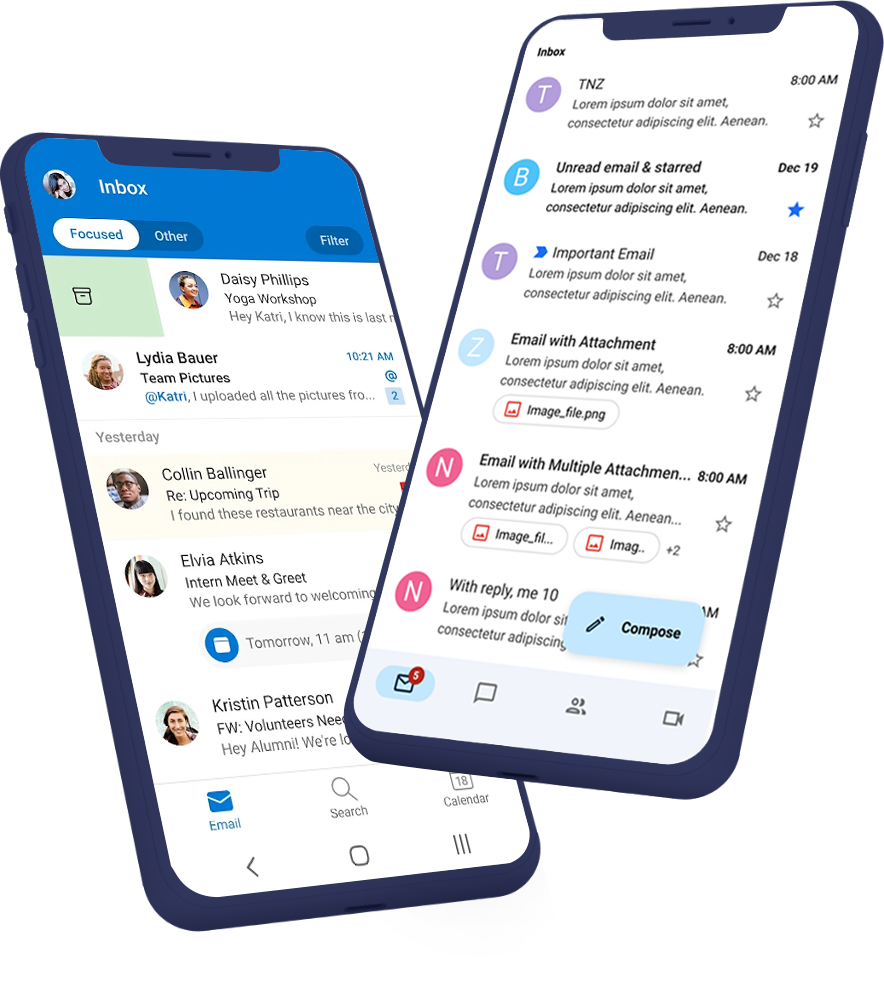
SMS built into your software
Integrate Email-to-SMS technology into your software and reach customers without needing to switch applications. The service can be white labelled for integrators and resellers.
WHOLESALE SMS DEVELOPER GUIDESpeedy communication with short codes
When sending to New Zealand mobiles, your messages send from our shared short code numbers. We can optionally set you up with a dedicated short code to make it even easier for customers to text you first and start the conversation.
DEDICATED SHORTCODES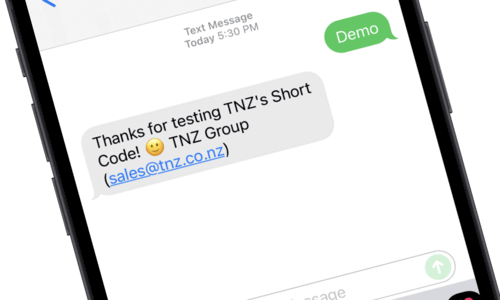
Email To SMS Tools
Create Contact List Groups
Use the TNZ Dashboard to add mobiles to Groups and send a single email to broadcast a message to the entire group.
ADDING ADDRESS BOOK CONTACTSWeb-Based Text Replies
Use Reply Link to capture replies using the web. Free for mobiles to use, with Quick Reply buttons, forms and survey options, and more!
SMS REPLY LINKAutomated Opt-Outs
When a person replies "STOP", the system automatically unsubscribes their mobile number, saving you work.
UNSUBSCRIBE AUTOMATIONBuilt in URL Shortener
Use the dashboard's URL Shortener to streamline your message sending. Each link is shortened and clicks are tracked (including the contact's name and mobile number).
URL SHORTENERDedicated Short Code Number
Own your Short Code Number - all texts you send and receive use the same short number for full control of your brand reputation and reply-text cost.
DEDICATED SHORT CODESStart your free trial today!
Ready to revolutionise your messaging?
Connect with people anywhere - boost engagement, responses and conversations.
20 credits over 14-days. No obligation. No credit card required.