









REST API Docs
WorkflowSMSEmailVoiceText-to-Speech (TTS)FaxWhatsAppRCSWebhooksAddress BookOpt-OutPartner APIAPIs, Libraries & SDKs
 REST API
 TypeScript
 SMPP
SMPP Python
 MCP
MCP .NET
.NET SMTP Gateway
 VBA
VBA Flexi API
 HTTPS API
 SOAP API
 Other Tools REST APITypeScriptSMPPPythonMCP.NETSMTP GatewayVBAFlexi APIHTTPS APISOAP APIOther Tools
 Conversations is a tool in the Online Dashboard for holding a 1:1 text conversation with a mobile number. Every message you send, and every reply that comes back, sits together in a single threaded window.
You'll find it under Conversations in the dashboard's left-hand menu.
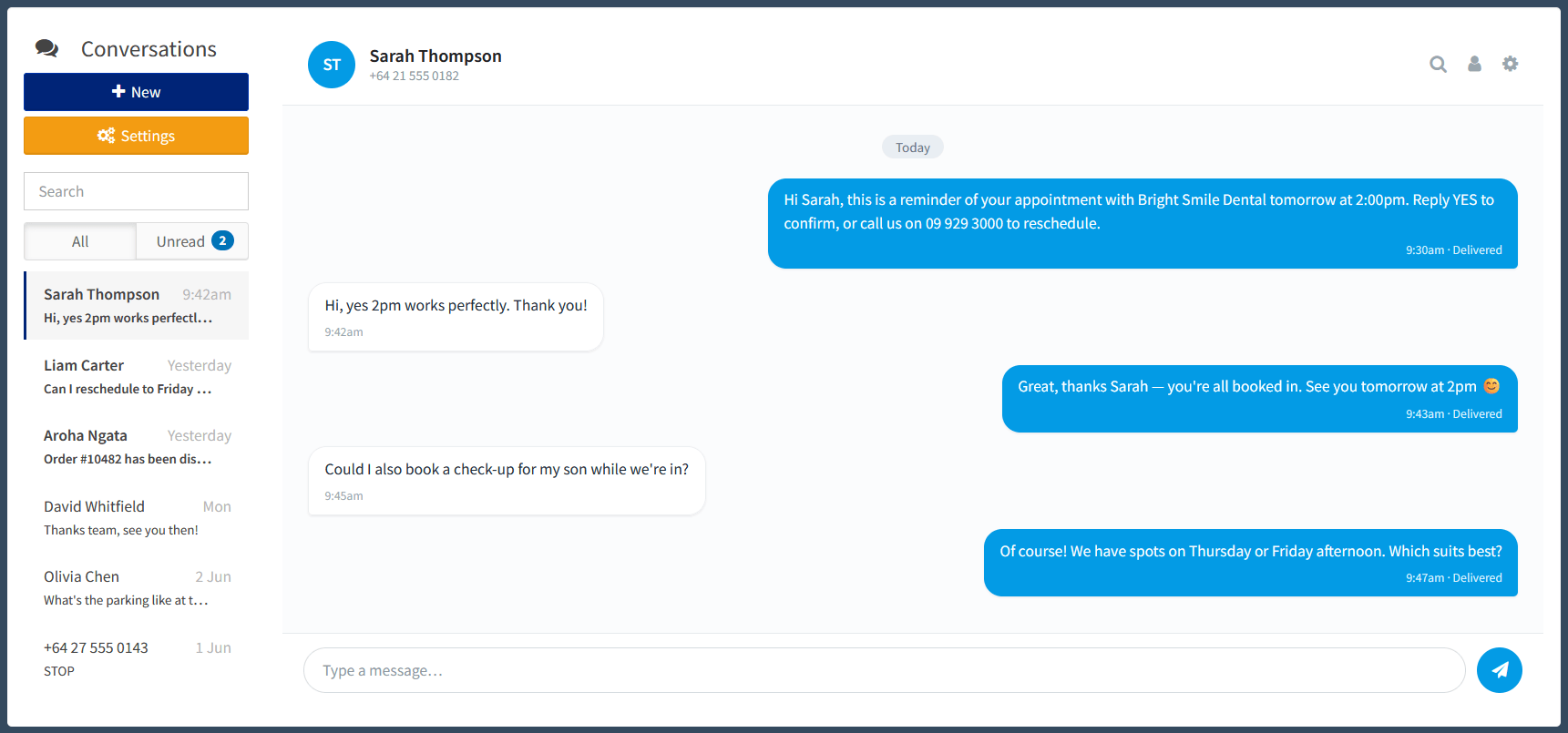
Conversations is built for dashboard users who log in to send SMS and then need to keep track of the replies.
It suits you if you:
Sent and received messages appear in one thread, in order, so nothing is split across separate logs.
When a number matches an Address Book contact, the dashboard shows their name instead of a bare mobile number.
Type your response straight into the open thread and send, without leaving the conversation.
New replies mark a thread as unread and bold, and an Unread filter and counter let you jump straight to what needs a response.
Filter the list by name or number to find a conversation quickly, even once you have a lot of them.
Optionally start a new thread automatically whenever an SMS arrives from a contact you haven't messaged before.
To begin a new thread:
| 1. Open Conversations from the dashboard menu. |
| 2. Click New at the top of the conversation list. |
| 3. Optionally give the conversation a name. Leave it blank and the dashboard will name it for you. |
| 4. Add the mobile number under Destinations, or search your Address Book to pick a saved contact. |
| 5. Click Create. The thread opens, ready for your first message. |
Click a conversation in the list to open it. The thread loads with the earliest message at the top and the most recent at the bottom.
To reply, type into the message box at the foot of the thread and send. Your message is added to the thread straight away, and any response from the contact drops in underneath when it arrives, keeping the whole exchange in one view.
When a contact replies, their thread is marked unread: it moves up the list, shows in bold, and adds to the unread count.
Above the conversation list are two filters:
Use the search box at the top of the list to filter by a contact's name or number when you're looking for one particular thread.
You don't have to start every thread by hand. The dashboard can open one for you whenever an SMS arrives from a contact you haven't been messaging.
To turn it on for yourself:
| 1. In Conversations, click Settings at the top of the list. |
| 2. Switch Auto-Create Conversations to Yes and update. |
Open a conversation's own settings to manage it. From there you can:
Why does a thread show a number instead of a name?The contact isn't in your Address Book, so there's no name to display. Add them as a contact and their name will show. |
Do replies from my contacts come into Conversations automatically?Replies to an existing thread appear in that thread. For a brand-new contact, a thread is created automatically only if you've switched on Auto-Create Conversations; otherwise the reply still arrives in your SMS Received records. |
Can other people in my account see my conversations?Conversations and the Auto-Create setting are tied to each login. Other users manage their own threads and settings from their own logins. |
If I delete a conversation, do I lose the messages?No. Deleting removes the threaded view only. The individual sent and received messages stay in your dashboard records and reporting. |
Is there another way to send SMS from the dashboard?Yes. Conversations is one of several sending tools. See How to Send SMS Using the Online Dashboard for Quick SMS, broadcasts, recurring messages and more. |
If you have any questions or need a hand getting started with Conversations, the TNZ team is happy to help.
Ready to revolutionise your messaging?
Connect with people anywhere - boost engagement, responses and conversations.
20 credits over 14-days. No obligation. No credit card required.