




















Connecting your Pipedrive Account
Connect TNZ SMS to your Pipedrive account. Follow the steps to send SMS from the sidebar, view message history and export contacts.
TNZ SMS is a Pipedrive marketplace app that lets you send SMS messages to your contacts.
 View TNZ SMS in the Pipedrive Marketplace
Features
- Direct SMS to contacts: Send SMS messages to your contacts from the Pipedrive sidebar.
- SMS replies: Send and receive SMS replies, and view your conversations under your Pipedrive contacts.
- Contact sync: Sync your Pipedrive contacts into the TNZ Dashboard to use TNZ's SMS, Email and Voice broadcasting and marketing tools.
- New Zealand and Australia: Send SMS to mobile numbers in New Zealand and Australia.
Connecting TNZ SMS
Step 1: Check for approval
- Confirm with your Pipedrive admin that you can install TNZ SMS.
- If you need approval, send your admin the TNZ SMS marketplace listing.
- Once you have approval to connect the app, proceed to Step 2.
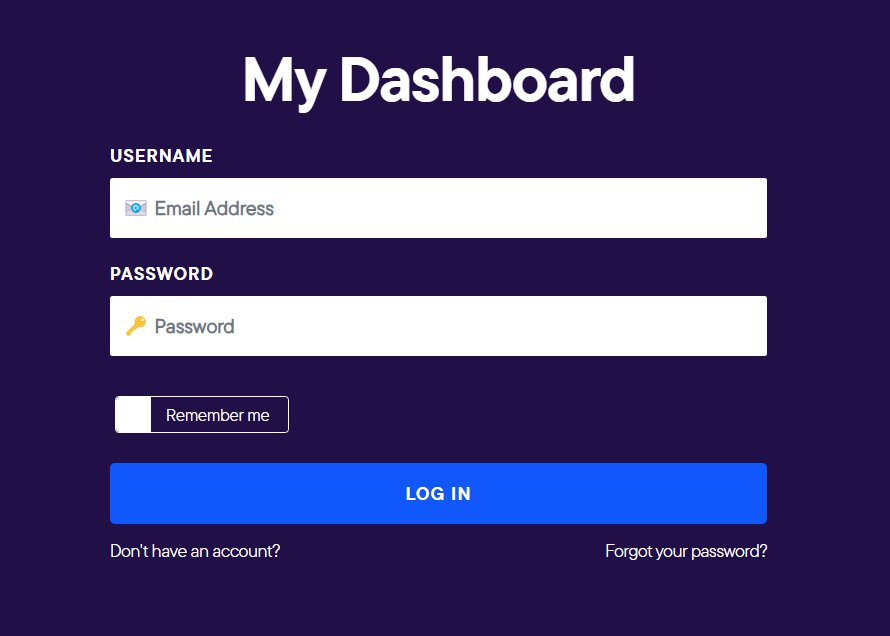
Step 2: Log in to your TNZ Dashboard
Log in to your TNZ account. Make sure your TNZ login name matches your Pipedrive login name.
If you do not have a TNZ account, register here.
Step 3: Connect TNZ to Pipedrive
Select Service Settings → Integrations → Pipedrive, then connect your Pipedrive account.
Make sure your TNZ login name matches your Pipedrive login name.
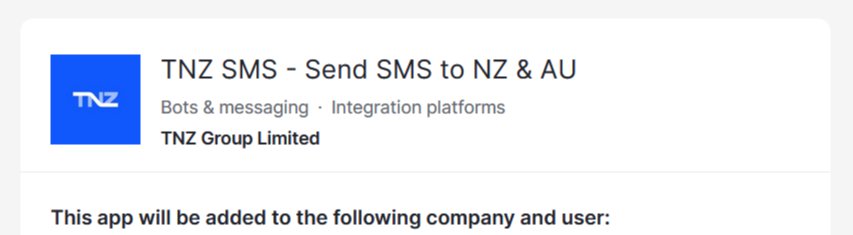
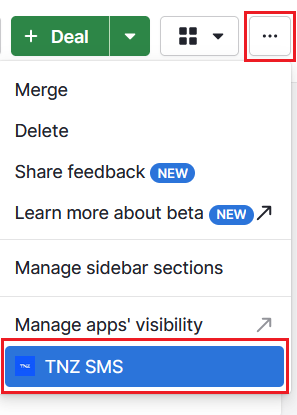
Step 4: Find the TNZ SMS app in Pipedrive
In Pipedrive, open a Contact, Company or Deal with a linked Mobile Phone Number.
Find the TNZ SMS app in the sidebar.
Step 5: View message history in the Contacts Timeline
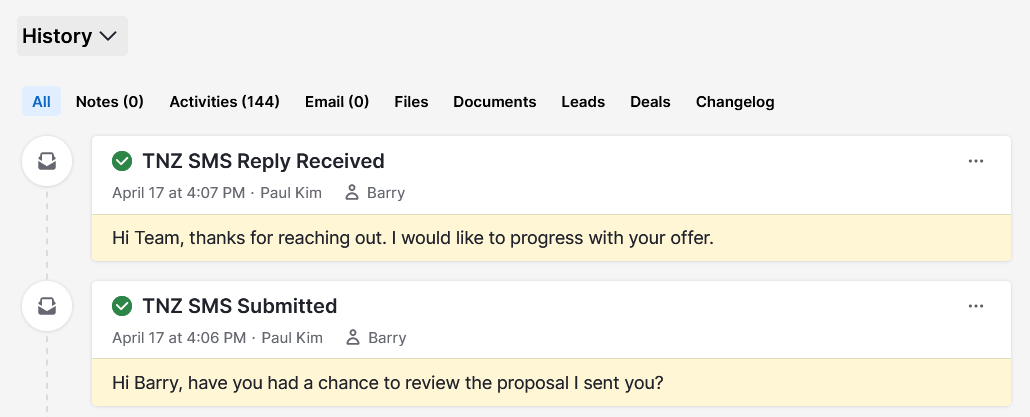
Recent SMS messages sent and received appear in the Timeline section of a Contact, Company or Deal.
Step 6: Send SMS in Automations
You can use automations to send SMS messages. For example, send a welcome SMS when you create a new Contact.
At the time of writing, Pipedrive only allows their own apps in Workflows. Alternative options include:
- Use the Email option to send an Email-to-SMS message. For example, send an email from Pipedrive to [mobile]@sms.tnz.co.nz
- Use Zapier in your workflow: Pipedrive to Zapier triggers the SMS message and then Zapier to TNZ sends the SMS message.
- Use Make.com to connect TNZ and Pipedrive and manage the workflow.
Step 7: Export a contact list for broadcasting
You can send SMS, Email and Voice broadcasts to your contacts.
In Pipedrive:
- Select Contacts
- Filter to display your chosen contacts
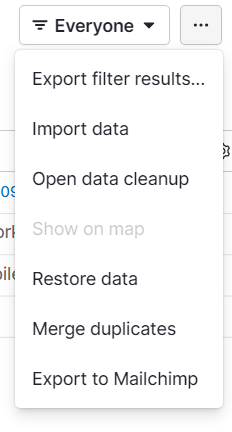
- Click '…' and click 'Export filter results...'
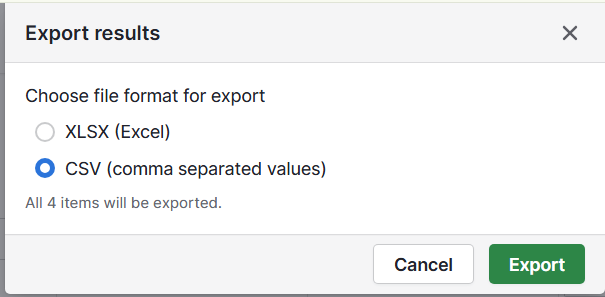
- Click 'Export' and select 'CSV'
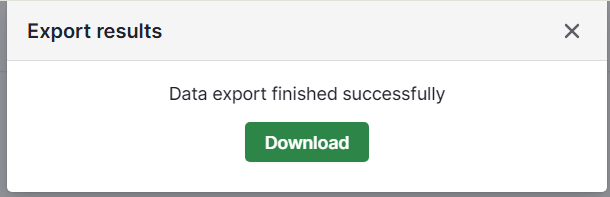
- Download the CSV to your PC
In the TNZ Dashboard:
- Follow the appropriate guide for your message type:
SMS Broadcasts
Email Broadcasts
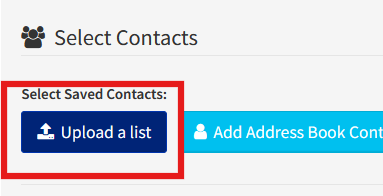
Voice Broadcasts - When selecting contacts in the TNZ Dashboard, import your Pipedrive CSV list.
Troubleshooting and FAQ
Can I see my other TNZ SMS activities in Pipedrive?
Yes. SMS messages sent through the TNZ Dashboard, API or integrations can appear in Pipedrive as an Activity.
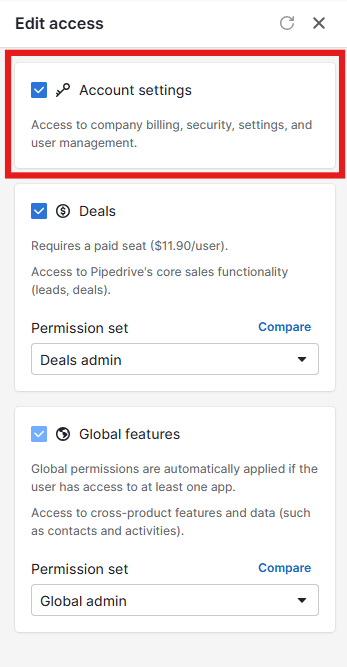
The Pipedrive user must have the 'Account Settings' option enabled to view activities that are not tied to their user.
To change this setting, select Settings → Manage Users.
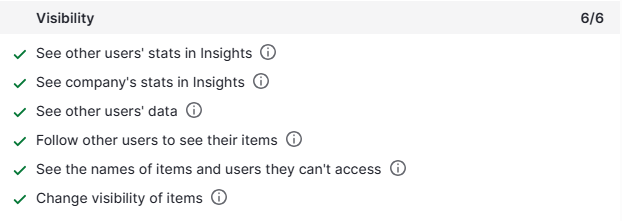
Alternatively, you can add these granular rights to a specific group of users:
I have multiple Pipedrive users. Do I need to add each Pipedrive user manually?
If a Pipedrive Global Admin connects Pipedrive to TNZ, other users sync automatically.
Alternatively, give each Pipedrive user a TNZ Dashboard login and ask each user to connect their Pipedrive account.
Why do my Activities appear more than once?
If your messages appear more than once as Activities, your account may have multiple Global Admin users registered.
Contact TNZ so we can adjust your account to prioritise one Global Admin.
Why do I see an "Authorization Failed" error?
There are two common causes for this error:
1. Your TNZ Dashboard login username is different to your Pipedrive login username. Add another TNZ User that matches your Pipedrive username, then switch to the new login and try again.
2. Your TNZ User's API Access has been corrupted. Contact the TNZ Support Team with a screenshot of the error so they can check your account.
Topics: Installation