









REST API Docs
WorkflowSMSEmailVoiceText-to-Speech (TTS)FaxWhatsAppRCSWebhooksAddress BookOpt-OutPartner APIAPIs, Libraries & SDKs
 REST API
 TypeScript
 SMPP
SMPP Python
 MCP
MCP .NET
.NET SMTP Gateway
 VBA
VBA Flexi API
 HTTPS API
 SOAP API
 Other Tools REST APITypeScriptSMPPPythonMCP.NETSMTP GatewayVBAFlexi APIHTTPS APISOAP APIOther Tools
 The Online Dashboard provides users with a simple point-and-click tool to load a Email Broadcast.
Don't have dashboard access? You can add a dashboard user using your account administrator's login or contact your TNZ representative.
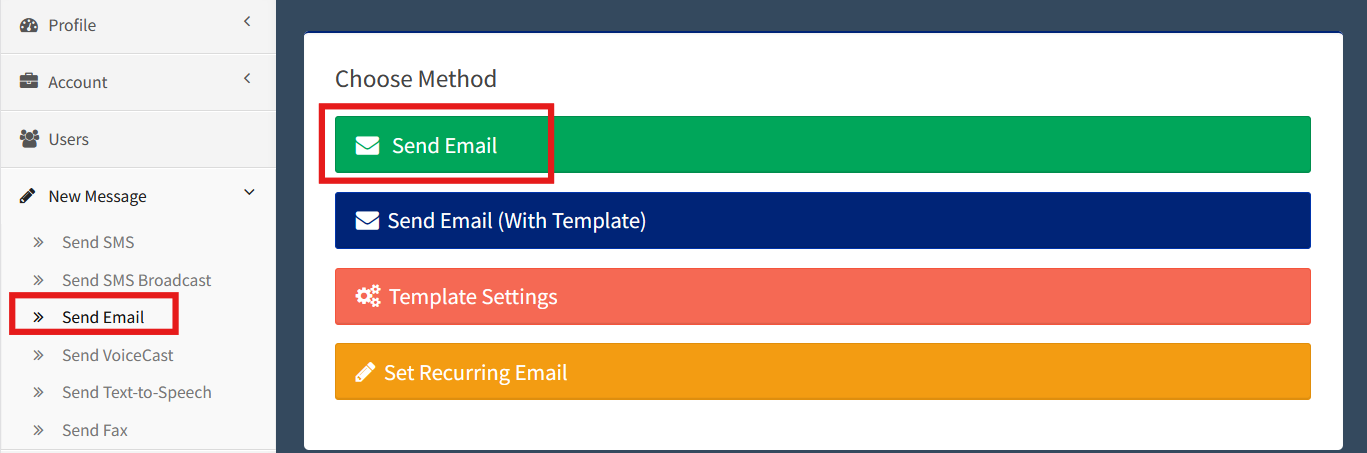
Under New Message | Send Email
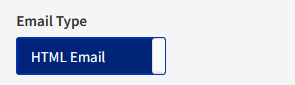
You may select a "Plain Text Email" (great for notifications) or a "HTML Email" (great for newsletters).
Keep your subject line direct, eye-catching and punchy. The subject may include Substitutions and Emojis.

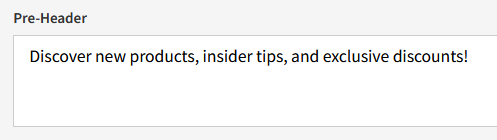
This is the first preview of text that the viewer will see before clicking on the email. It should be informative and eye-catching.
This is the main content of your email.
You may use the built-in editor to design your email from scratch.
The editor includes design functions such as headings, bullets/numbering, links and images.

Check out the pre-designed templates by selecting New Message -> Send Email -> Template Settings -> Manage Templates -> Import Sample.
You may design the email in another tool (even Microsoft Word works!) and copy-paste your email into the editor.
If you are using a specialist Email Design tool, you can import the HTML code by clicking the Source button:

The editor includes functions for inserting Personalisation and an Unsubscribe link.
Personalisation: Inserts custom variables found in your contact list, such as Names.
Unsubscribe: Inserts a dynamic opt-out link for Spam Act compliance. See Unsubscribe Option for Emails.

If you need to add attachments, do so here.
You can include multiple attachments, just ensure you keep the total size to less than 10MB.
Select the Contacts that will receive your message:
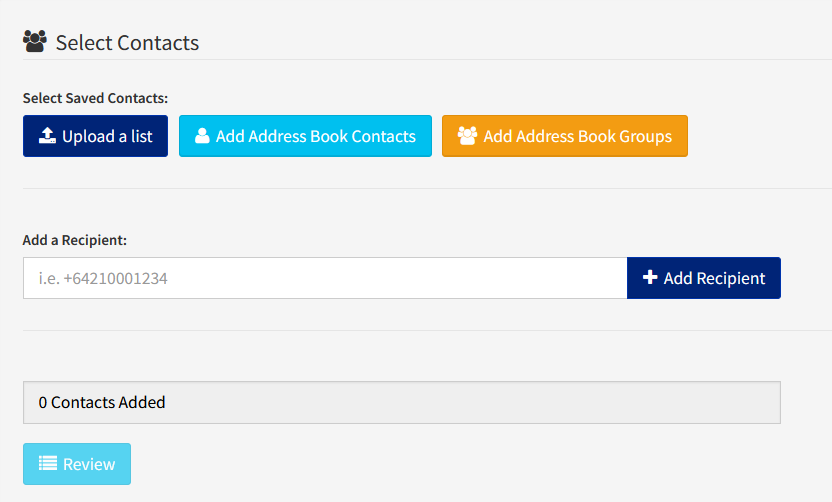
> Upload a List allows you to import contacts from a spreadsheet list file (CSV, XLS or XSLX). See the Creating a Contact List Spreadsheet guide.
> Add Address Book Contacts allows you to select individual contact names and numbers from your TNZ Dashboard Address Book. See the Adding Address Book Contacts video guide.
> Add Address Book Groups allows you to quick-select Address Book Groups.
> Add a Recipient allows you to add individual numbers. This Recipient will receive this message, however, they will not be saved to your Address Book. Personalisation will not work (for example, [[First Name]] will be replaced with silence).
Delay the sending of your Email Broadcast. Time is in your local computer timezone.

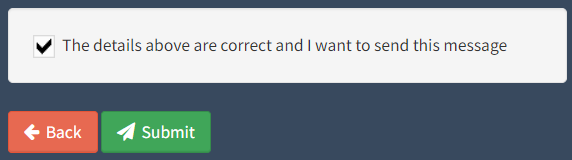
One final check of the details, then click Submit!
You can track message delivery under the View Messages menu:
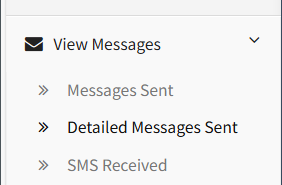
> Messages Sent displays a list of messages sent (displayed by Group/broadcast).
> Detailed Messages Sent displays a list of all messages (displayed by Contact).
Tips:
The Email Delivery Result Codes guide gives insight into email failure reasons.
Ready to revolutionise your messaging?
Connect with people anywhere - boost engagement, responses and conversations.
20 credits over 14-days. No obligation. No credit card required.