









REST API Docs
WorkflowSMSEmailVoiceText-to-Speech (TTS)FaxWhatsAppRCSWebhooksAddress BookOpt-OutPartner APIAPIs, Libraries & SDKs
 REST API
 TypeScript
 SMPP
SMPP Python
 MCP
MCP .NET
.NET SMTP Gateway
 VBA
VBA Flexi API
 HTTPS API
 SOAP API
 Other Tools REST APITypeScriptSMPPPythonMCP.NETSMTP GatewayVBAFlexi APIHTTPS APISOAP APIOther Tools
 TNZ's online Address Book is great for managing contacts:
You may create contacts manually, import a list of contacts from a spreadsheet, automate creation using an API, or sync contacts using a third-party app.
When logged into the TNZ Dashboard, select Address Book from the menu, then click the Launchpad button.
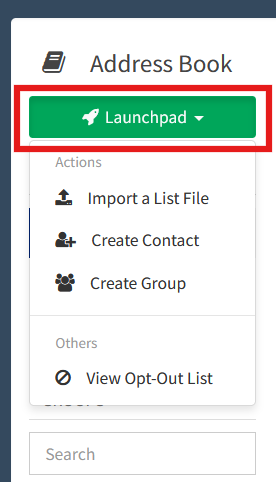
Click Create Contact. You'll see a new-contact window.
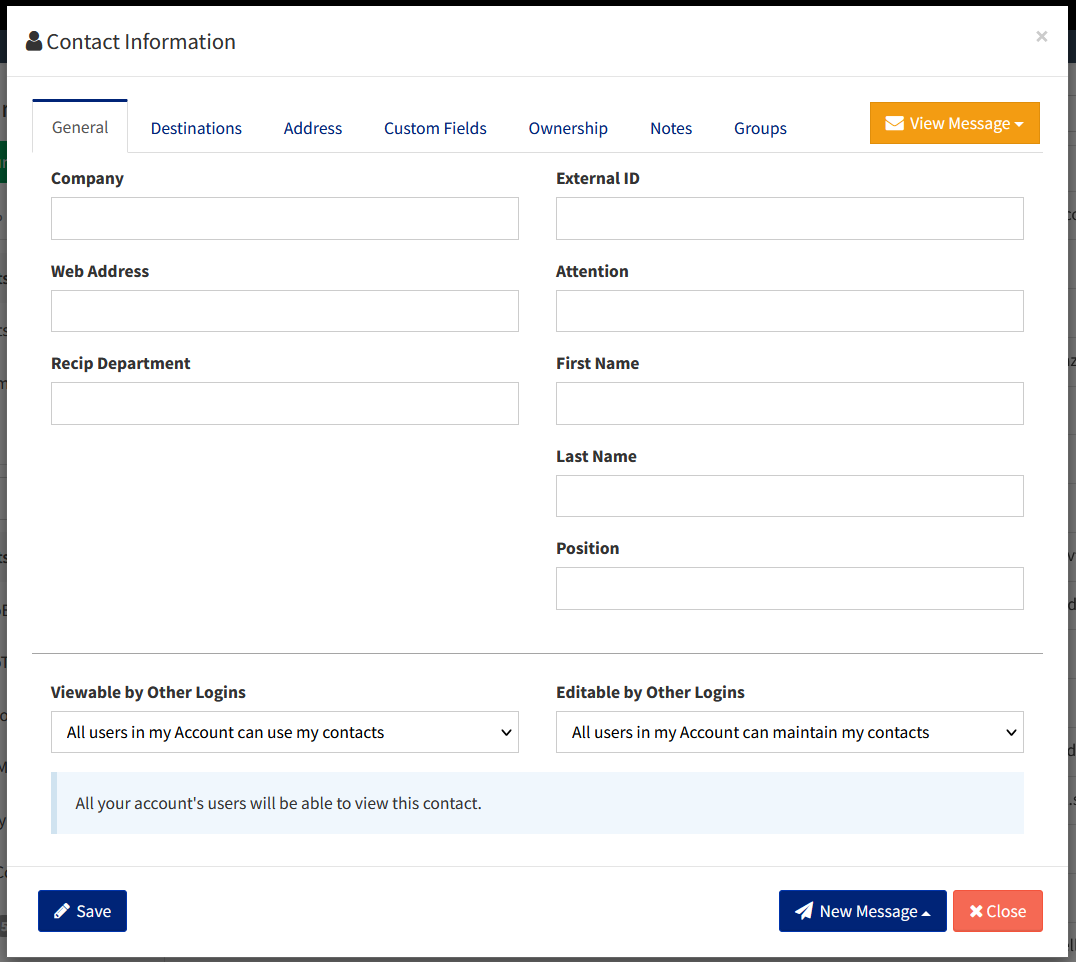
The General tab contains the contact's Name, Company and sharing. The Destinations tab contains the contact's mobile, phone and email. The Group tab lists the groups you'd like to subscribe the contact to.
When logged into the TNZ Dashboard, select Address Book from the menu, then click the Launchpad button.
Click Import a List File. You'll see an upload window. Upload your spreadsheet list (XLS, XLSX, CSV).
Select your Ownership settings appropriately and click Next.
Map your list's columns to the system columns:
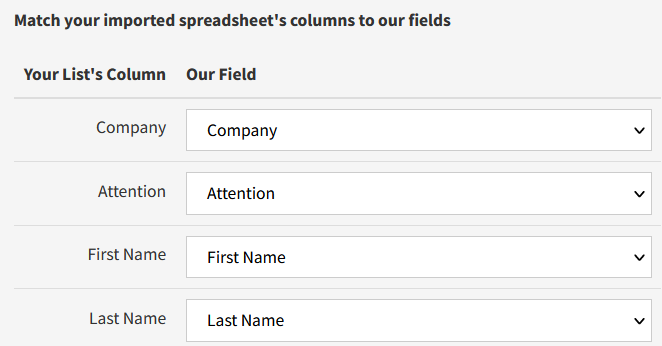
And Submit the changes.
The API supports adding, editing and deleting contacts, groups and group associations.
Documentation: API Address Book
For example, you may:
a) Create a Contact
b) Create a Group
c) Create an association (add the Contact to the Group)
Ensure you've enabled Address Book API access for your API User (in the dashboard under Users, then select your API user and view the API tab).
Apps like CRMs, Databases and Directory services may already store your contacts. These apps can sync with the TNZ Address Book, replicating any changes.
If you are using a supported CRM (HubSpot, Pipedrive, etc), contact syncing is built-in. In the TNZ Dashboard, select Service Settings then Integrations from the menu and click on your connected CRM to review the contact syncing options.
Apps like Zapier and Make.com can sync contacts between disparate systems. When your app edits a contact, the syncing app (Zapier or Make.com) can detect the change and update the TNZ Address Book.
API access is available for all other apps needing to sync data. Get in touch to discuss options.
Topics: Developers Dashboard
Ready to revolutionise your messaging?
Connect with people anywhere - boost engagement, responses and conversations.
20 credits over 14-days. No obligation. No credit card required.