

















Connecting your HubSpot Account
Connecting HubSpot to the TNZ SMS app
Updated
Tailored specifically for HubSpot users, TNZ SMS is a HubSpot marketplace app that transforms how you communicate with your contacts by seamlessly integrating TNZ's SMS messaging into your HubSpot ecosystem.
Features
- Direct SMS to Contacts: Send SMS messages to your contacts within HubSpot directly from the sidebar.
- Workflow SMS Triggers: Automate SMS messages in Deals and Workflows, ensuring timely and relevant interactions without manual effort.
- Conversation Continuity: Keep the conversation flowing with support for SMS replies. All conversations are neatly organized in the HubSpot Timeline, ensuring you never miss a beat.
- Contact Sync: Sync your HubSpot contacts into the TNZ Dashboard to fully utilize TNZ's SMS, Email and Voice broadcasting and marketing tools.
- Exclusive Focus on New Zealand and Australia: Enjoy competitive pricing and unparalleled service quality for sending SMS to mobile numbers in New Zealand and Australia.
Connecting TNZ SMS
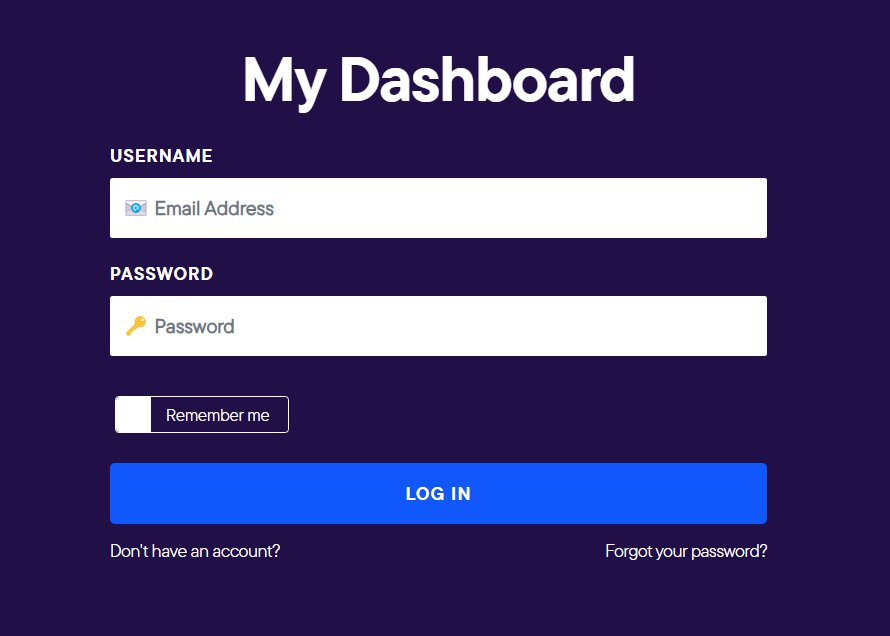
Step 1: Log into your TNZ Dashboard
Login to your TNZ Account: https://my.tnz.co.nz
Ensure your TNZ login name matches your HubSpot login name.
If you do not have an account, you can register here: https://www.tnz.co.nz/Services/SignUp
Step 2: Connect TNZ to HubSpot
From the menu, select Service Settings, then Integrations, then HubSpot and connect your HubSpot account.
Ensure your TNZ login name matches your HubSpot login name.
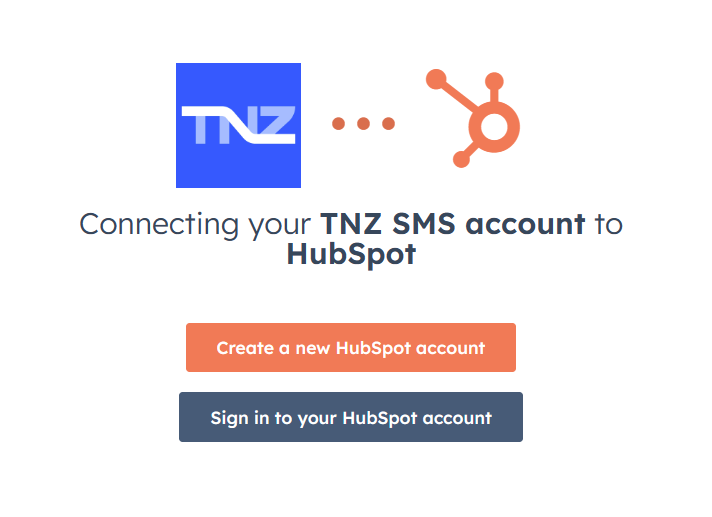
Note: Each HubSpot user will need to repeat this step individually (connect TNZ <-> HubSpot).
Step 3: Find the TNZ SMS app in HubSpot
In HubSpot:
- Open a Contact, Company or Deal with a linked Mobile Phone Number.
- Find TNZ SMS in the sidebar.
- Select Send SMS to create a new message.
- After sending, you'll see the history update to reflect the sent message.
Can't find TNZ SMS in the HubSpot sidebar?
Add through Connected Apps
Ask a HubSpot Super Admin to complete this setup. See HubSpot’s app card guidance for details.
- Open Settings → Account Management → Integrations → Connected Apps.
- Select TNZ SMS, then Settings → App cards.
- Select Manage locations for the card you want to add.
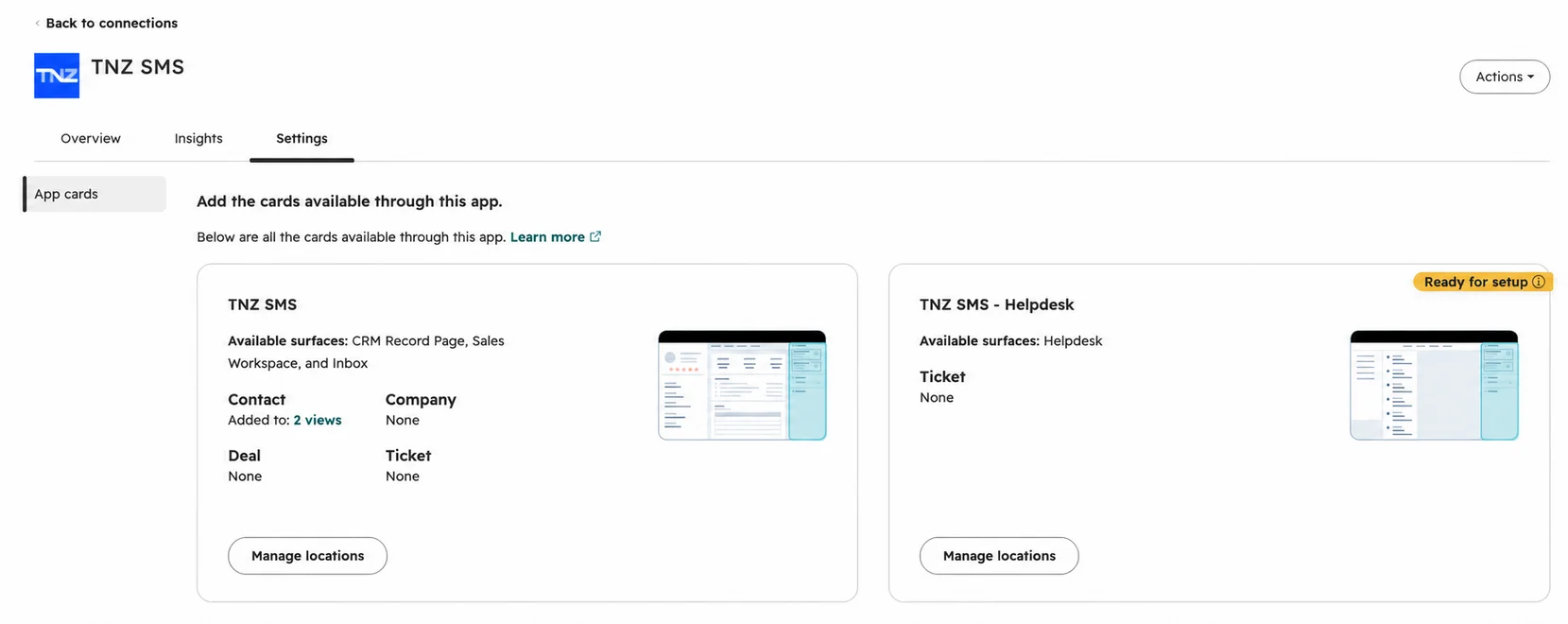
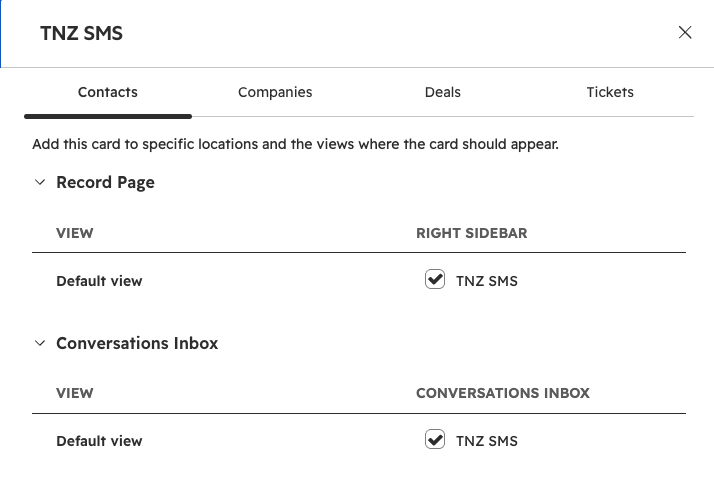
- On the Contacts tab, select TNZ SMS beside each view and location where you want the card to appear.
- Repeat on the Companies, Deals and Tickets tabs. Each tab has its own selections.
- Select Save.
- Repeat for each card type you want to configure.
Return to the record and check its sidebar.
Add manually to views
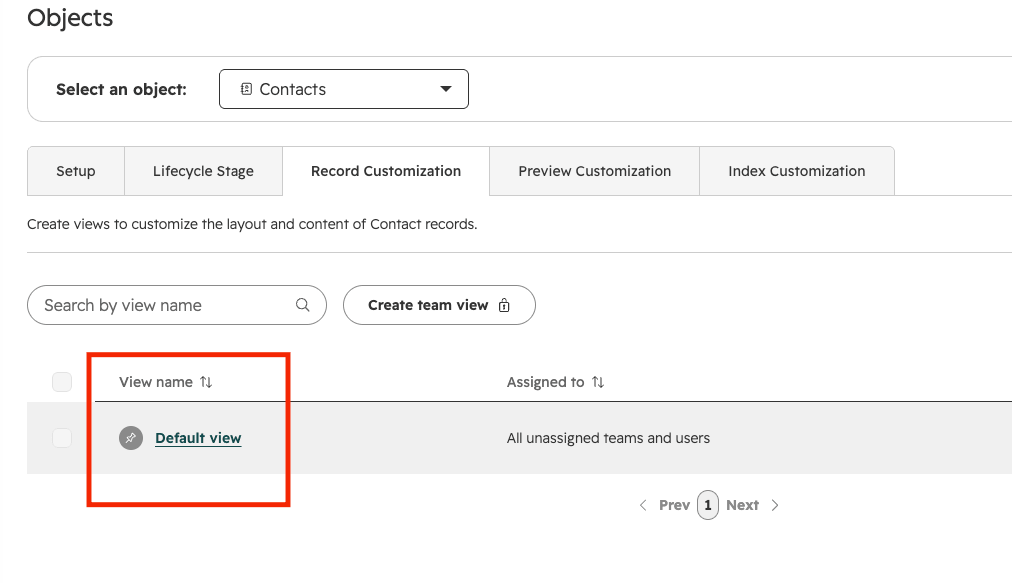
Select Customize:

Select your view:
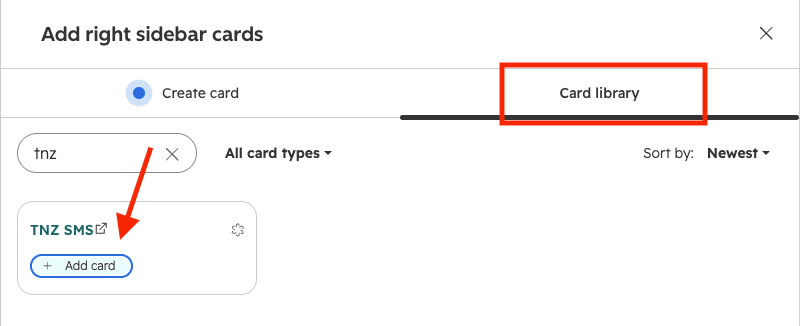
Click Add on the Right-Side Sidebar:
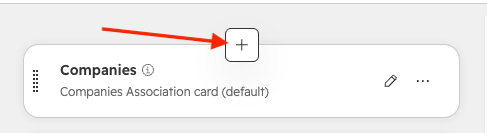
Search under Card Library and select TNZ SMS:
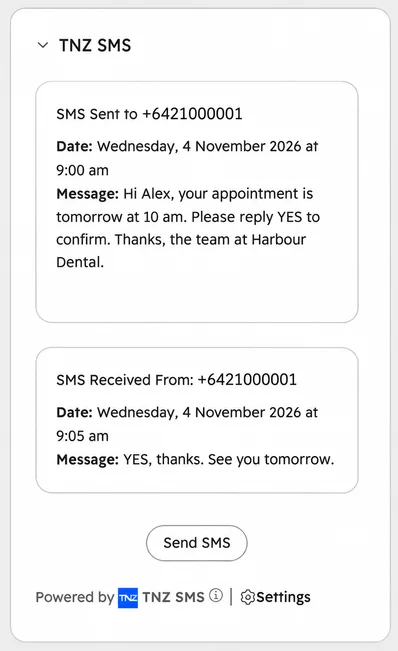
Step 4: View message history in the HubSpot Activity Feed
Under a Contact, Company or Deal, recent SMS messages sent and received will display in the activities section.
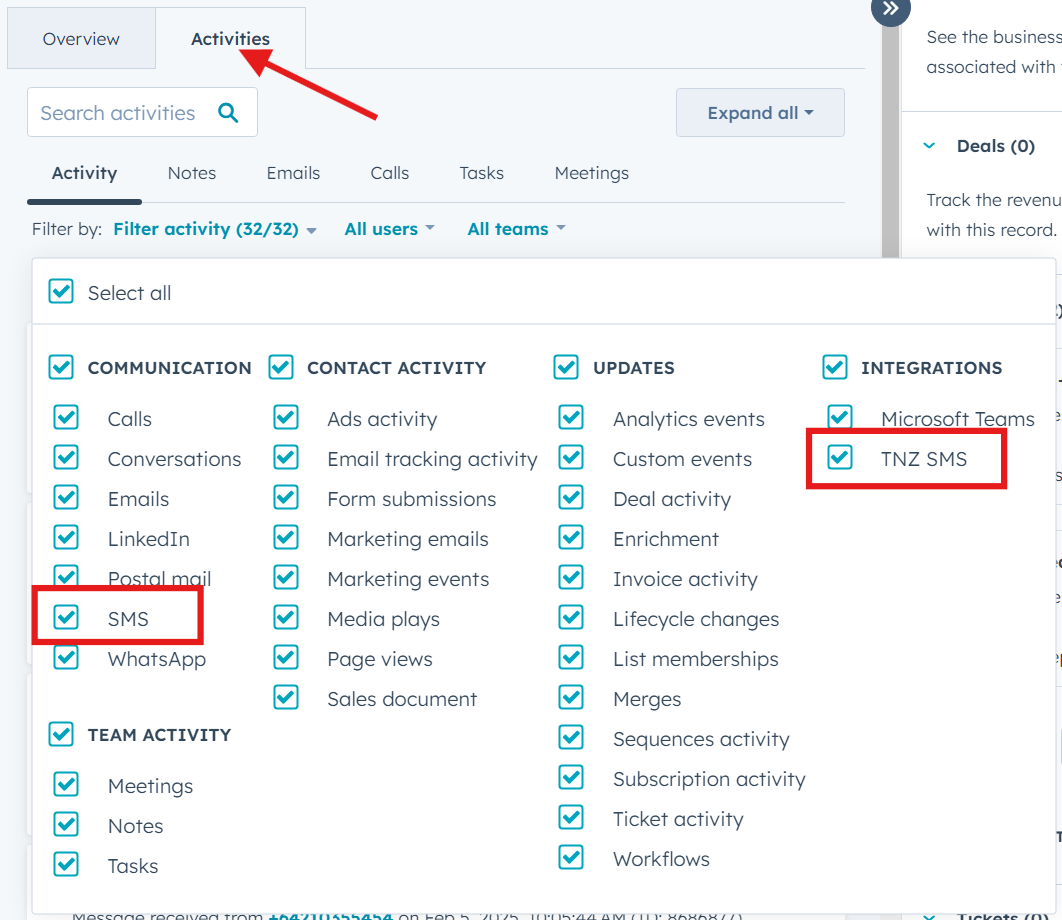
First, you'll need to add "TNZ SMS" to your Activities view:
- Open a Contact in HubSpot
- Click on the Activities tab
- Check the 'SMS' and 'TNZ SMS' options
Note: HubSpot currently does not update the "Last Activity Date" for 'SMS' communications - this is limited to Note, Call, Email, Meeting and Task.
Step 5: Send SMS in Workflows
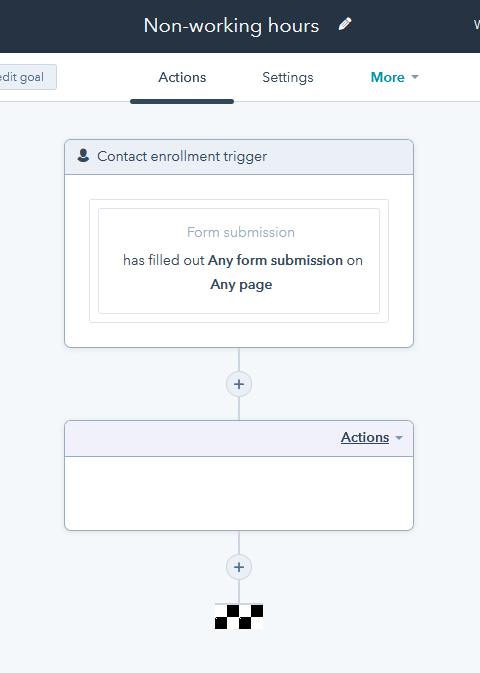
You can optionally use SMS messaging in Workflows, for example, automatically send a welcome SMS when creating a new Contact.
- Create a workflow or edit an existing one
- Set up your Trigger, such as 'user completed form' or 'contact created'
- Set up an Action and select SendSMS
Step 6: Export A Contact List for Broadcasting
You can send SMS, Email and Voice broadcasts to your contacts.
In HubSpot:
- Select CRM, then Contacts
- Create a Filter, View or List that contains your chosen contacts
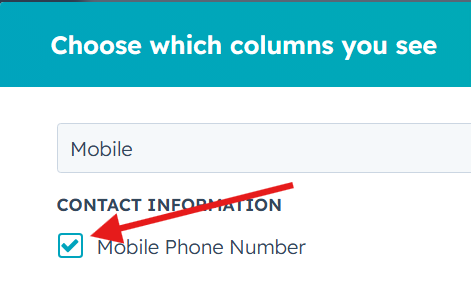
- Click 'Edit Columns' and ensure 'Mobile Phone Number' is displayed
- Click 'Export' and select 'CSV'
- Save the export to your PC
In the TNZ Dashboard:
- Follow the appropriate guide for your message type:
SMS Broadcasts
Email Broadcasts
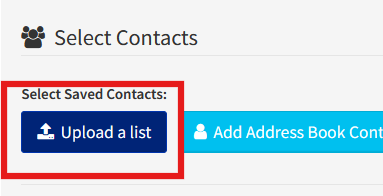
Voice Broadcasts - When Selecting Contacts, import your HubSpot CSV list
Topics: Installation