




Setting up Azure Single Sign-On with the TNZ Dashboard

Use Azure/Entra SSO to automatically sign into the TNZ Dashboard

Step 1:

Create the TNZ SSO Application

  1. Log into Azure as an Administrator
  2. From the main menu, select 'Azure Active Directory'
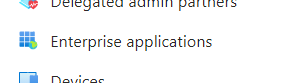
  3. From the submenu, select 'Enterprise applications'
  4. Click 'New Application'
  5. Click 'Create your own application'
  6. Under 'Create your own application':

    What's the name of your app?
    My TNZ Group

    What are you looking to do with your application?
    * Integrate any other application you don't find in the gallery (Non-gallery)
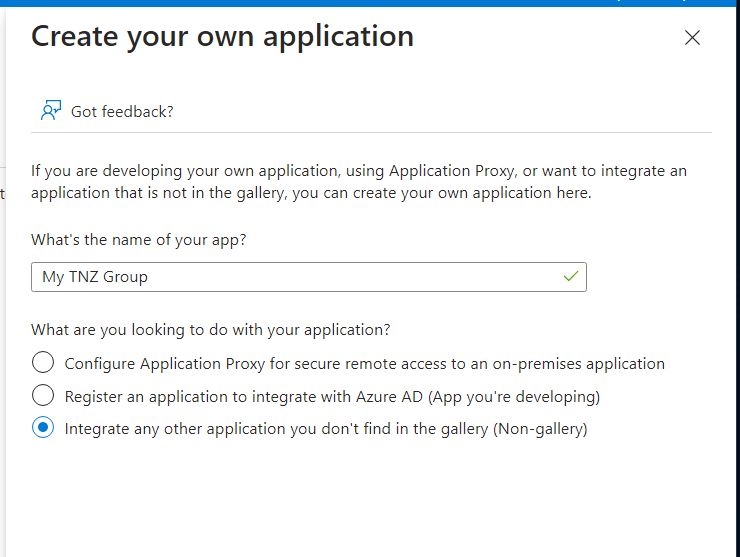

    Azure SSO - Create your own application - Step 1

  7. Click 'Create'


Step 2:

Configure TNZ SSO Settings

  1. From the main menu, select 'Azure Active Directory'
  2. From the submenu, select 'Enterprise applications'
  3. Click on the My TNZ Group application
  4. From the submenu, select 'Single sign-on'
  5. Select the 'Password-based' option

    Azure SSO - Create your own application - Step 2

  6. Under 'Sign on URL' input: https://my.tnz.co.nz/
  7. Click Save


Step 3:

Add SSO Users

  1. From the main menu, select 'Azure Active Directory'
  2. From the submenu, select 'Enterprise applications'
  3. Click on the My TNZ Group application
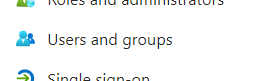
  4. From the submenu, select 'Users and groups'
  5. Click 'Add user/group'
  6. Select the users to add (click 'None Selected' and add users)
  7. Select all the applicable users
  8. Click 'Assign'


Step 4:

Add User Credentials

There are two options:
a) An Azure Administrator can follow these instructions to add credentials for each user, or
b) Pass these instructions on to each user to add their credentials themselves.

Instructions:
  1. From the main menu, select 'Azure Active Directory'

    Azure SSO - Active Directory

  2. From the submenu, select 'Enterprise applications'

    Azure SSO - Enterprise Applications

  3. Click on the My TNZ Group application

    Azure SSO - My TNZ Group

  4. From the submenu, select 'Users and groups'

    Azure SSO - Users and Groups

  5. Select your user (click the checkmark next to the user's Display Name)

    Azure SSO - Checkbox

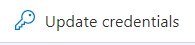
  6. Click 'Update credentials'

    Azure SSO - Update Credentials

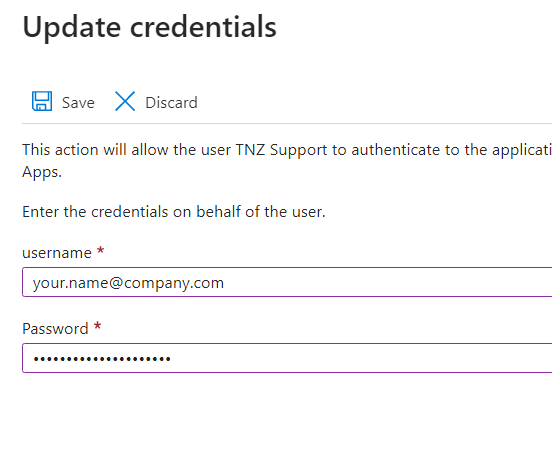
  7. Enter the user's TNZ Dashboard username/password and click 'Save'

    Azure SSO - Update Credentials 2


Topics:   Installation Dashboard

Start your free trial today!

Ready to revolutionise your messaging?
Connect with people anywhere - boost engagement, responses and conversations.

20 credits over 14-days. No obligation. No credit card required.