



















Sending SMS, Email and Voice from Microsoft Excel
Send SMS, Email and Voice from Excel using TNZ’s sample workbook, or adapt its VBA macro for an existing spreadsheet.
Send SMS, Email and Voice/Text-to-Speech messages directly from Microsoft Excel with TNZ's VBA scripts.
You can use TNZ's preconfigured workbook or adapt its macro for a spreadsheet you already use. The documented workflow uses desktop Excel on Windows.
What can you send?
- SMS: send text messages to mobile numbers in your spreadsheet.
- Email: send messages to email addresses in your spreadsheet.
- Voice/Text-to-Speech: turn message text into a spoken phone call.
The sample workbook includes recipient fields, custom fields for personalisation, and controls to send messages and update their status.
Before you start
You need a TNZ account, desktop Excel on Windows, and the TNZ user's Sender/APIKey credentials. Follow the VBA authentication instructions to enable API access and obtain them.
Keep credentials private and restrict access to configured workbooks. Follow your organisation's policy for running macros.
Option 1: Use TNZ's preconfigured workbook
- Open the TNZ VBA documentation and download the sample workbook.
- Save and open the workbook on your Windows computer.
- Follow the documentation's setup instructions and review any Excel security notices.
- Enter your Sender in cell B2 and your APIKey in cell B3.
- Prepare a test row with a recipient you control and the message text.
- Select Send SMS, Send Email, or Send Text-To-Speech for the channel you want to test.
- Check the received message and use Update Status to review its status.
Option 2: Add the macro to your existing workbook
If your team already manages recipients in Excel, use TNZ's sample VBA scripts as the starting point for that workbook.
- Make a working copy of your existing workbook.
- Open the TNZ sample workbook and select Developer, then Visual Basic to review its scripts.
- Copy the relevant VBA scripts into your workbook and adapt their cell references and messaging controls to your layout.
- Configure the Sender/APIKey credentials and save the workbook in a macro-enabled format.
- Test each channel you intend to use with recipients you control.
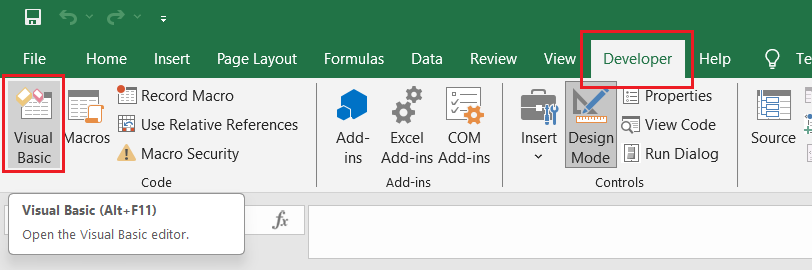
This option requires familiarity with VBA. The VBA scripting reference shows where to inspect the scripts.
Help with setup
If messages fail, check your credentials, recipient fields, and the result shown in the workbook. If macros cannot run, ask your IT administrator to review the workbook.
Contact TNZ for help choosing a workbook approach or investigating a messaging error.
Topics: Installation SMS