

















How to Send and Receive SMS in Zoho CRM Using TNZ
Connect TNZ SMS with Zoho CRM using Deluge functions. Configure a Send SMS button, save outgoing messages and replies as Contact Notes, and test the integration.
Add a Send SMS button to Zoho CRM Contacts and save outgoing messages and replies as Contact Notes.
How the Integration Works
Sending SMS:
Contact → Enter message → Send SMS
The button opens a message box. When TNZ accepts the message, Zoho saves it in an Outbound SMS Note.
Receiving SMS:
Mobile Replies → Zoho Contact Note
TNZ sends the reply to Zoho, which saves it on the matching Contact as an Inbound SMS Note.
Before You Start
- Access to the TNZ Dashboard.
- Zoho CRM Client Script access and Developer Permissions for setup. This guide uses the standard Contact detail page in the web app.
- A Zoho edition with direct custom functions. Zoho lists Enterprise, Ultimate, CRM Plus and Zoho One. Standard and Professional support functions through extensions, outside this guide.
- The Zoho Manage Extensibility permission, plus access to configure Contact buttons and read Contacts and create Notes.
1. Give Zoho access to TNZ
Activate the TNZ API
- Sign in to the TNZ Dashboard.
- Open Users and select or create a dedicated integration User.
- Set Enable API to Yes.
- Select the API tab and set Auth Token to Enabled.
- Select Create Auth Token and copy the token into your approved credential store.

See Generate your TNZ Auth Token for the Dashboard walkthrough.
Save your TNZ token in Zoho
CRM variables are saved values the code reads. Create one for your TNZ token so you do not need to paste it into the code.
- Open Setup → Developer Space → CRM Variables.
- Create a Text variable with the API name
TNZ_Auth_Token. - Paste in the Auth Token copied from the TNZ Dashboard (do not include
Authorization:orBearer). - Save.
2. Add the Zoho SMS Code
If you already use this integration, update your saved sendTNZSMS function below and your receiveTNZSMS function in the receiving step. The changes apply to new Notes.
- Open Setup → Developer Hub → Functions and create a function named
sendTNZSMS. - Choose Standalone as its category, Deluge as its language and String as its return type. Add two String arguments named
contactIdandmessageText. - Copy the code below into its editor. If the editor already shows the first line and outer braces, paste only the code inside those braces.
- Keep the code unchanged for your first test. It reads your saved token and the Contact’s Mobile number automatically.
- Save the function and note its API name. You will use that name in the button code in step 3.
string standalone.sendTNZSMS(string contactId, string messageText)
{
    // The Client Script supplies the current Contact ID and the typed message.
    try
    {
        messageText = ifnull(messageText, "");
        if(messageText.trim() == "")
        {
            return "SMS not sent: enter a message.";
        }
        if(messageText.length() > 2000)
        {
            return "SMS not sent: this message box allows up to 2,000 characters.";
        }
        if(ifnull(contactId, "").trim() == "")
        {
            return "SMS not sent: open a Contact before sending.";
        }
        // Store only the raw token in the CRM variable.
        authToken = ifnull(zoho.crm.getOrgVariable("TNZ_Auth_Token"), "").toString().trim();
        if(authToken == "")
        {
            return "SMS not sent: ask your administrator to set TNZ_Auth_Token.";
        }
        if(authToken.toLowerCase().startsWith("bearer ") || authToken.toLowerCase().startsWith("authorization:"))
        {
            return "SMS not sent: TNZ_Auth_Token must contain only the raw token, without Authorization: or Bearer.";
        }
        contact = zoho.crm.v8.getRecordById("Contacts", contactId.toLong());
        if(ifnull(contact.get("id"), "") == "")
        {
            return "SMS not sent: the Contact could not be read.";
        }
        mobile = ifnull(contact.get("Mobile"), "").trim();
        // Submit the stored number without changing its format. Reject only an empty value.
        if(mobile == "")
        {
            return "SMS not sent: enter a Mobile number on the Contact.";
        }
        payload = Map();
        payload.put("Destination", mobile);
        payload.put("Message", messageText);
        // Add the Bearer prefix here, not in the stored token.
        // A string body plus application/json sends JSON, not form fields.
        response = invokeurl
        [
            url :"https://api.tnz.co.nz/api/v3.00/sms"
            type :POST
            body :payload.toString()
            headers :{"Authorization":"Bearer " + authToken,"Content-Type":"application/json","Accept":"application/json"}
            detailed :true
        ];
        statusCode = response.get("responseCode").toLong();
        if(statusCode == 200)
        {
            result = response.get("responseText").toString().toMap();
            messageId = ifnull(result.get("MessageID"), "").toString();
            if(messageId != "")
            {
                accepted = "TNZ accepted the SMS. MessageID: " + messageId + ". Delivery is not yet confirmed.";
                noteWarning = accepted + " Zoho could not confirm the Contact Note was saved. Check the Contact’s Notes. Do not resend the SMS.";
                try
                {
                    note = Map();
                    note.put("Note_Title", "Outbound SMS");
                    note.put("Note_Content", messageText + "\n\nTo: " + mobile + "\nMessageID: " + messageId);
                    note.put("Parent_Id", {"module":{"api_name":"Contacts"},"id":contact.get("id")});
                    note.put("$se_module", "Contacts");
                    savedNote = zoho.crm.v8.createRecord("Notes", note, {"trigger":List()});
                    if(ifnull(savedNote.get("id"), "") == "")
                    {
                        return noteWarning;
                    }
                }
                catch (noteError)
                {
                    return noteWarning;
                }
                return accepted + " Outbound SMS Note saved.";
            }
            return "Submission outcome unclear: TNZ returned no MessageID. Check the TNZ Dashboard before sending again.";
        }
        if(statusCode == 401 || statusCode == 403)
        {
            return "SMS submission rejected: ask your administrator to check TNZ_Auth_Token and the TNZ API User permissions.";
        }
        // Do not return the raw response, credentials or message content.
        return "TNZ returned HTTP " + statusCode + ". Check the Dashboard and API error before sending again.";
    }
    catch (e)
    {
        // A timeout can happen after TNZ accepts the SMS. Do not retry here.
        return "Could not confirm submission. Ask your administrator to check Zoho and the TNZ Dashboard before sending again.";
    }
}
3. Create the Send SMS Button
- In Zoho CRM, open Setup → Customization → Modules and Fields → Contacts.
- Open Links and Buttons and select Create New Button.
- Name the button Send SMS and choose the Contact View Page. This example uses the standard Contact detail page.
- Choose Client Script as the action and create the script for the Contact layout your team uses.
- Paste the JavaScript below into the Client Script editor. This is separate from the Deluge code saved in step 2.
- Check
functionApiNameat the top of the script. If Zoho assigned a different API name to your sending function, replacesendTNZSMSwith that name. - Save the script and button, and select the profiles that should have access.
This example limits the message box to 2,000 characters, matching Zoho’s textarea limit. The actual SMS message may be limited to a smaller number of characters.
// Paste this body into the Send SMS button's Client Script editor.
// Use the saved function's API name here if Zoho assigned a different name.
var functionApiName = "sendTNZSMS";
var sendButton = ZDK.Page.getButtons().find(function (button) {
    return button.getLabel() === "Send SMS";
});
var loaderVisible = false;
var submissionStarted = false;
var feedback = "";
if (!sendButton) {
    ZDK.Client.showAlert("SMS not sent: the button must be named Send SMS.");
    return;
}
try {
    sendButton.disable();
    var contactId = String($Page.record_id || "");
    if (!contactId) {
        ZDK.Client.showAlert("Open a Contact before sending an SMS.");
        return;
    }
    ZDK.Client.showLoader({type: "page", template: "spinner", message: "Reading Contact..."});
    loaderVisible = true;
    var contact = ZDK.Apps.CRM.Contacts.fetchById(contactId);
    ZDK.Client.hideLoader();
    loaderVisible = false;
    var mobile = String(contact && contact.Mobile || "").trim();
    if (!mobile) {
        ZDK.Client.showAlert("Enter a Mobile number on the Contact before sending.");
        return;
    }
    var input = ZDK.Client.getInput(
        [{type: "textarea", label: "Message", default_value: ""}],
        "Send SMS to " + mobile, "Send", "Cancel"
    );
    if (!input || !Array.isArray(input) || input.length === 0) {
        return;
    }
    var messageText = String(input[0] == null ? "" : input[0]);
    if (!messageText.trim()) {
        ZDK.Client.showAlert("SMS not sent: enter a message.");
        return;
    }
    if (messageText.length > 2000) {
        ZDK.Client.showAlert("SMS not sent: this message box allows up to 2,000 characters.");
        return;
    }
    ZDK.Client.showLoader({type: "page", template: "spinner", message: "Sending SMS..."});
    loaderVisible = true;
    submissionStarted = true;
    var response = ZDK.Apps.CRM.Functions.execute(functionApiName, {
        contactId: contactId,
        messageText: messageText
    });
    // A successful Zoho function call does not itself confirm TNZ acceptance.
    if (response && response.code === "success" && response.details &&
        typeof response.details.output === "string" && response.details.output.trim()) {
        feedback = response.details.output;
    } else {
        feedback = "Could not confirm submission. Check the TNZ Dashboard before sending again.";
    }
} catch (e) {
    // Do not log the exception, Contact, message or response.
    feedback = submissionStarted
        ? "Could not confirm submission. Check the TNZ Dashboard before sending again."
        : "SMS not sent: ask your administrator to check the button setup and Contact access.";
} finally {
    if (loaderVisible) {
        ZDK.Client.hideLoader();
    }
    sendButton.enable();
}
if (feedback) {
    ZDK.Client.showAlert(feedback);
}
4. Set Up Receiving Replies
Add Inbound SMS Credentials
When a contact replies to an SMS sent through TNZ, the reply is added as a Contact Note.
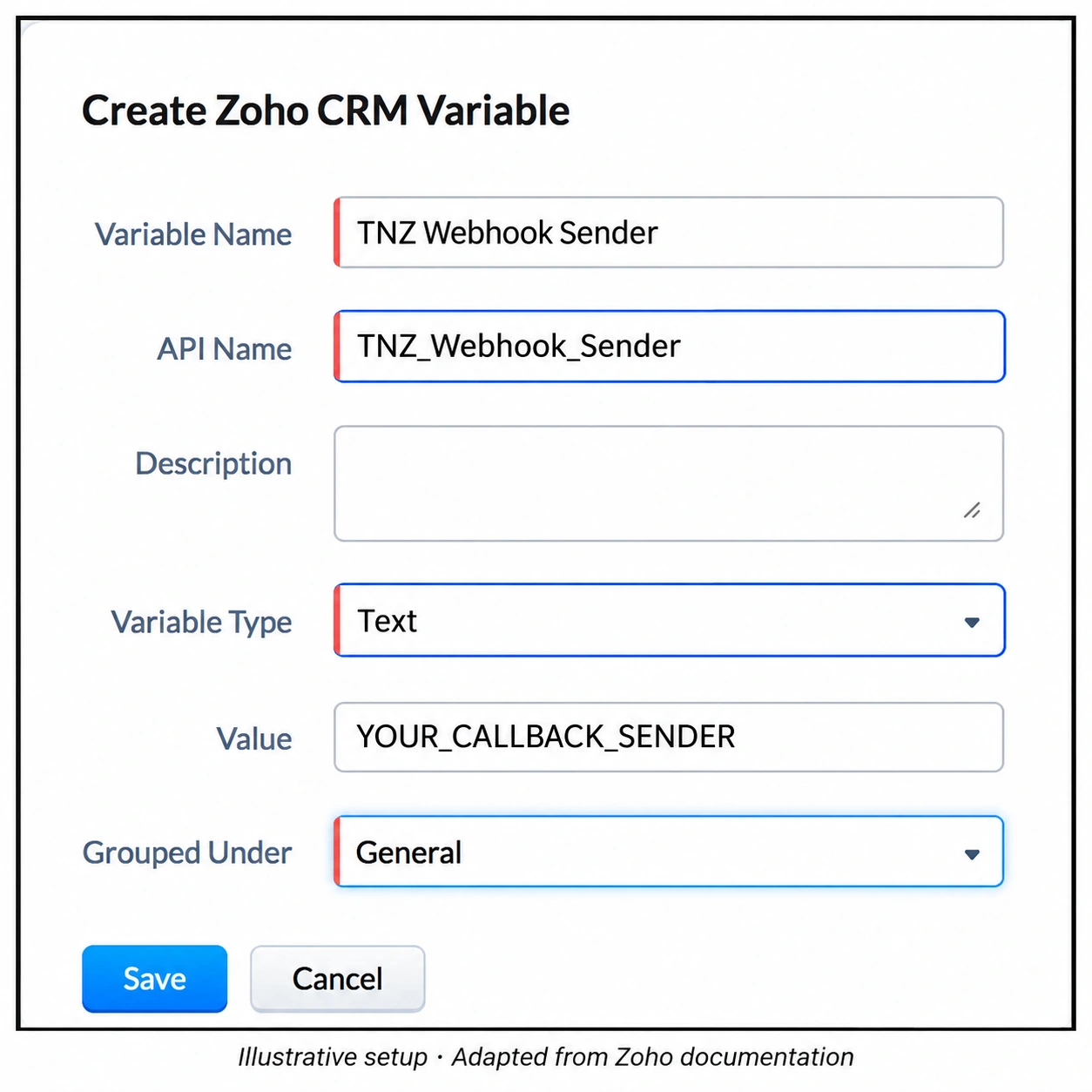
Under Setup → Developer Hub → Variables, create these Text variables:
| Variable API name | Value |
|---|---|
TNZ_Webhook_Sender | Insert your TNZ Dashboard login email address. |
TNZ_Webhook_APIKey | Make up a new secret value. Ideally 10+ characters. |
Add SMS Receiving Code in Zoho
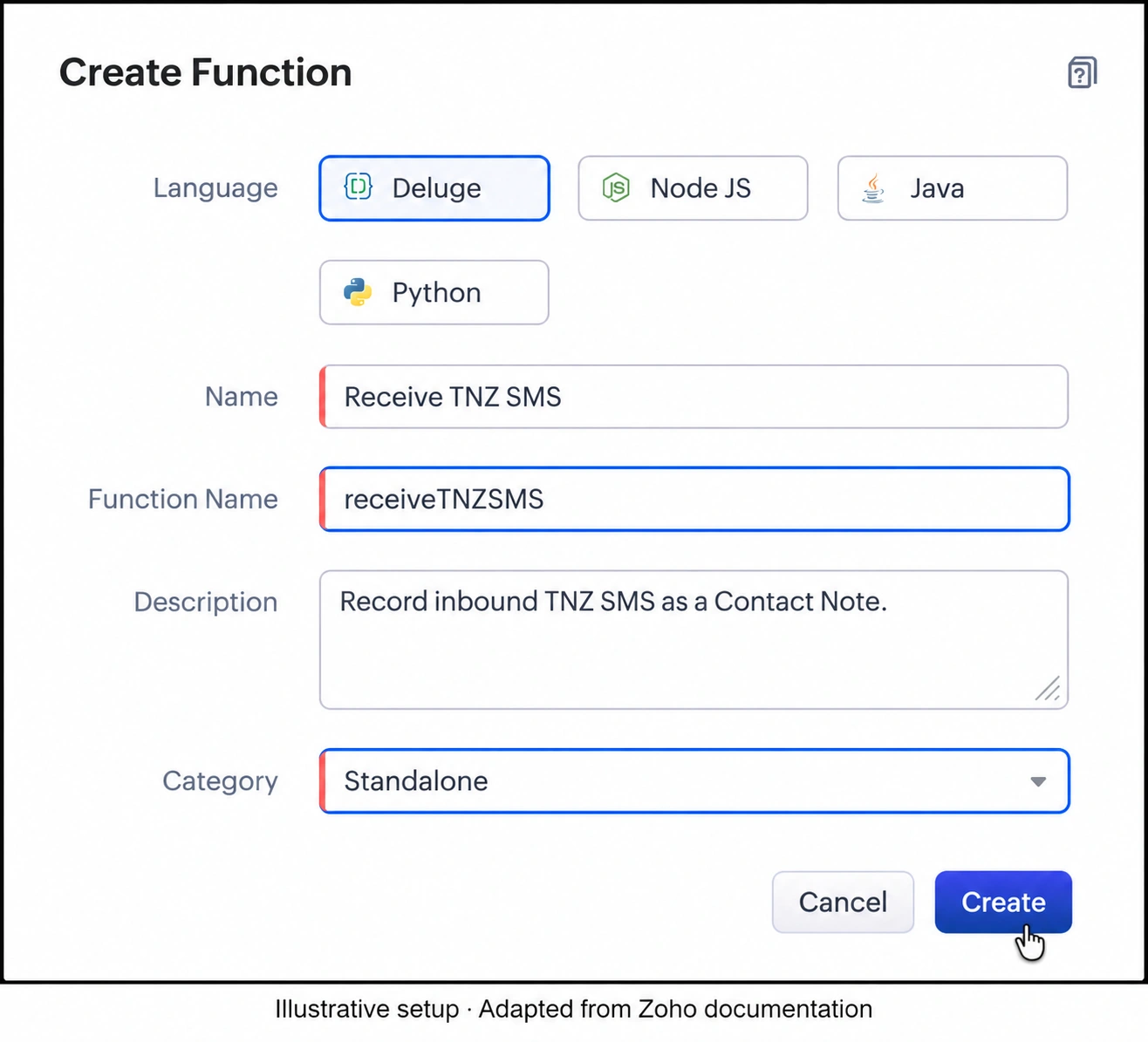
- Open Setup → Developer Hub → Functions.
- Create a function named
receiveTNZSMS. Choose Standalone as its category and Deluge as its language.
Copy the code below into the receiveTNZSMS editor.
If the editor already shows the first line and outer braces, paste only the code inside those braces.
string standalone.receiveTNZSMS(string crmAPIRequest)
{
    // Draft: no duplicate protection. A repeated webhook can add another Note.
    httpStatus = 503;
    outcome = "processing_failed";
    stage = "configuration";
    try
    {
        expectedSender = ifnull(zoho.crm.getOrgVariable("TNZ_Webhook_Sender"), "").toString();
        expectedKey = ifnull(zoho.crm.getOrgVariable("TNZ_Webhook_APIKey"), "").toString();
        if(expectedSender == "" || expectedKey == "")
        {
            outcome = "webhook_not_configured";
        }
        else
        {
            stage = "request";
            request = crmAPIRequest.toMap();
            if(ifnull(request.get("method"), "").toUpperCase() != "POST")
            {
                httpStatus = 405;
                outcome = "post_required";
            }
            else
            {
                stage = "payload";
                event = request.get("body").toString().toMap();
                // TNZ repeats its configured callback credentials in the JSON body.
                // These are separate from the outbound Auth Token and Zoho API key.
                if(ifnull(event.get("Sender"), "") != expectedSender || ifnull(event.get("APIKey"), "") != expectedKey)
                {
                    httpStatus = 401;
                    outcome = "invalid_callback_credentials";
                }
                else if(ifnull(event.get("Version"), "") != "v3.00")
                {
                    httpStatus = 400;
                    outcome = "unsupported_version";
                }
                else
                {
                    eventType = ifnull(event.get("Type"), "");
                    if(eventType == "SMS")
                    {
                        // SMS delivery results share the callback URL. No Note needed.
                        httpStatus = 200;
                        outcome = "delivery_result_ignored";
                    }
                    else if(eventType != "SMSReply" && eventType != "SMSInbound")
                    {
                        httpStatus = 400;
                        outcome = "unsupported_event_type";
                    }
                    else
                    {
                        sender = ifnull(event.get("Destination"), "").toString().trim();
                        matchNumber = "";
                        detail = ifnull(event.get("Detail"), "").toString().trim();
                        if(detail.startsWith("InputToNumber:"))
                        {
                            matchNumber = ifnull(detail.getSuffix("InputToNumber:"), "").trim();
                        }
                        if(matchNumber == "")
                        {
                            matchNumber = sender;
                        }
                        message = ifnull(event.get("Message"), "").toString();
                        receivedId = ifnull(event.get("ReceivedID"), "").toString();
                        receivedTime = ifnull(event.get("SentTimeUTC_RFC3339"), "").toString();
                        outboundId = ifnull(event.get("MessageID"), "").toString();
                        if(matchNumber == "" || message.trim() == "" || !receivedId.matches("[0-9a-fA-F]{8}-[0-9a-fA-F]{4}-[0-9a-fA-F]{4}-[0-9a-fA-F]{4}-[0-9a-fA-F]{12}") || event.get("Status") != "RECEIVED" || event.get("Result") != "RECEIVED")
                        {
                            httpStatus = 400;
                            outcome = "invalid_inbound_fields";
                        }
                        else
                        {
                            // Preserve the supplied timestamp rather than guessing a timezone.
                            if(receivedTime == "")
                            {
                                receivedTime = "Not supplied by TNZ";
                            }
                            stage = "contact_lookup";
                            // Two results are enough to refuse an ambiguous match.
                            // Escape criteria punctuation without changing the matching value.
                            searchNumber = matchNumber.replaceAll("\\", "\\\\", true);
                            searchNumber = searchNumber.replaceAll("(", "\\(", true);
                            searchNumber = searchNumber.replaceAll(")", "\\)", true);
                            searchNumber = searchNumber.replaceAll(",", "\\,", true);
                            matches = zoho.crm.v8.searchRecords("Contacts", "(Mobile:equals:" + searchNumber + ")", 1, 2);
                            if(matches.toString().startsWith("{"))
                            {
                                httpStatus = 503;
                                outcome = "contact_lookup_failed";
                            }
                            else if(matches.size() == 0)
                            {
                                httpStatus = 422;
                                outcome = "contact_not_found";
                            }
                            else if(matches.size() != 1)
                            {
                                httpStatus = 422;
                                outcome = "contact_match_ambiguous";
                            }
                            else
                            {
                                contact = matches.get(0);
                                // Check the returned value too. Do not trust fuzzy matches.
                                if(ifnull(contact.get("id"), "") == "" || ifnull(contact.get("Mobile"), "").trim() != matchNumber)
                                {
                                    httpStatus = 422;
                                    outcome = "contact_exact_match_required";
                                }
                                else
                                {
                                    stage = "note_creation";
                                    note = Map();
                                    note.put("Note_Title", "Inbound SMS");
                                    note.put("Note_Content", message + "\n\nFrom: " + sender + "\nTNZ event time (UTC): " + receivedTime + "\nReceivedID: " + receivedId + "\nOutbound MessageID: " + outboundId);
                                    // No To field: receiving-number extraction is unverified.
                                    note.put("Parent_Id", {"module":{"api_name":"Contacts"},"id":contact.get("id")});
                                    note.put("$se_module", "Contacts");
                                    result = zoho.crm.v8.createRecord("Notes", note, {"trigger":List()});
                                    if(ifnull(result.get("id"), "") != "")
                                    {
                                        httpStatus = 200;
                                        outcome = "note_created";
                                    }
                                    else
                                    {
                                        httpStatus = 503;
                                        outcome = "note_creation_failed";
                                    }
                                }
                            }
                        }
                    }
                }
            }
        }
    }
    catch (e)
    {
        // Never print e or the raw request: either may contain private data.
        httpStatus = 503;
        outcome = "processing_failed";
        if(stage == "request" || stage == "payload")
        {
            httpStatus = 400;
            outcome = "malformed_request";
        }
    }
    // Safe diagnostic only. No phone number, text, key or endpoint URL.
    info "TNZ inbound: " + outcome;
    response = Map();
    response.put("status_code", httpStatus);
    response.put("content-type", "application/json;charset=utf-8");
    response.put("body", {"status":outcome}.toString());
    return {"crmAPIResponse":response};
}
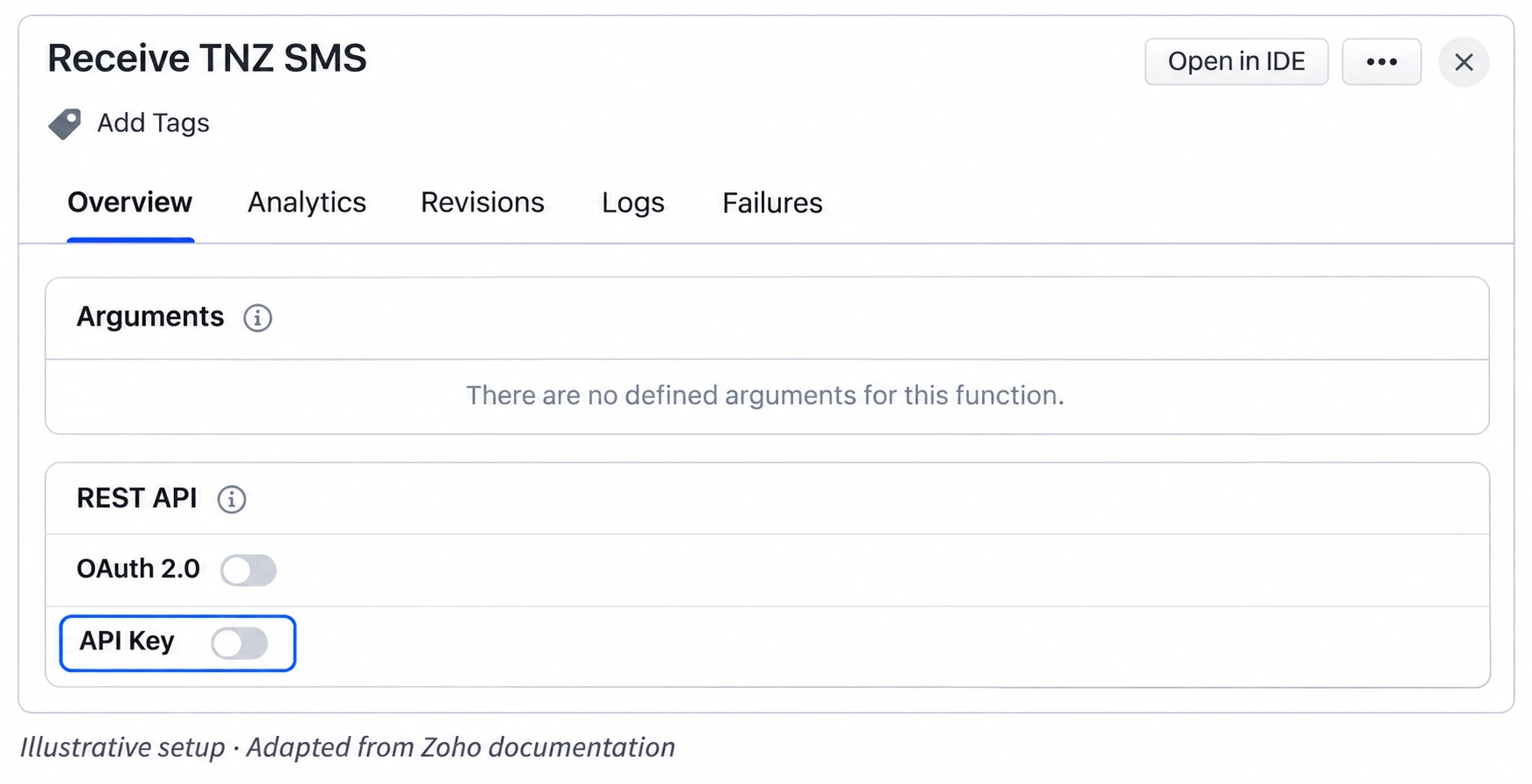
Find your Zoho Webhook URL
Next, we need to find the URL for the Zoho webhook. This is the address where TNZ will send replies.
- Open the saved function’s Overview → REST API settings.
- Enable API Key access.
- Copy the URL. You will paste it into TNZ in step 5.
5. Tell TNZ Where to Send SMS Replies
- In the TNZ Dashboard, open Users and select the API User used for sending.
- Open API → Reporting.
- Set Webhook Callback URL to the complete Zoho URL copied in step 5.
- Set Webhook Callback Format to JSON.
- Set Webhook Callback Version to v3.00.
- Set Webhook Callback Sender and Webhook Callback APIKey to the values saved in
TNZ_Webhook_SenderandTNZ_Webhook_APIKeyin step 5. - Set SMS Reply Report Method to API.
- Save the User.
6. Send a Test SMS
The integration is now ready to send and receive SMS messages.
- In Zoho, open a Contact record.
- Perform a Hard Refresh of the page (Ctrl+Shift+R on Windows or Cmd+Shift+R on Mac).
- Click the Send SMS button.
- Enter a test message and send it.
- After TNZ accepts the SMS, open the Contact’s Outbound SMS Note. Check the message, destination number and full MessageID.
- Reply to the test message.
- On the same Contact, open the new Inbound SMS Note. Check the reply text and compare its outbound MessageID with the one in the Outbound SMS Note.
Troubleshooting
| Symptom | Check |
|---|---|
| The message box does not open | Check that the button action is Client Script, its label is Send SMS, and the script is configured for the Contact layout you are using. |
| The sending function cannot be found | Check that functionApiName in the Client Script matches the saved function’s API name. The function must have String arguments named contactId and messageText. |
| The button is missing | Check Contacts, View Page placement, button profile access and function availability in your edition. After making changes, perform a Hard Refresh of the page (Ctrl+Shift+R on Windows or Cmd+Shift+R on Mac). |
| SMS submission is rejected with "401" | Check that TNZ_Auth_Token contains the raw Auth Token copied from the TNZ Dashboard. Do not include Authorization: or Bearer. The function adds the prefix. Check that the token is current and the TNZ User has API access enabled. |
| TNZ accepts the SMS but the Outbound SMS Note is missing | Keep the MessageID from the send confirmation and check the Contact’s Notes. Ask your Zoho administrator to check the sending function and its permission to create Notes. Do not resend the SMS to recreate the Note. |
| TNZ accepts the SMS but it does not arrive | Use MessageID to check the Dashboard result. Submission and delivery are separate events. |
| No reply reaches Zoho | Check reply routing, the API User’s Reporting settings, JSON format and the complete regional Zoho endpoint URL. If the reply is still missing, try changing the Contact’s Mobile value to international format, such as +6421xxxxx. Send a new SMS, then reply to it to test again. |
| Zoho rejects the reply (HTTP 400 or 405) | Check that TNZ’s callback format is JSON and its version is v3.00. Confirm that you copied the complete receiveTNZSMS code. If the error continues, ask your Zoho administrator to check how crmAPIRequest receives the request. |
| The reply cannot be matched to a Contact (HTTP 422) | Check that the Contact’s Mobile number has not changed since sending, and that no other Contact uses the same number. The code matches InputToNumber in Detail first, then Destination if InputToNumber is missing or blank. |
| Zoho cannot save the reply (HTTP 503 or processing_failed) | Check that the reply verification values are saved correctly. Ask your Zoho administrator to check permission to read Contacts and create Notes, usage limits and the function’s error records. Do not share tokens or private message details. |
Topics: Installation SMS