









REST API Docs
WorkflowSMSEmailVoiceText-to-Speech (TTS)FaxWhatsAppRCSWebhooksAddress BookOpt-OutPartner APIAPIs, Libraries & SDKs
 REST API
 TypeScript
 SMPP
SMPP Python
 MCP
MCP .NET
.NET SMTP Gateway
 VBA
VBA Flexi API
 HTTPS API
 SOAP API
 Other Tools REST APITypeScriptSMPPPythonMCP.NETSMTP GatewayVBAFlexi APIHTTPS APISOAP APIOther Tools
 To begin sending WhatsApp Messages through TNZ, you must first establish a WhatsApp Business Account (WABA) and authorise TNZ as your technical provider.
This process ensures your messaging remains compliant with Meta's official policies while giving TNZ the necessary permissions send WhatsApp messages on your behalf.
Your organisation must have a Meta Business Portfolio (formerly known as a Business Manager account).
Note: Meta may require Business Verification when creating an account. This involves uploading documents (such as business registration or utility bills) to prove your entity's legitimacy. While not always required immediately, it is necessary to increase messaging limits.
The WABA (WhatsApp Business Account) serves as the container for your phone numbers and message templates.
If you would like TNZ to manage your WhatsApp Business Account on your behalf:
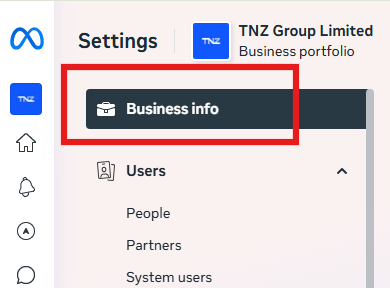

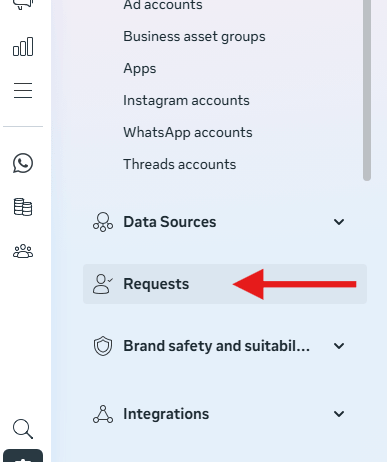
If you prefer to retain control and self-manage your own WhatsApp Business Account and Templates:
Meta will verify the number with a verification code. This can optionally be sent as an SMS or Voice call.
Enter the 6-digit code sent by Meta to finalise the connection.
| Permission | Purpose | Requirement |
|---|---|---|
| Message templates (view only) | Allows TNZ to automatically retrieve any templates you've manually added through the Meta portal. | Mandatory |
| Message templates (view and manage) | Allows TNZ to submit messages templates to Meta for approval. | Recommended |
| Phone numbers (view only) | Allows TNZ to automatically retrieve your WhatsApp phone numbers. | Mandatory |
| Phone numbers (view and manage) | Allows TNZ to create WhatsApp phone numbers under your WhatsApp Business Account. | Recommended |
| Manage phone numbers and message templates | See 'Message templates (view and manage)' and 'Phone numbers (view and manage)'. | Recommended |
| Messages | Allows TNZ to send and receive WhatsApp messages. | Mandatory |
When creating a WhatsApp Business Account, Meta will verify your business and settings. They may reject your application - these are the common rejection reasons:
| Reason | Explanation |
|---|---|
| Display Name Rejected | Ensure your name isn't "all caps" (unless it's an acronym) and doesn't include taglines like "Best Prices." It must clearly represent your business. Good examples would be "ABC Ltd" or "ABC Alerts". |
| Template Rejection | Meta rejects templates that appear overly promotional (spammy), or don't match their category (e.g. a Marketing template marked as Utility) or have formatting errors in the variables. |
| Number Already in Use | You must fully decommission the number from the consumer WhatsApp app before it can be used on the Business Platform, or request that TNZ provide you with a new number. |
For further assistance with your WhatsApp onboarding, please reach out to our technical support team.
Topics: Installation
Ready to revolutionise your messaging?
Connect with people anywhere - boost engagement, responses and conversations.
20 credits over 14-days. No obligation. No credit card required.