















Connecting TNZ with Zapier
Use TNZs SMS, Email and Voice in Zapier Zaps and Actions
Connect to TNZ's Zapier app and use SMS, Email and Voice in your Zapier automations.
Features
- Send SMS: Set up an Action to send SMS from Zapier
- Send Email: Set up an Action to send Emails from Zapier
- Send Voice/Text-to-Speech: Set up an Action to send Voice Calls from Zapier
- Receive SMS: Set up a Trigger when an SMS is received to your TNZ account
- Intuitive Dashboard: View messages sent and received in TNZ's easy-to-use web dashboard
- Continuity: Use Zapier to trigger automations, then continue the conversation using TNZ's messaging tools (Dashboard, API and other Integrations such as HubSpot and Pipedrive).
-
Exclusive Focus on New Zealand and Australia: Enjoy competitive pricing and unparalleled service quality for sending SMS to mobile numbers in New Zealand and Australia.
Connecting TNZ with Zapier
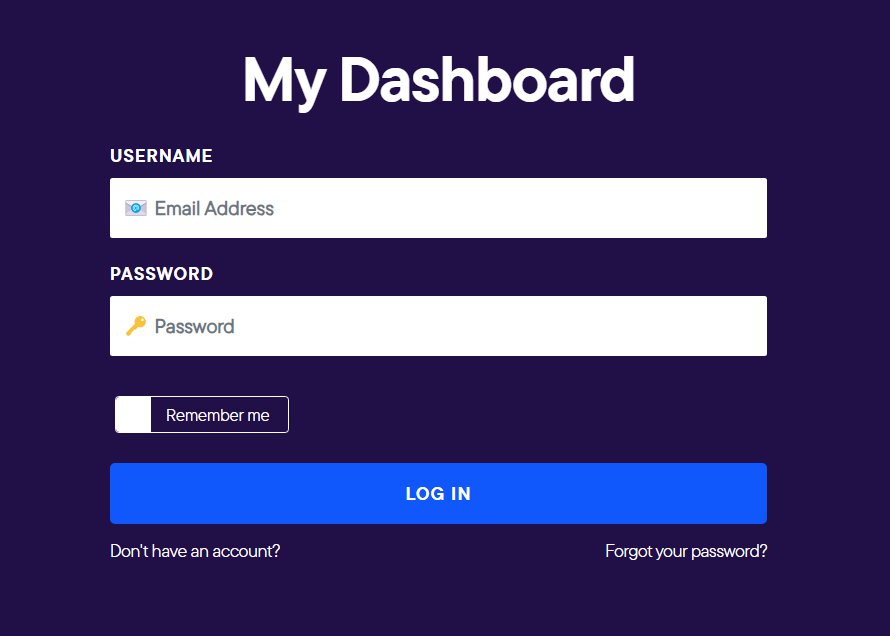
Step 1: Log into your TNZ Dashboard
Login to your TNZ Account: https://my.tnz.co.nz
If you do not have an account, you can register here: https://www.tnz.co.nz/Services/SignUp
Step 2: Connect TNZ to Zapier
From the menu,
- Select Service Settings.
- Select Integrations then select Zapier.
- Connect your Zapier account.
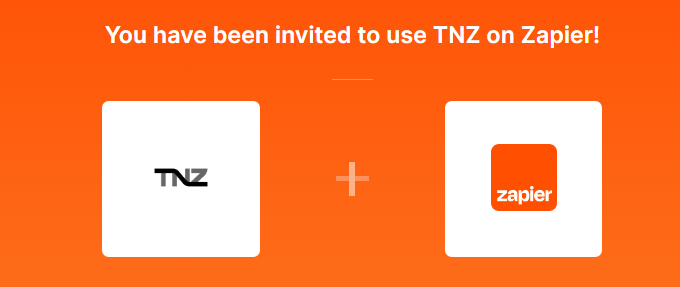
Step 3: Log into Zapier using your TNZ account
From Zapier:
- Open Zapier and log in.
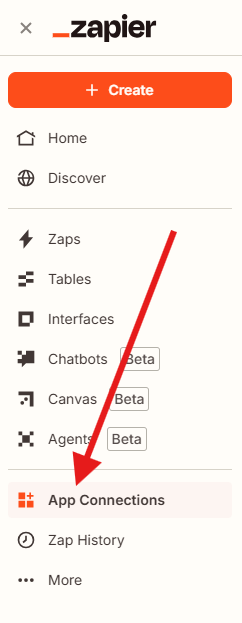
- Select 'App Connections' from the menu.
- Click 'Add Connection' and search for 'TNZ'.
Select the latest version available. For TNZ Dashboard users, this is currently 2.2.0. For other users, select 'TNZ'.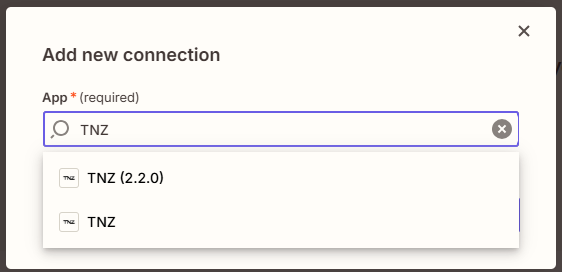
- Click 'Add Connection'.
Then from the TNZ Dashboard:
- Open the TNZ Dashboard and log in.
- Navigate to Users and click on your User Email Address.
- If the API is not enabled, you will need to:
- Click the 'Edit/Modify' button
- Click 'Enable API'
- Click 'Enable' next to 'Auth Token'
- Click 'Create Auth Token' and confirm
- Click 'Update' at the top of the page to save your changes
- 'Copy' your new Auth Token.
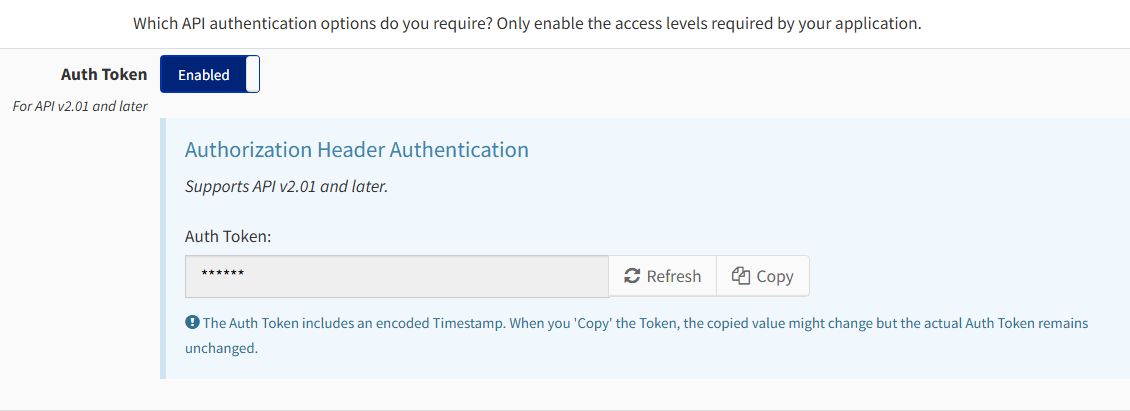
Then back to Zapier:
- Paste in your Auth Token.
- Add a Connection Name (an optional identifier).
- Click 'Continue'.
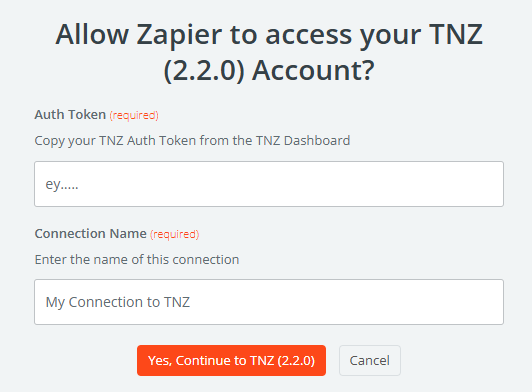
Using TNZ with Zapier
TNZ Triggers
TNZ can trigger a Zapier Zap in the following scenarios:
- SMS Message is received on your TNZ account.
- Find a TNZ Address Book contact's information.
For example, when an SMS is received, Zapier can update a spreadsheet row:
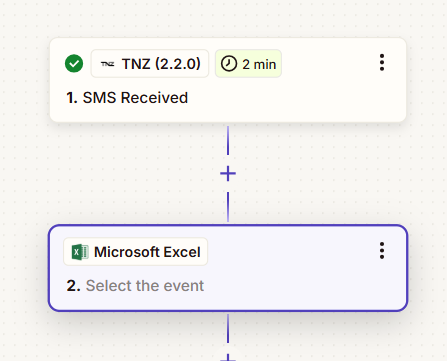
TNZ Actions
A Zapier Zap can cause TNZ to perform the following actions:
- Send an SMS message.
- Send an Email.
- Send a Text-to-Speech Call.
- Create a TNZ Address Book Contact.
- Update a TNZ Address Book Contact.
- Delete a TNZ Address Book Contact.
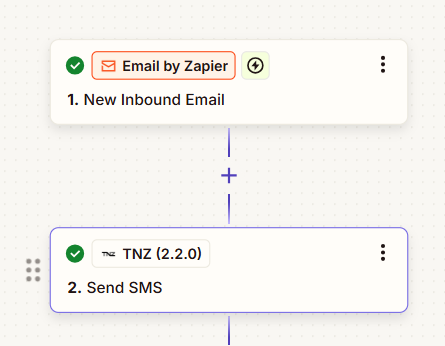
For example, when Zapier receives an email, it can trigger an SMS message:
Reporting on Zapier Activity
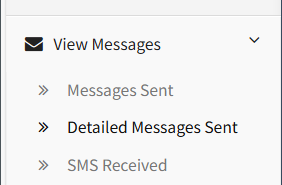
When sending messages through Zapier, you can review your usage in the TNZ Dashboard.
Select 'View Messages' then 'Detailed Messages Sent' from the menu.
Topics: Installation
Start your free trial today!
Ready to revolutionise your messaging?
Connect with people anywhere - boost engagement, responses and conversations.
20 credits over 14-days. No obligation. No credit card required.