









REST API Docs
WorkflowSMSEmailVoiceText-to-Speech (TTS)FaxWhatsAppRCSWebhooksAddress BookOpt-OutPartner APIAPIs, Libraries & SDKs
 REST API
 TypeScript
 SMPP
SMPP Python
 MCP
MCP .NET
.NET SMTP Gateway
 VBA
VBA Flexi API
 HTTPS API
 SOAP API
 Other Tools REST APITypeScriptSMPPPythonMCP.NETSMTP GatewayVBAFlexi APIHTTPS APISOAP APIOther Tools
 Connect to TNZ's Make.com app and send and receive SMS messages in your Make Scenarios.
Exclusive Focus on New Zealand and Australia: Enjoy competitive pricing and unparalleled service quality for sending SMS to mobile numbers in New Zealand and Australia.
Login to your TNZ Account: https://my.tnz.co.nz
If you do not have an account, you can register here: https://www.tnz.co.nz/Services/SignUp
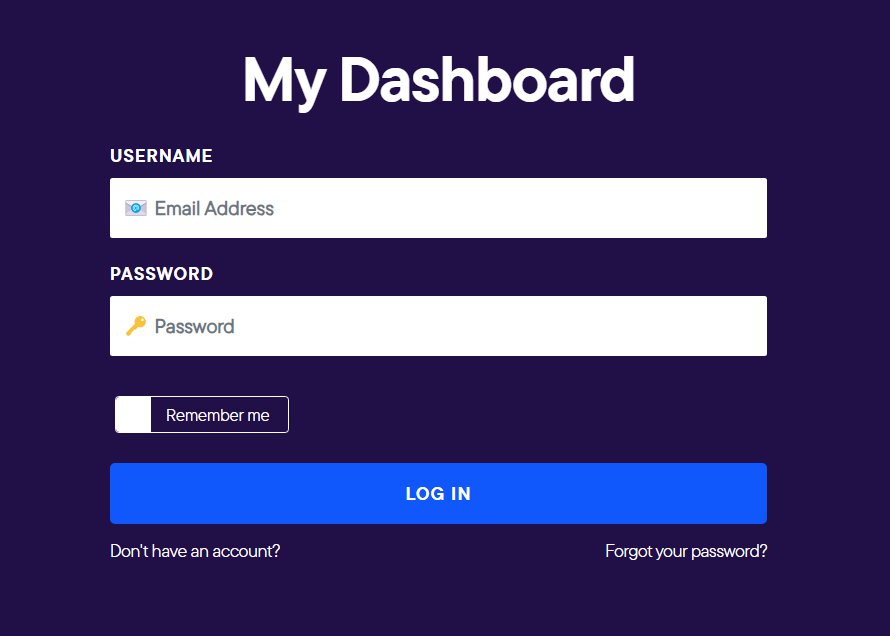
From the menu, select Service Settings, then Integrations, then Make and connect your Make account.
Ensure your TNZ login name matches your Make login name.
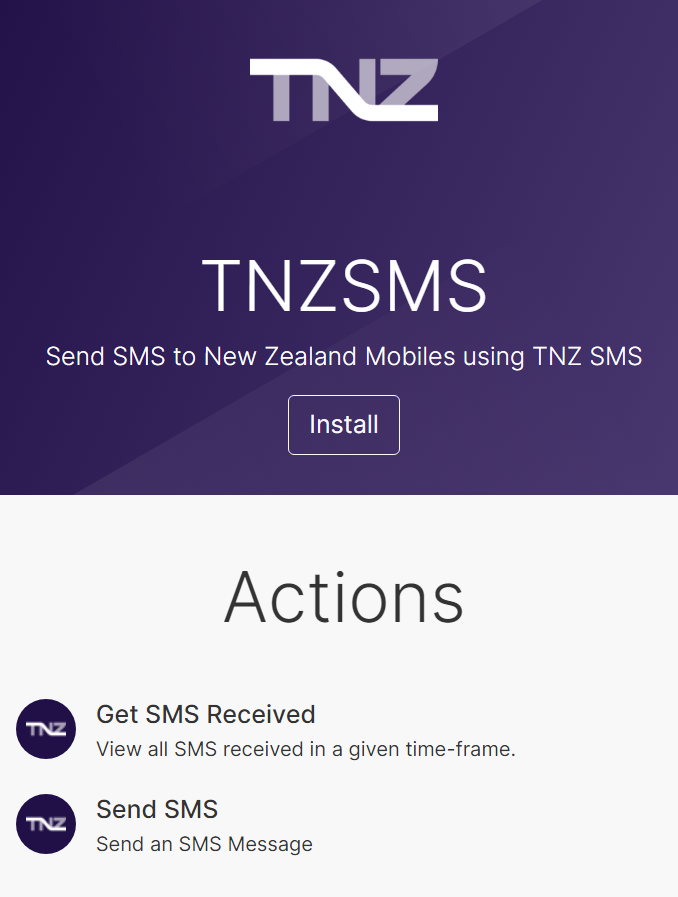
Next, we need to set up the Make <-> TNZ connection before adding SMS to any of your existing scenarios.
From Make:
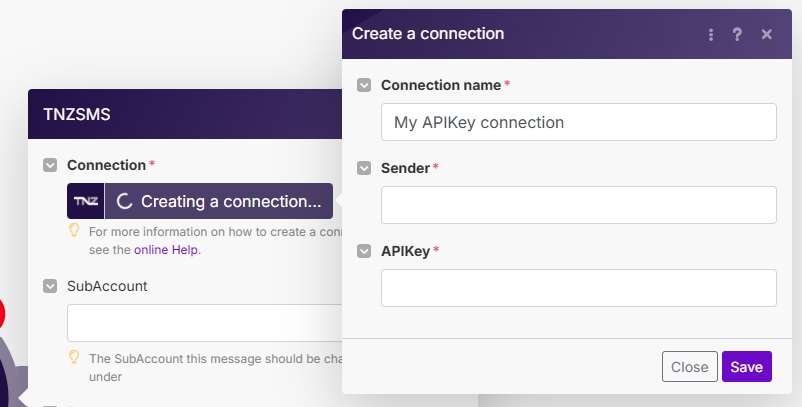
Then from the TNZ Dashboard:
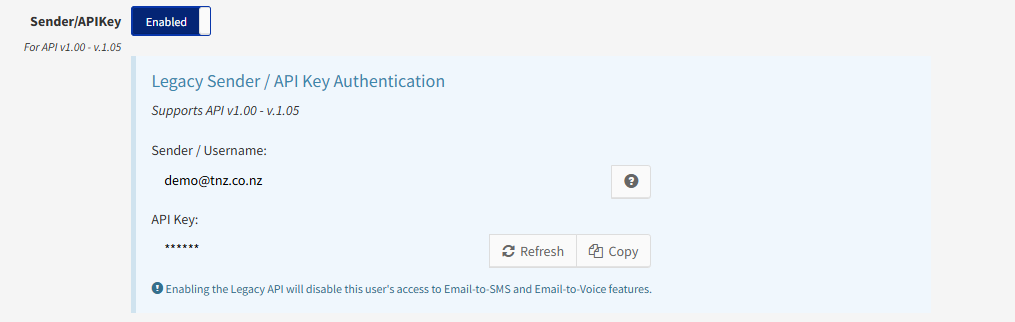
Then back to Make:
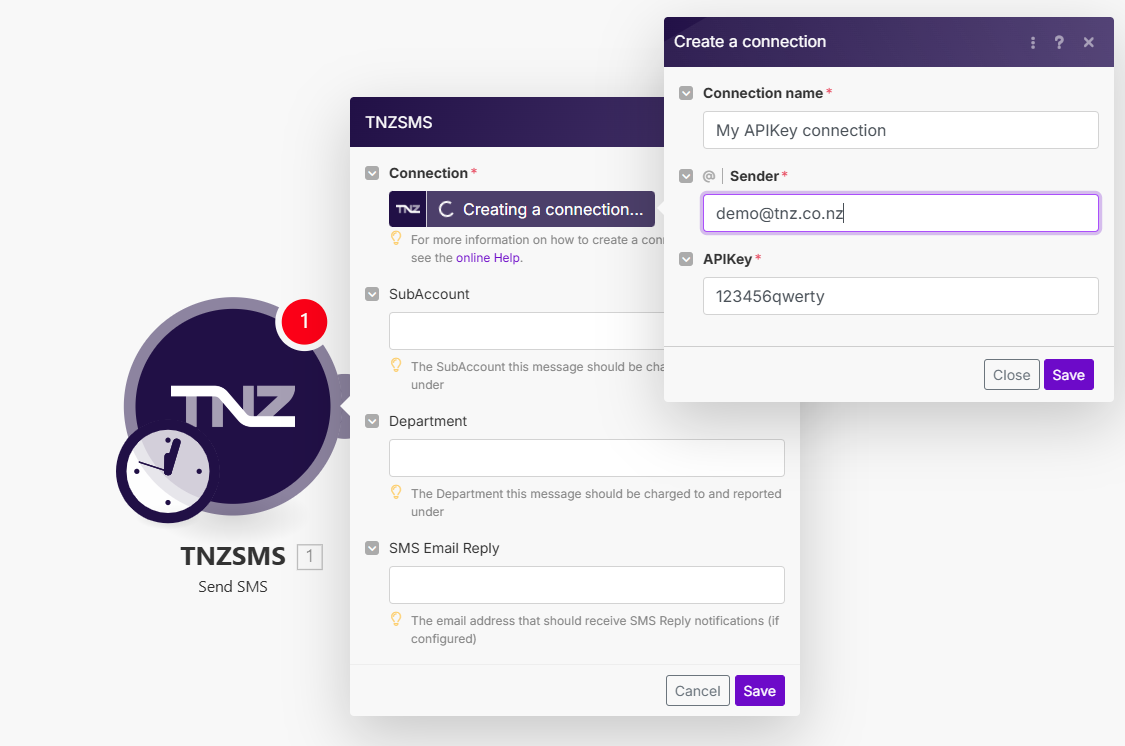
You now have TNZ connected to Make! You can start using TNZSMS in your Scenarios.
In Make:
1. Open a Scenario (you can open an existing Scenario or create a new one)
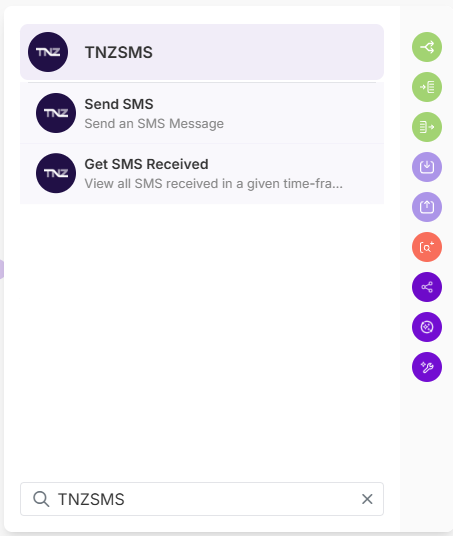
2. Add a Module to your Scenario (click the + icon) and select TNZSMS
3. Select TNZ, then select the appropriate event (to Send a message, or Receive a message)
4. Save and test your Scenario

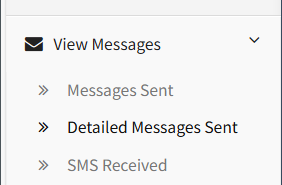
When sending messages through Make, you can review your usage in the TNZ Dashboard.
Select 'View Messages' then 'Detailed Messages Sent' from the menu.
Topics: Installation
Ready to revolutionise your messaging?
Connect with people anywhere - boost engagement, responses and conversations.
20 credits over 14-days. No obligation. No credit card required.