















CleverTap SMS Integration with TNZ
Connect CleverTap to TNZ to send SMS and receive delivery receipts and replies across New Zealand and Australia. Setup guide with config values.
Jump to Section
How It Works Before You Start Step 1: TNZ User Step 2: CleverTap Provider Step 3: Callbacks Test It Troubleshooting ContactConnect TNZ to CleverTap to send SMS from your CleverTap campaigns and receive delivery receipts and two-way replies. The integration runs through CleverTap's Generic SMS provider and takes about ten minutes to set up.
⚡ How the Integration Works
📤
Outbound SMS: CleverTap → TNZ
CleverTap sends SMS using TNZ.
📥
Inbound SMS: TNZ → CleverTap
TNZ posts delivery events and received SMS replies back to CleverTap. Replies map to CleverTap's Notification Replied system event.
⚠️ One User, Both Flows
The whole integration uses one TNZ user. The user that sends the messages is the same user that receives the callbacks.
You can set up multiple Clevertap providers using different TNZ users to separate activity.
The whole integration uses one TNZ user. The user that sends the messages is the same user that receives the callbacks.
You can set up multiple Clevertap providers using different TNZ users to separate activity.
🚀 Before You Start
You'll need:
- A TNZ account. Don't have one yet? Start a free trial — 20 credits, 14 days, no credit card required.
- An active CleverTap account with SMS channel access enabled.
- Admin access to both dashboards.
⚙️ Step 1 — Create a TNZ API User
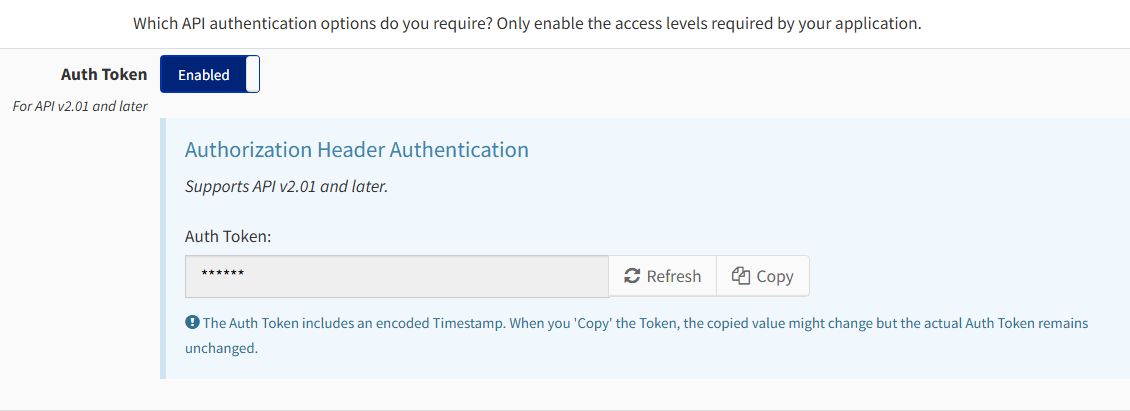
| 1. In the TNZ Dashboard, go to Users → Create. |
| 2. Add the user and enable API access. |
| 3. Copy the Auth Token. You'll paste this into CleverTap in the next step. |
⚠️ Keep Your Token Safe
Treat the Auth Token like a password. Don't commit it to code repositories or share it in email.
Treat the Auth Token like a password. Don't commit it to code repositories or share it in email.
🔗 Step 2 — Add TNZ as a Generic SMS Provider in CleverTap
In CleverTap, open the SMS channel settings and click + Add Provider.
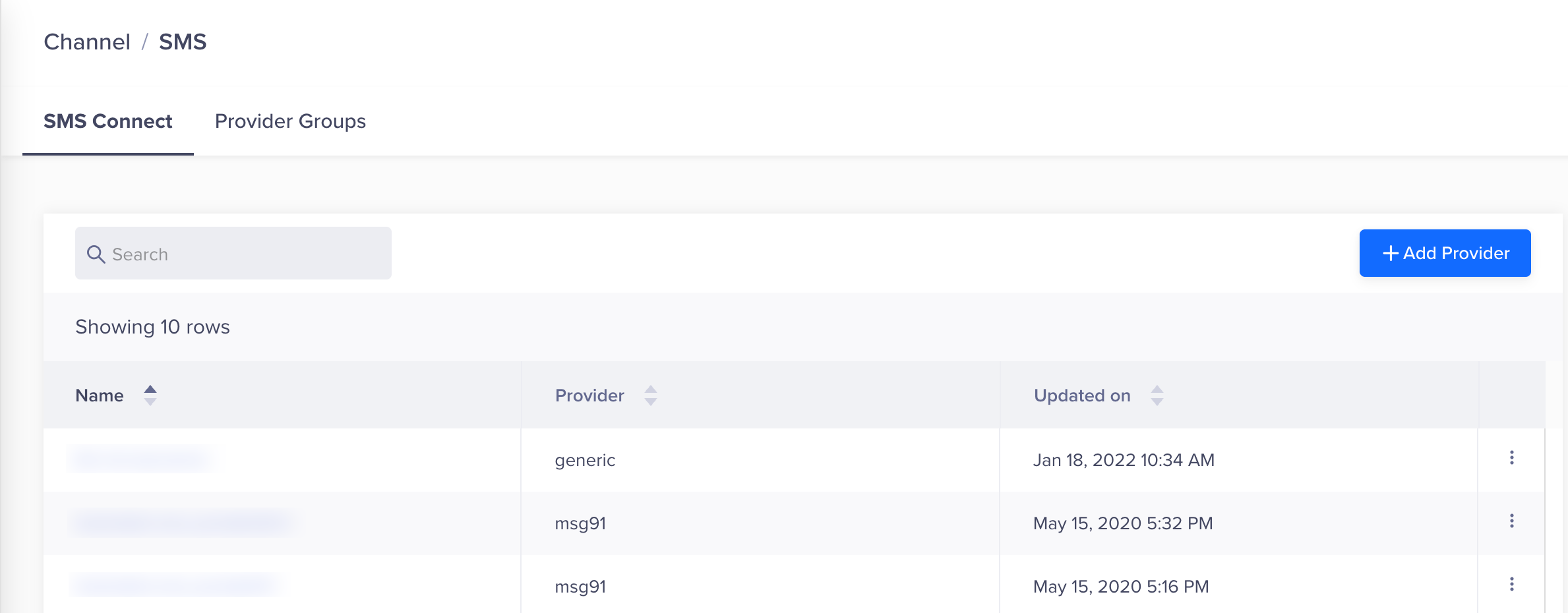
Set up TNZ as a Provider
Select Other (Generic) and enter these values:
| Field | Value |
|---|---|
| Nickname | TNZ |
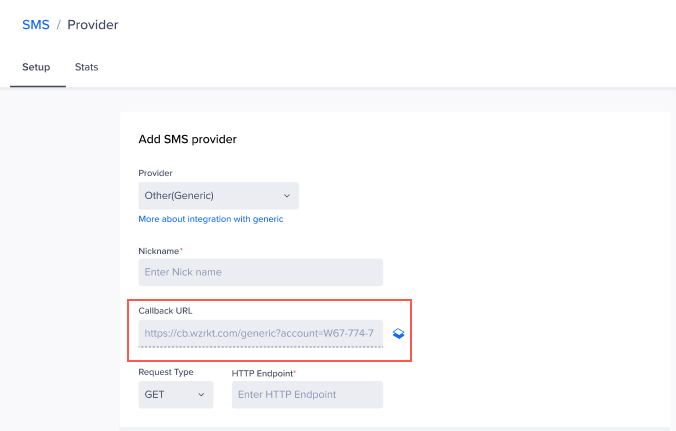
| Delivery Report Callback URL | Leave blank — CleverTap will generate one |
| Inbound Message Callback URL | Leave blank — CleverTap will generate one |
| Request Type | POST |
| HTTP Endpoint | https://api.tnz.co.nz/api/v3.00/sms |
| Authentication | No Authentication |
Add Two Headers
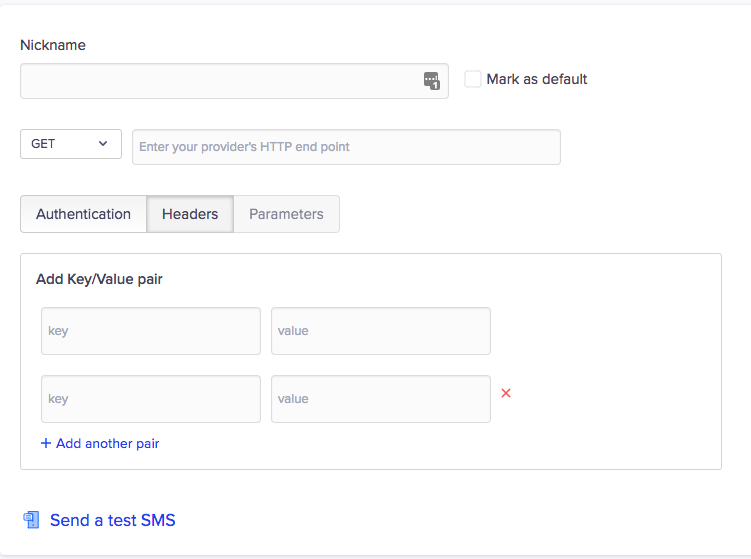
Select the Headers tab and add two entries:
| Key | Value | |
|---|---|---|
| 1. | Authorization |
Bearer {paste your TNZ Auth Token from Step 1} |
| 2. | Content-Type |
application/json |
Add Parameters
Select the Parameters tab, set the Parameters Type to JSON and paste this body into the Parameters section:
{
  "Message": "$$Body",
  "Destination": "$$To",
  "MessageID": "$$MessageID",
  "Reference": "CleverTap-$$CampaignID"
}
Disable Batching
Ensure the Batching option is unchecked.
Save TNZ
Save the new Provider.
🔔 Step 3 — Enable Callbacks in TNZ
This step turns on delivery receipts and two-way replies.
In CleverTap
Open the new `TNZ` provider and copy the two URLs (Delivery Report Callback URL and Inbound Message Callback URL)
Email These to TNZ
Email To: support@tnz.co.nz
Subject: Enable CleverTap Callback URLs
Body: [Include the two URLs]
The team will update your settings.
✅ Test It
Send a test campaign from CleverTap to your own mobile number. Within a few seconds you should see:
- The SMS arrive on your phone.
- The CleverTap campaign report update to Delivered.
- If you reply to the SMS on your phone, the reply should appear in CleverTap as a Notification Replied event.
If these work, you can now send live campaigns using the TNZ provider.
🔧 Troubleshooting
Getting a 401 or 403 from TNZCheck the |
No callbacks arriving in CleverTapContact TNZ and confirm that CleverTap Callbacks are enabled for your TNZ User. |
Still stuck?See CleverTap's reference for the Generic SMS provider: docs.clevertap.com/docs/generic-sms. Looking for more ways to connect? Browse TNZ integrations. |
📞 Need a Hand?
Running high-volume campaigns or have specific compliance requirements for NZ or AU? Talk to the team and we'll point you in the right direction.
Topics: Installation
Start your free trial today!
Ready to revolutionise your messaging?
Connect with people anywhere - boost engagement, responses and conversations.
20 credits over 14-days. No obligation. No credit card required.