















SPF and DNS Errors
What is SPF? Troubleshooting SPF email bounces.
Note: This guide contains best practices and suggestions. We aim to ensure this guide is as accurate as possible, however, always check with an expert before modifying your DNS.
TNZ provides secure email sending via Dashboard, API and SMTP.
SPF configuration is one of the most common setup steps when onboarding a domain for reliable email delivery. This guide explains how SPF works and how to resolve common SPF errors when sending through TNZ.
What Is DNS
The Internet is based on IP Addresses, eg 111.222.333.444
DNS ("Domain Name Service") tells computers how to find websites. For example, if you put www.domain.com into your web browser, DNS tells your computer what the true IP Address should be.
What Is SPF
SPF ("Sender Policy Framework") is a DNS validation tool primarily used to combat spam and phishing using forged email addresses.
Your domain name's SPF record will list the servers that are allowed to send emails as your domain name. When a server receives an email, it will check your domain’s DNS SPF Record to ensure the server sending the email is allowed to.
An example fictional domain might have:
Domain Name = domain.com
DNS SPF Record: "v=spf1 mx include:spf.protection.outlook.com ip4:111.222.333.444 -all"
In this example, only the servers listed under "spf.protection.outlook.com" and the server at IP Address "111.222.333.444" are allowed to send email as “domain.com”
Why SPF matters when sending through TNZ
When using TNZ Email, correct SPF setup helps:
-
Prevent spoofing of your domain
-
Improve inbox placement
-
Reduce spam filtering
-
Protect your sender reputation
TNZ’s onboarding process is designed to make these security steps straightforward, whether you're sending via Dashboard, API and SMTP.
What does an SPF bounce look like?
If an email is bounced due to SPF, two things will happen:
1) The receiving server will not accept the email (or it may accept the email and file it into spam), and
2) The email sender will receive a bounce-back/rejection email. An example error: “550 5.7.0 Message rejected per SPF policy”
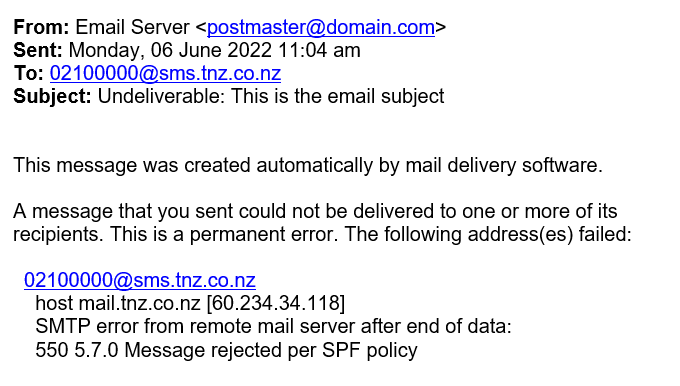
SPF failures are one of the most common setup issues when configuring new email infrastructure. TNZ’s support team regularly helps customers resolve these during onboarding.
If you're sending an email using the TNZ service
Are you sending an email using TNZ’s Email service and getting a “550 SPF” error failure?
You may need to edit your SPF record to allow TNZ to send emails as your domain.

Step 1: Edit your DNS SPF Record
* You might want to check with your DNS Administrator first! *
Add “include:_spf.tnz.co.nz” to your SPF Record.
Using the earlier example of “domain.com”, the updated SPF record will now show: "v=spf1 mx include:spf.protection.outlook.com ip4:111.222.333.444 include:_spf.tnz.co.nz -all"
Step 2: Validate the change was successful
Updates to your DNS and SPF Record can take a few hours to propagate globally.
> A useful SPF checking tool is MXToolbox.
Pop your domain name into the search box and click ‘SPF Record Lookup’. The result should now include “include:_spf.tnz.co.nz”
> Another SPF checking method when using a Windows computer:
1) Open a Command Prompt (select Start | Run | type ‘cmd’)
2) Type ‘nslookup’ into the console screen and press enter
3) Type ‘set type=txt’ into the console screen and press enter
4) Type your domain name (eg ‘domain.com’) into the console screen and press enter
Avoiding deliverability problems long-term
Beyond SPF, TNZ’s email platform is designed to help customers avoid common sending pitfalls such as:
-
Sending to spam trap addresses
-
Poor domain reputation
-
Misconfigured authentication
TNZ monitors sending patterns and provides guidance to help maintain healthy sender reputations.
If you're sending an email to a TNZ service
TNZ allows email sending through:
- Web Dashboard (no coding)
- REST Email API
- SMTP connector for apps and servers
All methods use the same secure sending infrastructure and require proper domain authentication such as SPF.
Are you sending an email to TNZ (maybe using something like our Email-to-SMS or Email-to-Voice service) and getting a “550 SPF” error failure?

TNZ is bouncing your email as your SPF may be misconfigured or you’re sending the email from a disallowed place.
Step 1: Check the IP Address you're sending emails from
This will normally be in the bounceback email report. If you're unsure, contact TNZ Support and one of the team will advise.
Step 2: Check your DNS/SPF Record
You need to confirm which Servers/IPs are allowed to send emails as your email address.
> A useful SPF checking tool is MXToolbox.
Put your domain name into the left search box, and the IP Address (from Step 1) in the right search box.
Does the tool display an error? If so, your IP/Hostname isn’t allowed to send emails as your domain.
> Another SPF checking method when using a Windows computer:
1) Open a Command Prompt (select Start | Run | type ‘cmd’)
2) Type ‘nslookup’ into the console screen and press enter
3) Type ‘set type=txt’ into the console screen and press enter
4) Type your domain name (eg ‘domain.com’) into the console screen and press enter
Is your IP/Hostname (from Step 1) listed on your SPF Record (from Step 2)? If not, your IP/Hostname isn't allowed to send emails as your domain.
Step 3: Update your DNS SPF Record
Contact your DNS Administrator and request that the Server/Hostname is added to your SPF Record.
You can provide them a copy of the email bounce-back.
Using the earlier example of “domain.com”, the updated SPF record will now show: "v=spf1 mx include:spf.protection.outlook.com ip4:111.222.333.444 ip4:555.666.777.888 -all" (where 555.666.777.888 is the IP Address from Step 1).
Why businesses use TNZ Email
TNZ Email is built for operational and application email sending, offering:
-
Secure domain onboarding
-
Dashboard sending for business users
-
REST API for developers
-
SMTP connector for existing systems
-
Deliverability-focused infrastructure
-
No artificial rate limits on sending
This ensures consistent delivery for alerts, notifications, system emails and business communications.
Topics: Email
Start your free trial today!
Ready to revolutionise your messaging?
Connect with people anywhere - boost engagement, responses and conversations.
20 credits over 14-days. No obligation. No credit card required.