





















How to Create and Use SMS Templates
Learn how to create, save, and manage reusable SMS templates in the TNZ Dashboard. Save time and ensure message consistency for your campaigns.
What are SMS Templates?
SMS Templates are pre-written messages that you can save in your TNZ account to reuse for future campaigns and communications. Using templates is a highly efficient way to send frequently used messages such as appointment reminders, marketing promotions, delivery notifications, or security alerts.
Key benefits of using templates:
-
Save Time: Eliminate the need to type the same message repeatedly.
-
Ensure Consistency: Maintain a consistent tone and branding across all your communications.
-
Reduce Errors: Minimise the risk of typos or incorrect information in your messages, especially in an emergency scenario.
-
Personalise at Scale: Easily insert dynamic content like names or appointment times for each recipient.
Creating Your SMS Template
Follow these steps to create your first SMS template in the TNZ Dashboard.
Step 1: Navigate to Templates
-
Log in to the TNZ Dashboard.
-
From the main menu on the left, navigate to New Message, then Send SMS, then Manage Templates.
-
Click the Create Template button, or use Import Sample to select from pre-made templates.
Step 2: Configure Your Template
You will now see the SMS Template creation screen. Let's walk through each section.
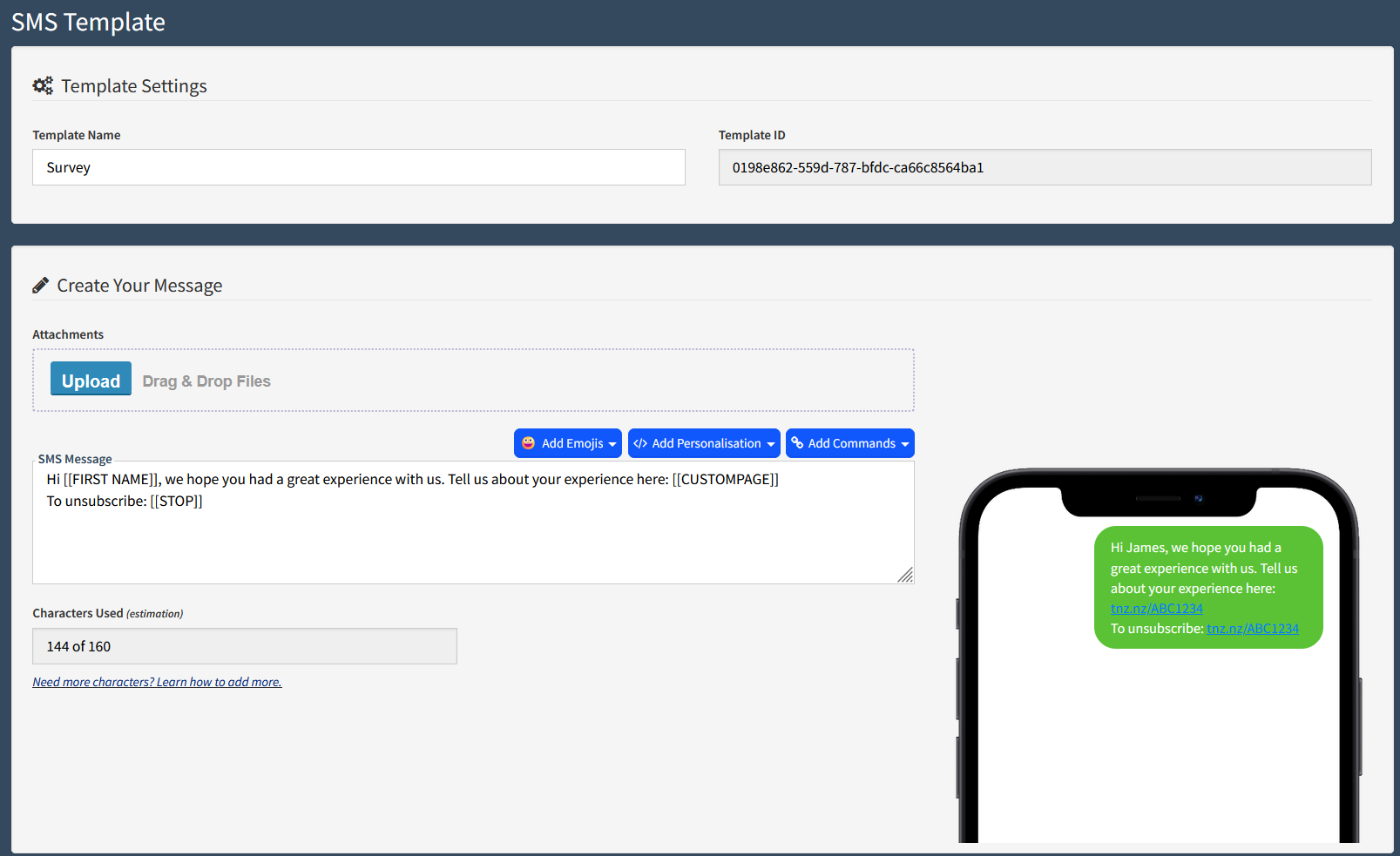
Template Settings
-
Template Name: Give your template a clear and descriptive name. This name is for your internal reference only and helps you easily identify the template later (e.g. "Monthly Newsletter Promo" or "Appointment Reminder").
Create Your Message
This is where you will compose the body of your SMS.
-
SMS Message: Type your message content in this field. Remember that SMS messages are plain text and do not support formatting like bold or italics.
-
Character Limits: A standard SMS message contains up to 160 characters. If you exceed this limit, your message will be sent as a multi-part message and billed accordingly. Learn more: SMS Character Limits.
-
Emojis: Adding emojis can increase engagement, but be aware that they change the message encoding. An SMS containing even one emoji has a reduced character limit of 70 characters per message part.
-
Personalisation: Use the Add Personalisation button to insert merge fields from your Address Book, such as
[[FirstName]]or[[Custom1]]. When you send the message, these fields will be automatically replaced with the recipient's specific details. -
Links: You can include hyperlinks in your message. For optimal character usage and engagement tracking, we recommend using TNZ's built-in link shortener.
- Commands: The Add Commands button allows you to insert special tags for advanced features, such as
[[STOP]]for a tracked unsubscribe link, or links to custom landing pages. -
Promotional Messages: If your message is for marketing or promotional purposes, you must include two key elements:
-
Identifier: Clearly state who the message is from, e.g. 'From My Company Ltd'
-
Unsubscribe: Provide a clear way for recipients to unsubscribe, such as 'Reply STOP to OptOut' or 'Click [[STOP]] to OptOut'
-
Default Groups (Optional)
In this section, you can select one or more Address Book Groups to be automatically associated with this template. When you later select this template from the Send SMS with Template screen in the Dashboard, these groups will be pre-loaded as recipients.
Note: This setting only applies when sending messages directly from the TNZ Dashboard. It does not apply to messages sent via our API or through third-party integrations like Zapier or HubSpot.
Ownership & Accessibility
These settings allow you to control who within your organisation can view and edit the template. This is useful for managing templates across different teams, departments, or sub-accounts.
-
Ownership: Assign the template to a specific SubAccount or Department.
-
Accessibility: Define the view and edit permissions for other users in your account.
Using Your Template in the Dashboard
To use your saved template for a new broadcast:
-
Navigate to New Message -> Send SMS, then select Send SMS with Template.
-
Select your Template and adjust your message and contacts appropriately.
- Send your message!
Using Your Template in the API
Once you have saved your template, your new template will now appear in the list on the main Templates page.
If you click on your template, you will see the Template ID, which is a unique number assigned to your template.
This TemplateID is essential if you wish to trigger messages using this template via the TNZ API or a third-party application.