









REST API Docs
WorkflowSMSEmailVoiceText-to-Speech (TTS)FaxWhatsAppRCSWebhooksAddress BookOpt-OutPartner APIAPIs, Libraries & SDKs
 REST API
 TypeScript
 SMPP
SMPP Python
 MCP
MCP .NET
.NET SMTP Gateway
 VBA
VBA Flexi API
 HTTPS API
 SOAP API
 Other Tools REST APITypeScriptSMPPPythonMCP.NETSMTP GatewayVBAFlexi APIHTTPS APISOAP APIOther Tools
 To initiate a conversation with a customer on WhatsApp (outside of a 24-hour customer service window), you must use a Message Template. These templates are pre-approved by Meta to ensure quality and prevent spam.
Understanding the rules of engagement is critical to maintaining a high quality rating and avoiding message rejection.
When messaging a customer through WhatsApp, the initial message must be a verified WhatsApp Template.
A template is a reusable message format used for common business scenarios like appointment reminders, shipping updates, or two-factor authentication. They consist of fixed text and placeholders (substituted mail-merge variables) that allow for personalisation.
Example Template:
Message = "Hello {{1}}, your appointment is scheduled for {{2}}. Reply Y to confirm."
Variable 1 = "John"
Variable 2 = "Tuesday"
Note: The placeholder variables are Meta's equivalent of the TNZ Personalisation used across our platform.
Each template needs to be reviewed and approved by Meta prior to use. Creating a new template can be done through the TNZ Dashboard or through Meta's Business portal.
You may also create templates in Meta's WhatsApp Manager. If you have authorised TNZ to manage your templates (as detailed in our WABA Onboarding Guide), TNZ will automatically sync your template changes. Otherwise, you'll need to advise us manually of any new template changes.
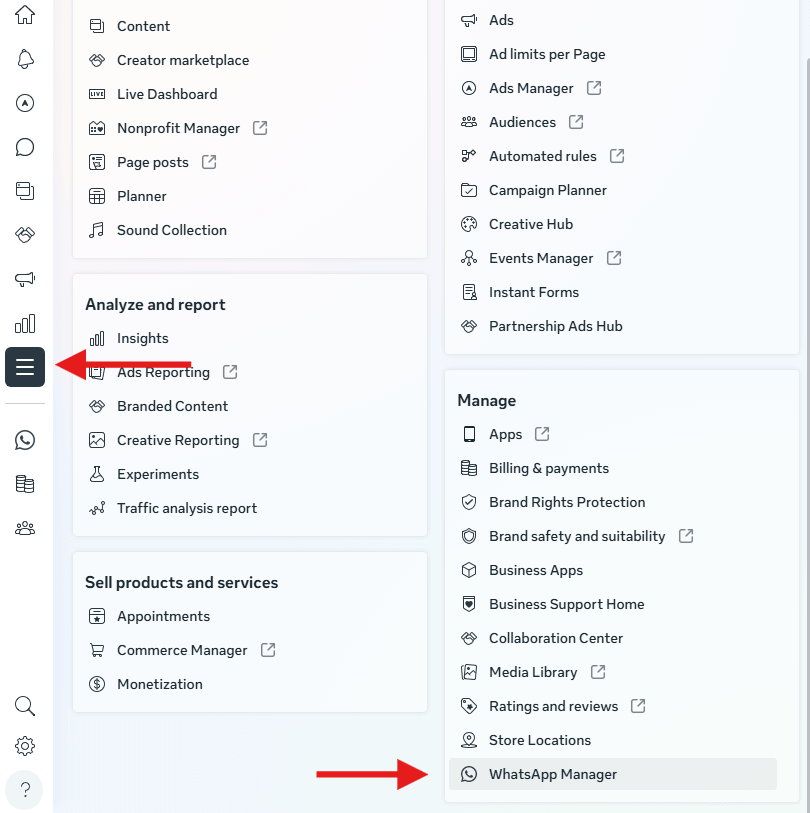
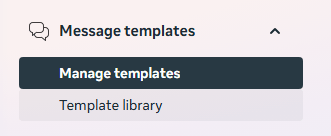
Here are some helpful tips to ensure your Template meets Meta's criteria.
Meta uses strict syntax for placeholders. If these are formatted incorrectly, the template will be rejected immediately by the automated system.
{{1}}, {{2}}, {{3}}, etc.Hello {{1}}, Message: {{2}}" would be invalid).Hello {{1}}, your appointment with ABC Ltd is confirmed for {{2}}" may be invalid).When submitting a template via the TNZ Dashboard or Meta Business Suite, you must select one of three categories. Choosing the wrong category is a leading cause of rejection.
| Category | Description | Example |
|---|---|---|
| Authentication | One-time passwords (OTP) or security codes. Note: Authentication templates must relate to an app and therefore are best managed by TNZ. | "Your login code is 123456." |
| Utility | Specific updates related to an ongoing transaction. | "Your order #552 has been shipped!" |
| Marketing | Promotions, offers, or brand awareness. | "Check out our new summer collection!" |
Meta's review process (a mix of AI and human review) often flags templates for the following:
Need help wording your first template? Contact our support team for best-practice examples tailored to your industry.
Topics: Installation
Ready to revolutionise your messaging?
Connect with people anywhere - boost engagement, responses and conversations.
20 credits over 14-days. No obligation. No credit card required.