









REST API Docs
WorkflowSMSEmailVoiceText-to-Speech (TTS)FaxWhatsAppRCSWebhooksAddress BookOpt-OutPartner APIAPIs, Libraries & SDKs
 REST API
 TypeScript
 SMPP
SMPP Python
 MCP
MCP .NET
.NET SMTP Gateway
 VBA
VBA Flexi API
 HTTPS API
 SOAP API
 Other Tools REST APITypeScriptSMPPPythonMCP.NETSMTP GatewayVBAFlexi APIHTTPS APISOAP APIOther Tools
 The Address Book in the TNZ Dashboard is a central location for storing, managing, and sending messages to your contacts. It supports CSV, XLS, and XLSX imports, shows contact names in reports, and lets multiple users share access (depending on Address Book ownership settings). This guide explains how to import contacts, review contact records, and send broadcasts.
| Feature | Benefit |
|---|---|
| Centralised contact storage | Access from any device, no need to share spreadsheets |
| Shared access | Contacts can be shared between logins (see Address Book Ownership) |
| Personalised messaging | Use names and custom fields in messages |
| Integrated reporting | Contact names shown in message logs and reports |
| Import/export support | Upload/download CSV, XLS, or XLSX files |
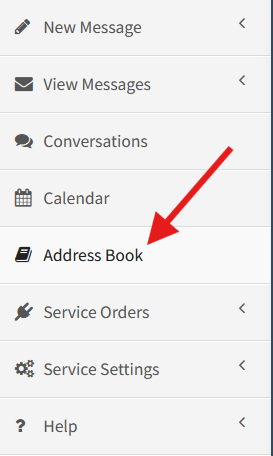
To open the Address Book, log into the Dashboard and select Address Book from the menu.
You can add contacts in three ways:
| Method | Description |
|---|---|
| Manually | Add contacts individually using the Dashboard. |
| Spreadsheet Import | Import from a CSV, XLS or XLSX file. See Creating a Contact List Spreadsheet. |
| API | Automatically add/manage contacts via the REST API. |
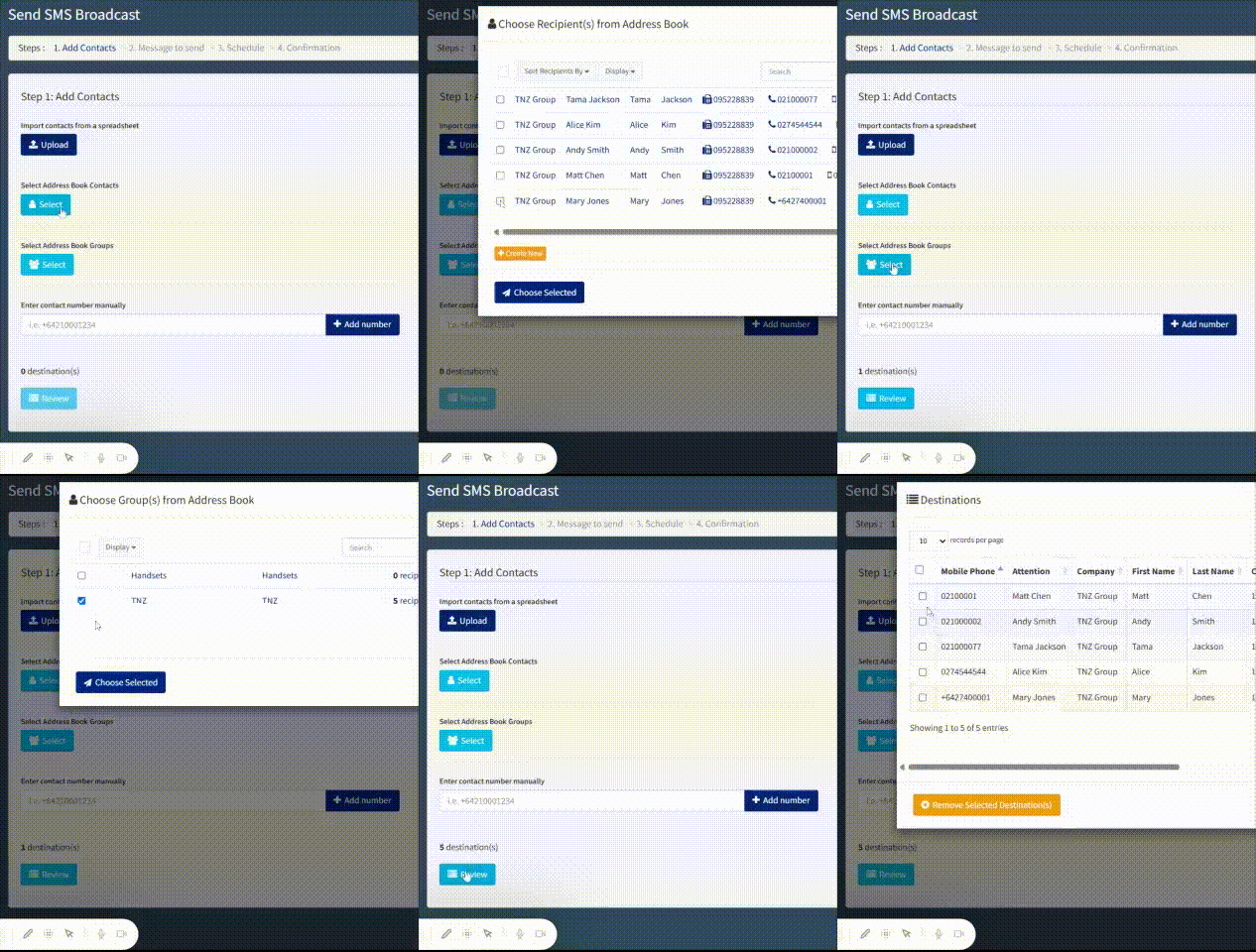
Under New Message | Send SMS Broadcast you can create a personalised broadcast by selecting your Address Book contacts and groups.
You can reference personalised values like "Hi [[FirstName]]".
See How To Send SMS Broadcasts.
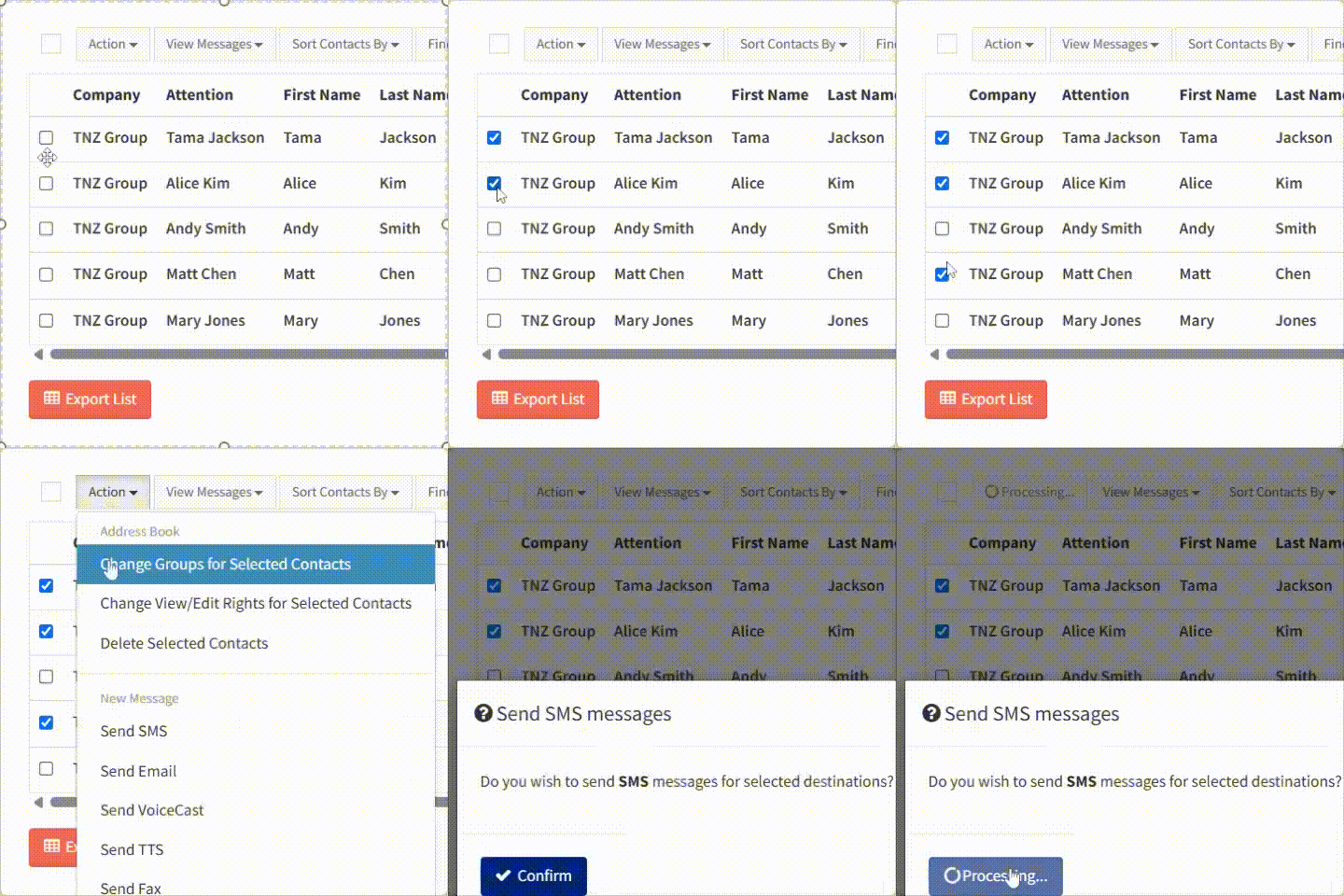
You can send a message to contacts directly in the address book.
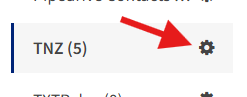
Your address book groups are automatically allocated an email address.
You can find the group code here:
Then send an email to:
group.%group_code%@sms.tnz.co.nz
The API allows you to send messages to address book contacts and groups.
Documentation:
1. Sending SMS Messages
2. Adding Contacts
        [
            { "ContactID": "6000000b-f002-4007-b00a-c00000000001" },
            { "GroupID": "4000000b-f002-4007-b00a-c00000000002" }
        ]
Every SMS broadcast must include an unsubscribe option. Common formats:
| Option | Example Text |
|---|---|
| Text reply | Reply STOP to OptOut |
| Clickable link | Click [[STOP]] to OptOut |
When a user replies with STOP or clicks the [[STOP]] link, they are automatically added to your Opt-out List.
See the Unsubscribe Option for SMS Messages guide for more detail on automated unsubscribes.
Ready to revolutionise your messaging?
Connect with people anywhere - boost engagement, responses and conversations.
20 credits over 14-days. No obligation. No credit card required.