





















Connecting your Pipedrive Account
Connecting Pipedrive to the TNZ SMS app and enable SMS in your Pipedrive environment.
A direct SMS integration for Pipedrive allows you to communicate with your contacts by seamlessly.
Features
- Direct SMS to Contacts: Send SMS messages to your contacts within Pipedrive directly from the sidebar.
- Conversation Continuity: Keep the conversation flowing with support for SMS replies. All conversations are neatly organized under your Pipedrive contacts, ensuring you never miss a beat.
- Contact Sync: Sync your Pipedrive contacts into the TNZ Dashboard to fully utilize TNZ's SMS, Email and Voice broadcasting and marketing tools.
- Exclusive Focus on New Zealand and Australia: Enjoy competitive pricing and unparalleled service quality for sending SMS to mobile numbers in New Zealand and Australia.
Connecting TNZ SMS
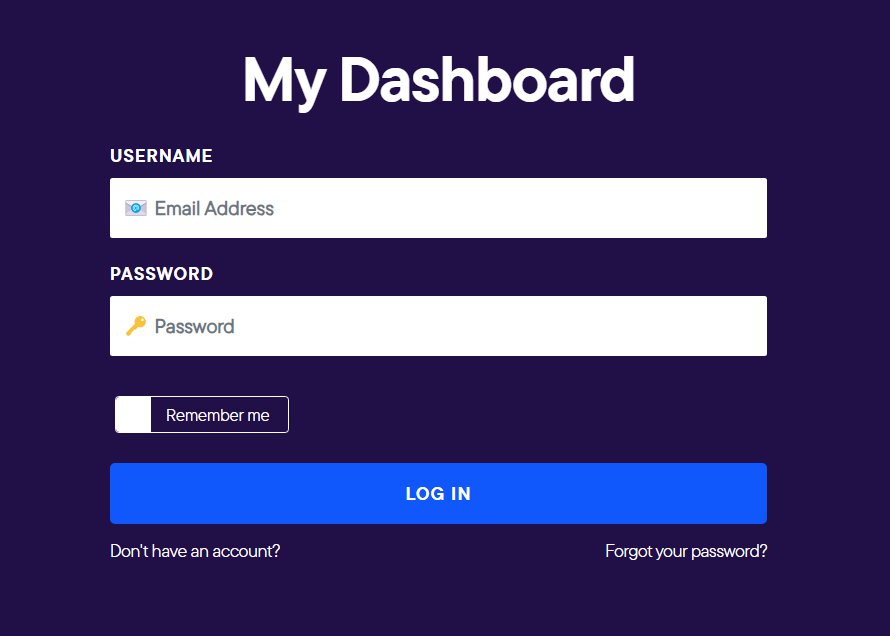
Step 1: Log into your TNZ Dashboard
Login to your TNZ Account: my.tnz.co.nz
Ensure your TNZ login name matches your Pipedrive login name.
If you do not have an account, you can register here: Sign-Up
Step 2: Connect TNZ to Pipedrive
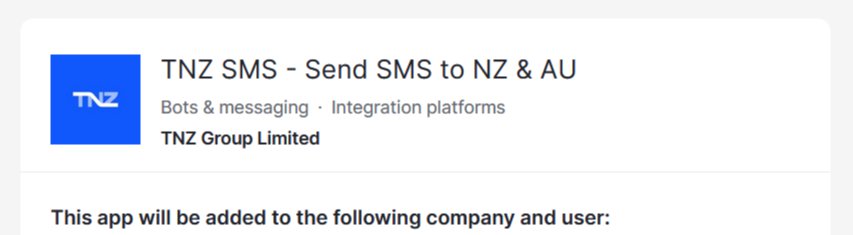
From the menu, select Service Settings, then Integrations, then Pipedrive and connect your Pipedrive account.
Ensure your TNZ login name matches your Pipedrive login name.
Step 3: Find the TNZ SMS app in Pipedrive
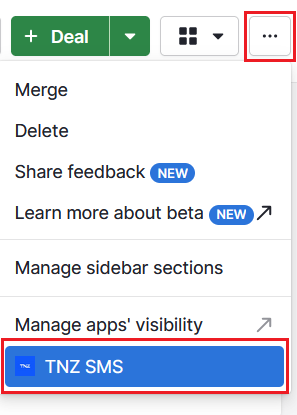
In Pipedrive, open a Contact, Company or Deal with a linked Mobile Phone Number.
You will see the TNZ SMS app in the sidebar.
Step 4: View message history in the Contacts Timeline
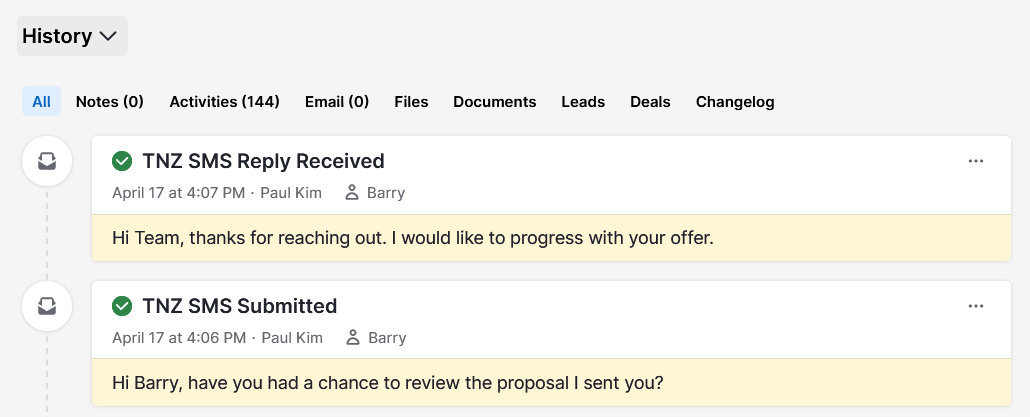
Under a Contact, Company or Deal, recent SMS messages sent and received will display in the Timeline section.
Step 5: Send SMS in Automations
You can optionally use SMS messaging in Automations, for example, automatically send a welcome SMS when creating a new Contact.
At the time of writing, Pipedrive only allows their own apps in Workflows. Alternative options include:
- Use the 'Email' option and send an Email-to-SMS message. E.g. the automation would send an email from Pipedrive to [mobile]@sms.tnz.co.nz
- Use Zapier in your workflow, where Pipedrive to Zapier triggers the SMS message and then Zapier to TNZ sends the SMS message.
- Use Make.com to connect (TNZ and Pipedrive) and Make would handle the whole workflow.
Step 6: Export A Contact List for Broadcasting
You can send SMS, Email and Voice broadcasts to your contacts.
In Pipedrive:
- Select Contacts
- Filter to display your chosen contacts
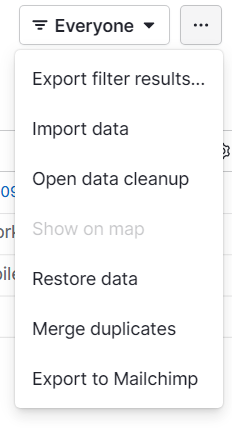
- Click '…' and click 'Export filter results...'
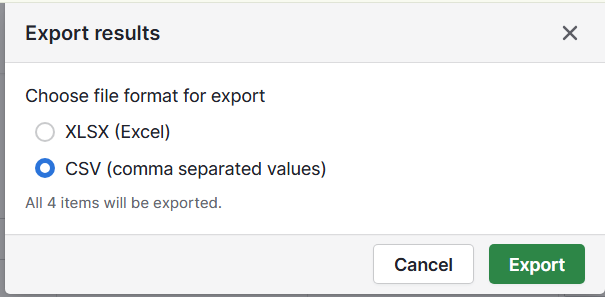
- Click 'Export' and select 'CSV'
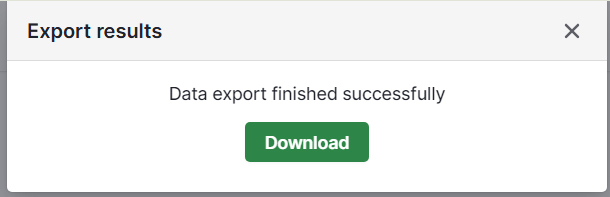
- Download the CSV to your PC
In the TNZ Dashboard:
- Follow the appropriate guide for your message type:
SMS Broadcasts
Email Broadcasts
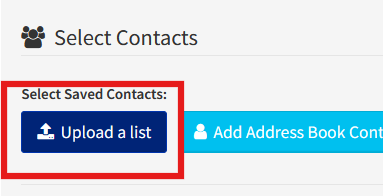
Voice Broadcasts - When Selecting Contacts, import your Pipedrive CSV list
Troubleshooting and FAQ
Can I see my other TNZ SMS activities in Pipedrive?
Yes, any SMS messages sent using TNZ (e.g. the TNZ Dashboard, API, integrations) can display in Pipedrive as an Activity.
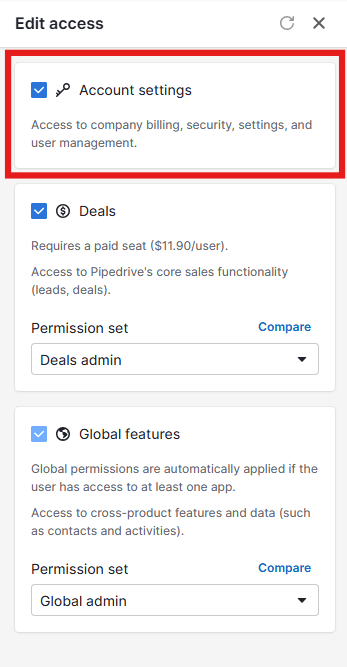
The Pipedrive user must have the 'Account Settings' option enabled to view activities that are not tied to their user.
This is configured under Settings, then Manage Users.
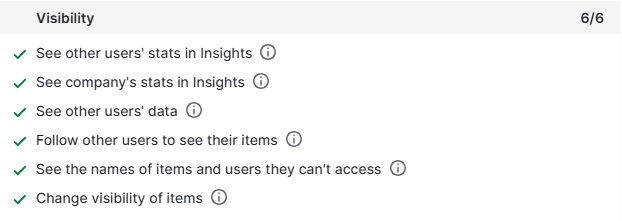
Alternatively, you can add these granular rights to a specific group of users:
I have multiple Pipedrive users. Do I need to add each Pipedrive user manually?
If a Pipedrive Global Admin integrates Pipedrive with TNZ, other users will automatically sync in.
Alternatively, setting up each Pipedrive user with a TNZ Dashboard login and getting each user to install Pipedrive is an effective option.
My Activities are duplicating and showing multiple times. Why?
If your messages are appearing multiple times as Activities, we may have multiple Global Admin users registered.
Contact TNZ and we'll adjust your account to prioritise one user as a Global Admin.
I'm seeing an 'Authorization Failed' Error. Why?
There are two leading causes for this error:
1. Your TNZ Dashboard login username is different to your Pipedrive login username. Add another TNZ User that matches your Pipedrive username, and switch to the new login and retry.
2. Your TNZ User's API Access has been corrupted. Get in touch with the TNZ Support Team and send them a screenshot of the error - they'll tackle this from the backend.
Topics: Installation