









REST API Docs
WorkflowSMSEmailVoiceText-to-Speech (TTS)FaxWhatsAppRCSWebhooksAddress BookOpt-OutPartner APIAPIs, Libraries & SDKs
 REST API
 TypeScript
 SMPP
SMPP Python
 MCP
MCP .NET
.NET SMTP Gateway
 VBA
VBA Flexi API
 HTTPS API
 SOAP API
 Other Tools REST APITypeScriptSMPPPythonMCP.NETSMTP GatewayVBAFlexi APIHTTPS APISOAP APIOther Tools
 Tailored specifically for HubSpot users, TNZ SMS is a HubSpot marketplace app that transforms how you communicate with your contacts by seamlessly integrating TNZ's SMS messaging into your HubSpot ecosystem.
Login to your TNZ Account: https://my.tnz.co.nz
Ensure your TNZ login name matches your HubSpot login name.
If you do not have an account, you can register here: https://www.tnz.co.nz/Services/SignUp
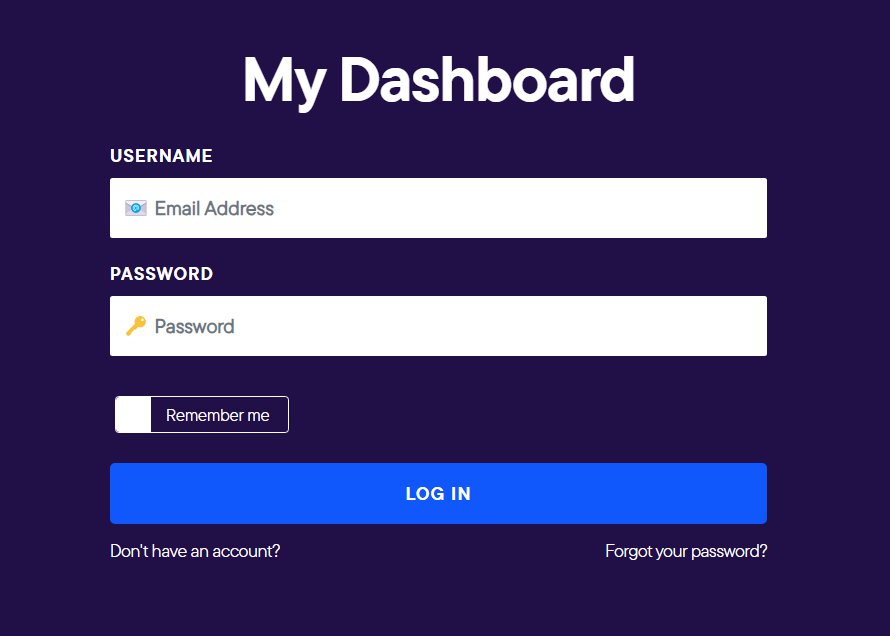
From the menu, select Service Settings, then Integrations, then HubSpot and connect your HubSpot account.
Ensure your TNZ login name matches your HubSpot login name.
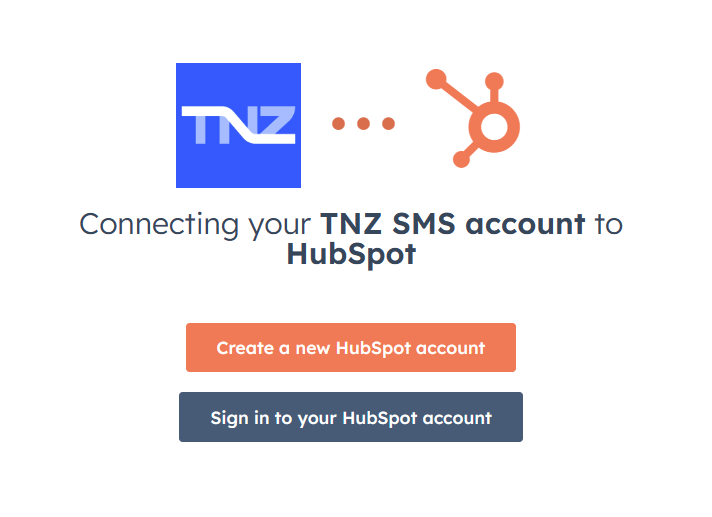
Note: Each HubSpot user will need to repeat this step individually (connect TNZ <-> HubSpot).
In HubSpot, open a Contact, Company or Deal with a linked Mobile Phone Number.
You will see the TNZ SMS app in the sidebar. Click Send New SMS to create a new message.
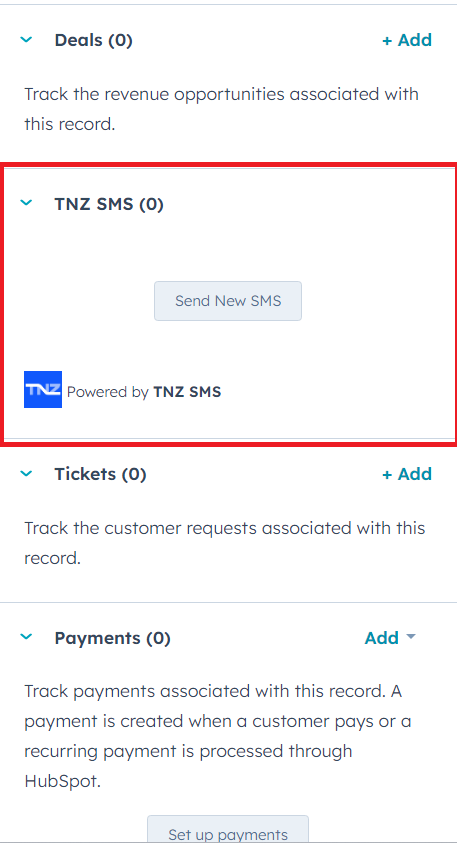
If you cannot see the TNZ SMS app in the sidebar:
Select Customize:

Select your view:
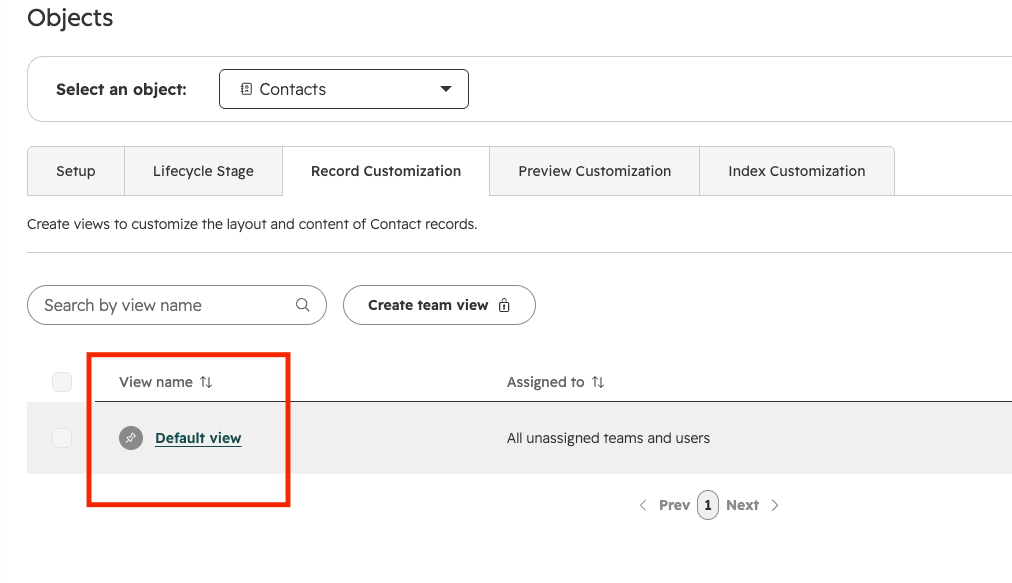
Click Add on the Right-Side Sidebar:
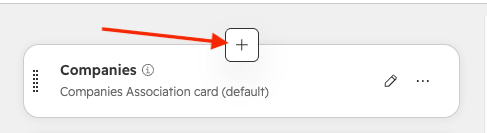
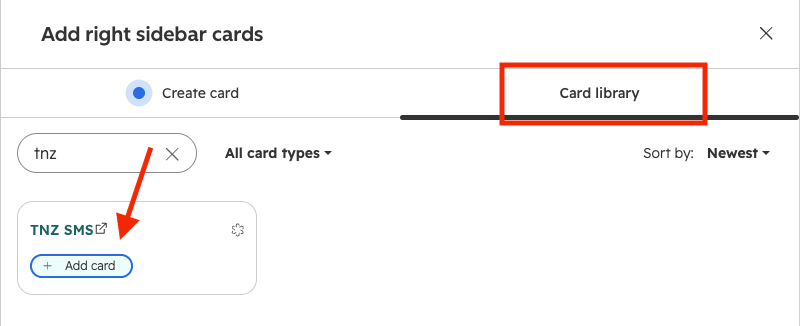
Search under Card Library and select TNZ SMS:
Under a Contact, Company or Deal, recent SMS messages sent and received will display in the activities section.
First, you'll need to add "TNZ SMS" to your Activities view:
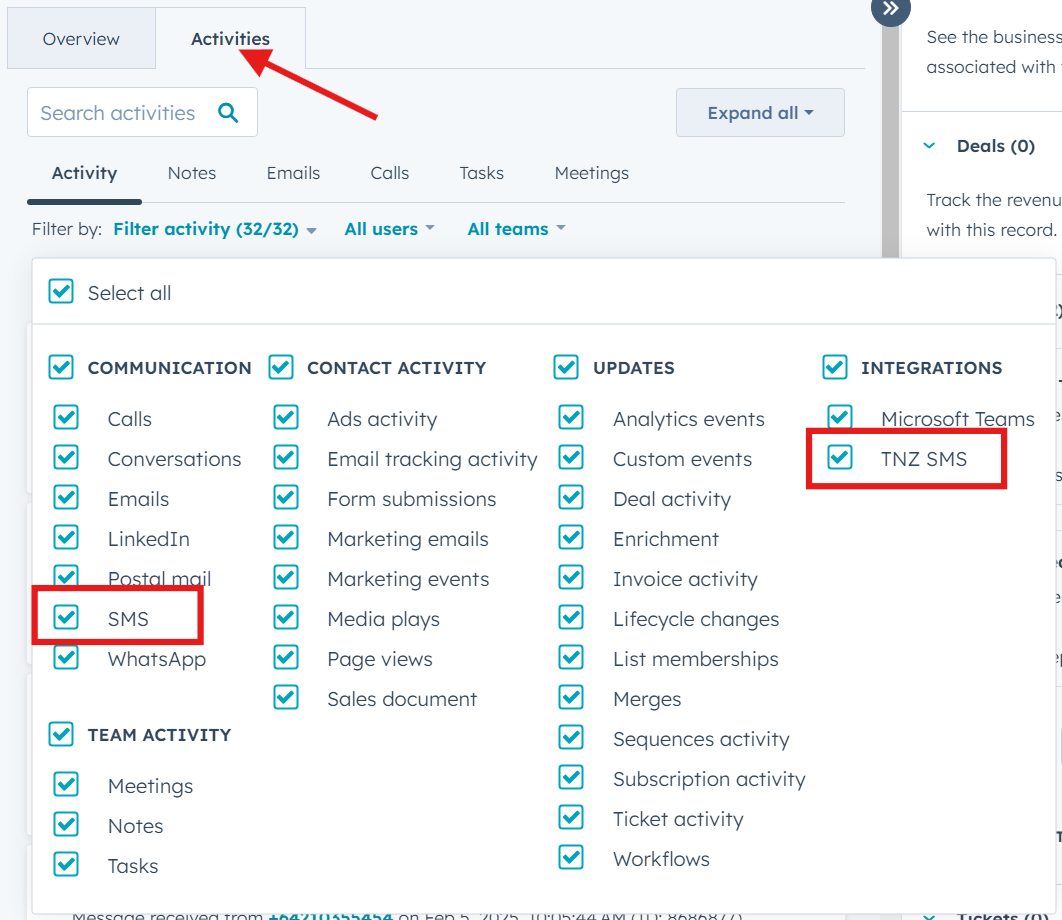
Note: HubSpot currently does not update the "Last Activity Date" for 'SMS' communications - this is limited to Note, Call, Email, Meeting and Task.
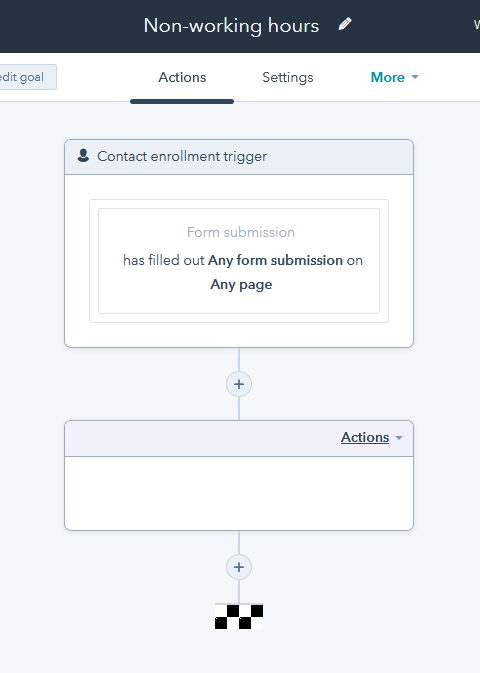
You can optionally use SMS messaging in Workflows, for example, automatically send a welcome SMS when creating a new Contact.
You can send SMS, Email and Voice broadcasts to your contacts.
In HubSpot:
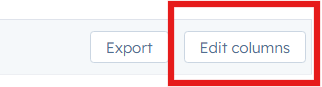
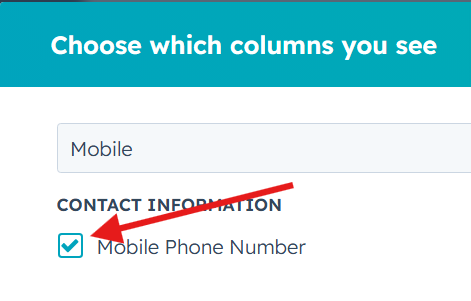

In the TNZ Dashboard:
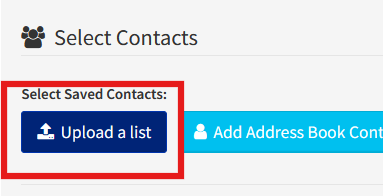
Topics: Installation
Ready to revolutionise your messaging?
Connect with people anywhere - boost engagement, responses and conversations.
20 credits over 14-days. No obligation. No credit card required.