














Connecting GoHighLevel with TNZ SMS Basic
Adding SMS capability to GoHighLevel accounts on the Starter and Unlmited plans - from trial setup to billing, workflows, and troubleshooting.
Jump to Section
How TNZ SMS Works Getting Started Pricing Connecting TNZ SMS Toggle SMS Provider Using TNZ SMS Rebilling Uninstall TNZ SMS FAQ📢 For GoHighLevel Starter and GoHighLevel Unlimited Plan users.
If you're on the Agency Pro GHL plan, see our TNZ SMS Agency app instead.
⚡ How TNZ Works Inside GoHighLevel
Before connecting, here's what to expect:
- Once TNZ is set as your default provider, all standard Send SMS actions in GHL route through TNZ automatically.
- When mobiles respond, their reply will appear inside GHL.
- You send and receive messages entirely inside GHL, no need to switch tools.
- When sending to New Zealand mobiles, messages send using TNZ's compliant NZ short code. A dedicated number is available.
- When sending to Australian (and most international) mobiles, messages send from a local number. A dedicated number or custom Sender ID is available
- Certain system messages (like GHL login codes) remain controlled by GHL and cannot be changed.
The TNZ SMS app adds SMS capability to the following GHL features:
💬
Conversations
1:1 chats with mobile contacts, directly in GHL.
⭐
Review Requests
Send clients a link to complete a review via SMS.
📣
Bulk Actions
Broadcast messages to multiple contact mobile numbers at once.
⚙️
Workflow Automations
Automate SMS sending and receiving - form completions, calendar reminders, birthday messages, and more.
Getting Started: Trial & Account Setup
When you sign up, you can select a Free Trial or a Full Postpaid Account:
🧪 Free Trial
- 14 days access
- 30 SMS credits included
- Full access to SMS features in GHL (Conversations, Workflows, Review Requests, Bulk Actions)
- Access to TNZ Dashboard for reporting
✅ Full (Postpaid) Account
- All trial features, with no credit limit
- $20/month + usage (see pricing below)
- Monthly itemised invoice per SubAccount
- Does not activate automatically - you must convert your trial
Pricing (NZD ex GST)
When your trial ends and you're on a full account, here's what you can expect to pay:
| Item | Cost |
| Setup | $0 |
| Monthly Fee | $20 /month |
| SubAccount Fee | $0 (unlimited SubAccounts) |
| SMS to NZ Mobiles | $0.10 /SMS Part |
| SMS to AUS Mobiles | $0.10 /SMS Part |
| SMS to International Mobiles | $0.20 /SMS Part |
Messages longer than 160 characters are split into parts and billed per part. See Long SMS Messages for details.
Installation: Connecting TNZ SMS to GHL
These steps outline how to install the TNZ SMS app for your SubAccounts.
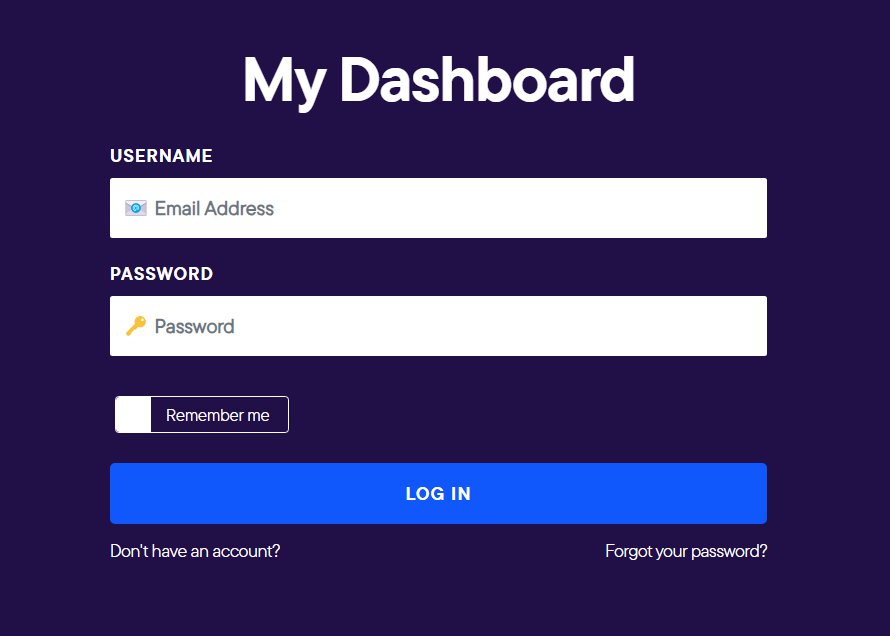
Step 1: Log into the TNZ Dashboard
Log into my.tnz.co.nz as your Agency-Admin.
⚠️ Important: Username Match Required
Your TNZ username must match your GHL Agency Owner username. A mismatch will prevent the app from installing. If your login usernames do not match, create a new TNZ User.
Your TNZ username must match your GHL Agency Owner username. A mismatch will prevent the app from installing. If your login usernames do not match, create a new TNZ User.
Step 2: Connect TNZ to GHL
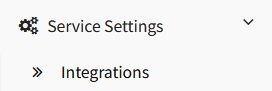
- In the TNZ Dashboard, go to Service Settings → Integrations.
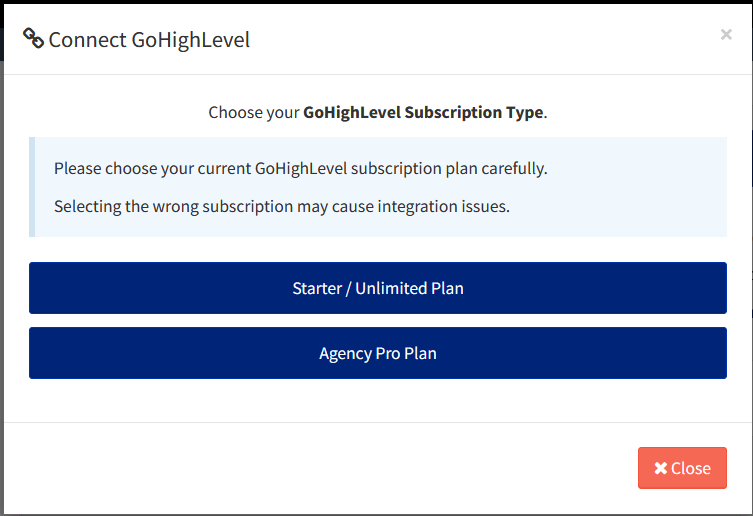
- Select GoHighLevel, then select the Starter/Unlimited plan.
- Log into GHL, then approve the TNZ SMS features.
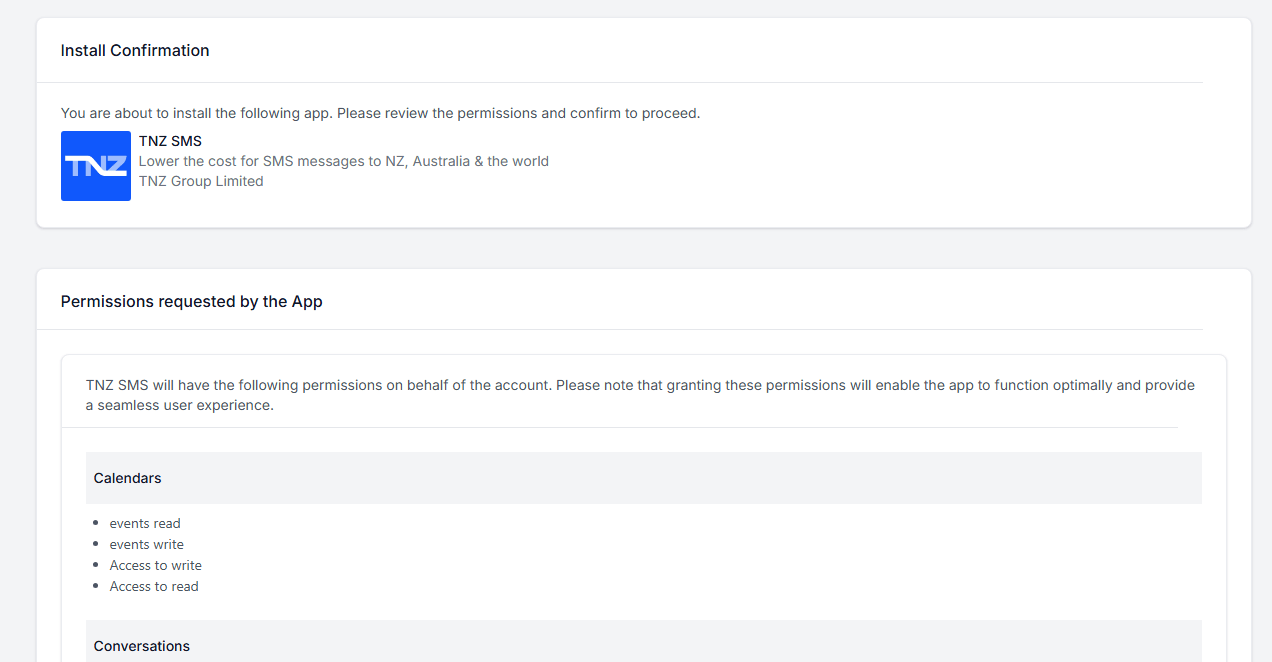
- Select the appropriate Account. You may select:
- An Agency (you'll be able to select multiple SubAccounts), or
- A single SubAccount.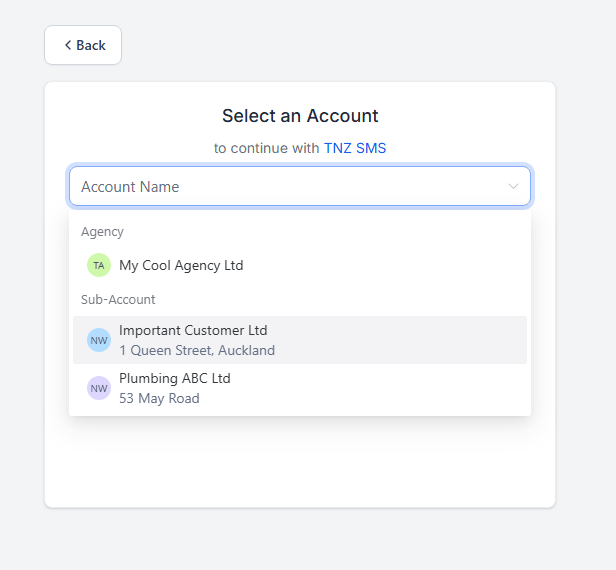
- If an Agency was selected, confirm automatic installation (optional). Then Proceed.
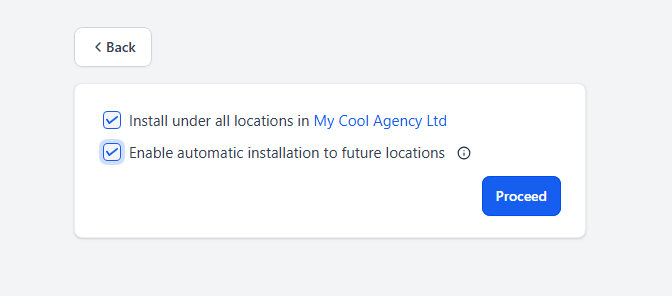
- Check both TNZ SMS options. Then Proceed.
- The first option allows displaying TNZ SMS as a Default Provider option.
- The second option allows use of TNZ SMS for features such as Conversations and Workflows.
⚠️ Important: Check BOTH boxes
You must check both boxes to access all features of the app. - Done! The TNZ SMS app is now installed for the appropriate Agency/SubAccounts.
Step 3: Set TNZ as the Default Provider (Optional)
This is an optional, highly recommended step - it sets your SMS messages to send using TNZ SMS by default.
⚠️ Agency-Admin Access
This step must be performed by the Agency-Admin GoHighLevel login (other login levels do not have the necessary privileges).
If you are not your account's GHL Agency-Admin, provide these instructions to them to perform.
This step must be performed by the Agency-Admin GoHighLevel login (other login levels do not have the necessary privileges).
If you are not your account's GHL Agency-Admin, provide these instructions to them to perform.
Should I toggle this option?
Default Provider IS NOT TNZ SMS |
Default Provider IS TNZ SMS |
| The SubAccount can use TNZ SMS only if using the 'TNZ SMS' premium action. Other SMS messages will use the default Provider (usually LeadConnector). | SMS messages will send using TNZ SMS. |
⚠️ Conversation Provider
GoHighLevel is currently rolling out a unified Conversation Provider setting, which replaces the previously separated "Voice Provider" and "SMS Provider" options.
If your account has been updated to this new layout, you have three options for handling your communications:
1. Use TNZ for SMS Only: Set TNZ SMS as your Conversation Provider. This is the best option if you do not use GHL for voice calls. (Note: We are actively working on TNZ voice features for a future release).
2. Use a Voice-Enabled Provider alongside TNZ: Set a voice-capable provider (e.g. LeadConnector) as your primary Conversation Provider.
- Standard SMS: Any messages sent using the default GHL "SMS" function (in Conversations or Workflows) will route through LeadConnector.
- TNZ SMS: To route messages through TNZ, you must use the dedicated TNZ SMS tab under Conversations, or select the specific TNZ SMS action within your Workflow Automations.
⚠️ Note: GHL will charge an extra Premium Actions fee when utilizing this setup.
3. Create Dedicated Sub-Accounts: Segregate your traffic by creating two separate sub-accounts:
- Sub-Account 1 (Voice): Uses LeadConnector as the Conversation Provider.
- Sub-Account 2 (SMS): Uses TNZ as the Conversation Provider.
GoHighLevel is currently rolling out a unified Conversation Provider setting, which replaces the previously separated "Voice Provider" and "SMS Provider" options.
If your account has been updated to this new layout, you have three options for handling your communications:
1. Use TNZ for SMS Only: Set TNZ SMS as your Conversation Provider. This is the best option if you do not use GHL for voice calls. (Note: We are actively working on TNZ voice features for a future release).
2. Use a Voice-Enabled Provider alongside TNZ: Set a voice-capable provider (e.g. LeadConnector) as your primary Conversation Provider.
- Standard SMS: Any messages sent using the default GHL "SMS" function (in Conversations or Workflows) will route through LeadConnector.
- TNZ SMS: To route messages through TNZ, you must use the dedicated TNZ SMS tab under Conversations, or select the specific TNZ SMS action within your Workflow Automations.
⚠️ Note: GHL will charge an extra Premium Actions fee when utilizing this setup.
3. Create Dedicated Sub-Accounts: Segregate your traffic by creating two separate sub-accounts:
- Sub-Account 1 (Voice): Uses LeadConnector as the Conversation Provider.
- Sub-Account 2 (SMS): Uses TNZ as the Conversation Provider.
⚠️ Premium Action Costs
Using "Send TNZ SMS" or "Send TNZ Internal SMS" actions incurs a premium action cost, charged by GoHighLevel. Setting TNZ as the default provider so that you can use the standard "Send SMS" options can help you avoid these additional charges.
Using "Send TNZ SMS" or "Send TNZ Internal SMS" actions incurs a premium action cost, charged by GoHighLevel. Setting TNZ as the default provider so that you can use the standard "Send SMS" options can help you avoid these additional charges.
Can I toggle this for select SubAccounts?
Yes, you may:
a) Install TNZ SMS for specific SubAccounts only (you may select the SubAccounts that have the app installed), and/or
b) Toggle the Default Provider for the target SubAccounts only (other SubAccounts can still use the "TNZ SMS" Premium Action but their normal SMS messages will use their default provider).
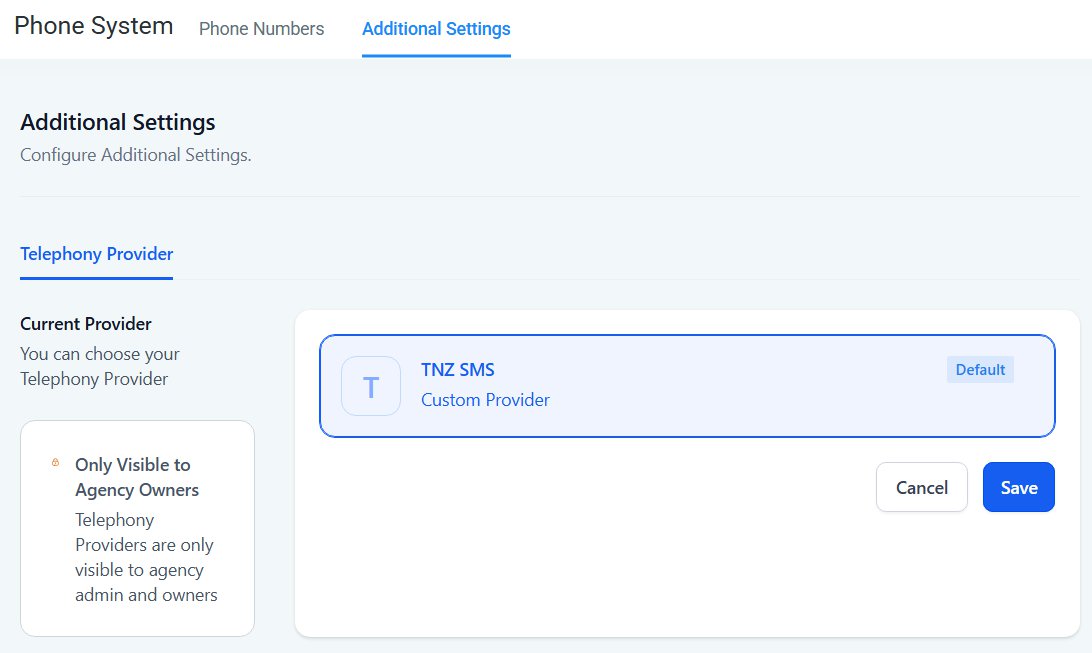
How do I toggle the Default Provider?
| 1. Log into GHL as your Agency Admin user. |
| 2. Switch to a SubAccount where you want TNZ SMS as the default. |
| 3. Go to Settings → Phone Numbers → Advanced Settings. |
| 4. Choose TNZ SMS as the default provider and click Save. You must click Save regardless of whether TNZ SMS is already selected. Note: High Level can take up to 10 minutes to sync this change. |
| 5. Repeat this process for each applicable SubAccount. |
Using TNZ SMS: Sending & Receiving SMS Messages
Conversations
Use the Conversations tool to send messages to contacts.
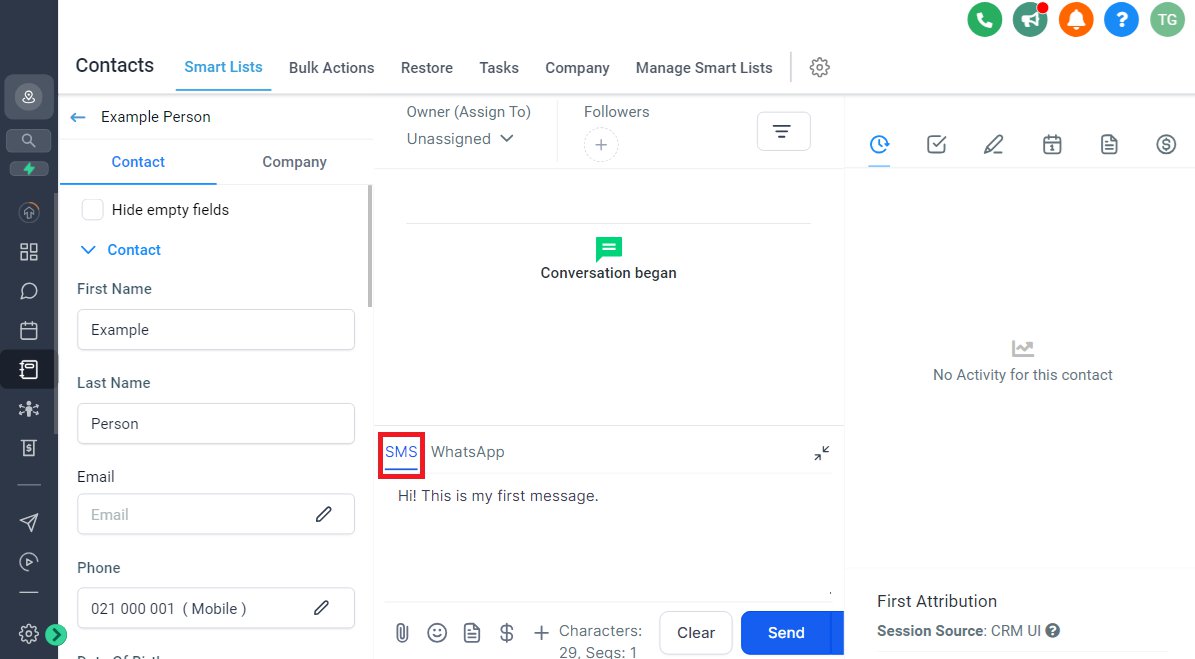
Replies from your contacts appear in the GHL Conversations tab.
Send SMS in Workflows
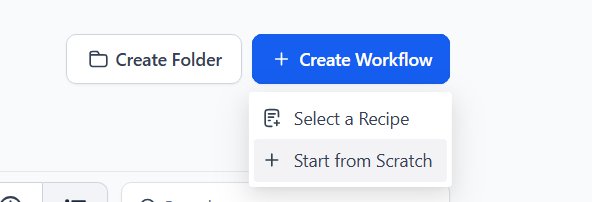
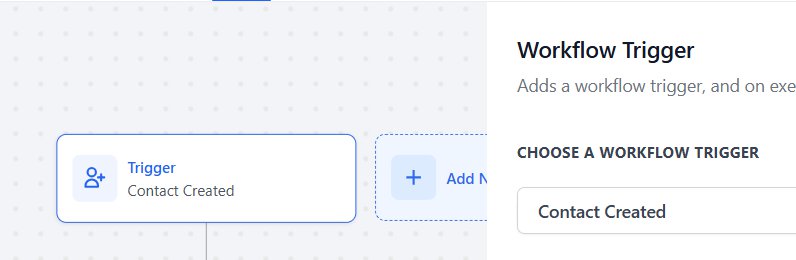
You can optionally use SMS messaging in Automations, for example, automatically send a welcome SMS when creating a new Contact, or sending a Happy Birthday message on a contact's birthday.
|
1. Create a new Workflow or open an existing one
|
|
2. Configure an appropriate 'Trigger' that will cause your workflow to run
|
|
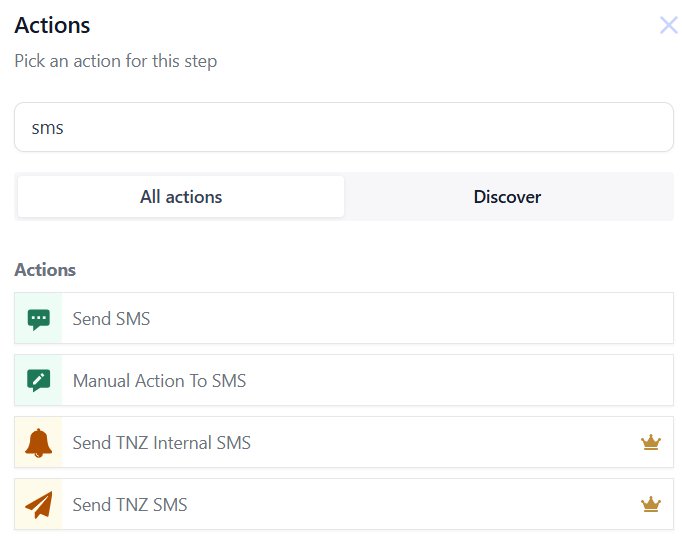
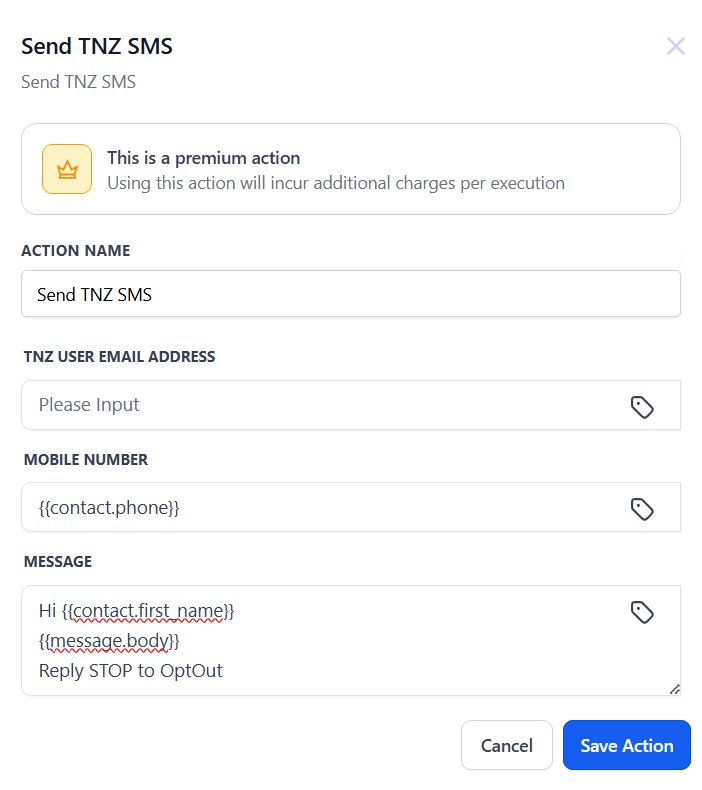
3. Add a new 'Action' and find 'Send SMS' • Send SMS uses the default GHL SMS settings. If your default SMS Provider is TNZ SMS, it will use TNZ. • Send TNZ SMS forces GHL to use TNZ SMS (additional Premium Action cost applies). • Send TNZ Internal SMS forces GHL to use TNZ SMS to send a message to internal app users.
|
|
4. Enter your Message and send a test before saving your action
• Action Name is a description displayed in your workflow. |
Country Access: Exclusive Focus on New Zealand and Australia
TNZ SMS is purpose-built for NZ and AU, ensuring reliable delivery and compliance with local carrier rules. This regional focus means better performance compared to global providers who treat NZ and AU as secondary markets.
SMS Sender Numbers
The number or name that appears on your recipient's phone depends on the destination:
| Destination | Sender format |
|---|---|
| New Zealand mobiles | TNZ short code (3–6 digit number). Dedicated short codes available (learn more). |
| Australian mobiles | Custom Sender ID supported (e.g. your business name) or Virtual Mobile Number |
| International | Custom Sender ID or Virtual Mobile Number supported in most locations (learn more). |
Read our full guide on NZ SMS short codes →
Billing Options: Agency versus SubAccount
There are two billing models, depending on whether the TNZ SMS Basic app has been installed by the Agency or by an individual SubAccount.
Option 1: Agency Billing
If the TNZ Account has been registered by an Agency:
At the end of each month, you'll receive an invoice (for the $20/month base fee plus SMS usage) and a SubAccount usage report.
SMS does not use the built-in GoHighLevel rebilling - you must oncharge your clients outside of GHL.
📋 Example: Marketing Agency with 5 Clients
Bright Digital Agency manages SubAccounts for two clients: a real estate agency and a dental clinic.
Each month, TNZ sends Bright Digital one invoice that looks like this:
| SubAccount | SMS Parts Sent | Cost (ex GST) |
|---|---|---|
| QAPsy6Gi9zjF231zZWET | 320 | $32.00 |
| kShf8FJ2jafssJo1Ws | 210 | $21.00 |
| Monthly base fee | $20.00 | |
| Total | $73.00 | |
Bright Digital can then rebill each client individually, with or without a markup.
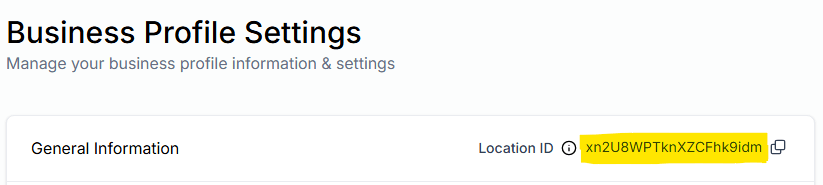
Each SubAccount will be referenced by their GHL Location ID. To determine which Location ID refers to which SubAccount:
| Method 1: Business Profile Settings | Method 2: URL Bar |
|
|

Automate Location ID Mapping:
The GoHighLevel Agency Pro plan paired with the TNZ SMS app supports automating the mapping of SubAccount names.
When installed, the TNZ SMS app will replace any Location IDs in reporting with the correct Location Name.
This is an additional feature supported by the GoHighLevel Agency Pro plan only.
Follow the TNZ SMS guide for this billing option →
Option 2: Direct Customer Billing
If the TNZ Account has been registered by an individual SubAccount:
In this model, each client registers their own TNZ account, connects their GHL SubAccount, and receives their own TNZ invoice. The Agency is removed from the billing chain entirely - no charges are passed to the agency.
📋 Example: SubAccount Registers Direct With TNZ
Bright Digital Agency manages the GHL setup for City Dental, but City Dental prefers to pay their own messaging costs.
City Dental registers a TNZ account and connects their SubAccount. TNZ invoices City Dental directly. Bright Digital still handles the GHL configuration but has no involvement in that client's TNZ billing.
Each month, TNZ sends City Dental one invoice that looks like this:
| SubAccount | SMS Parts Sent | Cost (ex GST) |
|---|---|---|
| City Dental | 220 | $22.00 |
| Monthly base fee | $20.00 | |
| Total | $42.00 | |
No invoices or costs are attributed to Bright Digital.
Troubleshooting: Common Issues
Messages Stuck as "Pending"Follow these troubleshooting steps:
|
Messages Still Routing via LeadConnector (LC)Some GHL system messages (such as login notifications) always use LeadConnector and cannot be changed. For all other features (Conversations, Workflows, Review Requests), follow the Step 3: Set TNZ as the Default Provider instructions above and re-save the setting, even if TNZ SMS already appears selected. Wait for 10 minutes for HighLevel to sync the change. |
Disable Email Notifications for SMS RepliesTo disable email notifications for SMS replies:
|
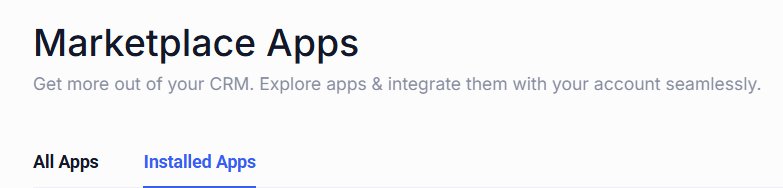
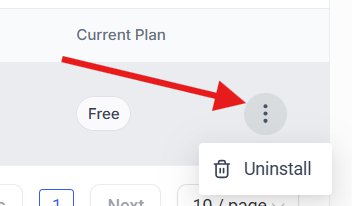
Uninstall TNZ SMSIf you need to remove the TNZ SMS app from your agency or specific SubAccounts:
⚠️ Uninstalling Your Default Provider
Uninstalling the app will disconnect TNZ SMS from the affected SubAccounts. You may need to manually adjust the SubAccount's Default Provider. |
Frequently Asked Questions
| Can I use my own mobile number or a custom Sender ID? When sending to New Zealand mobiles, TNZ uses short codes only (learn more). When sending to Australia and some international locations, a Custom Sender ID (e.g. your business name) or a Virtual Mobile Number (e.g. +61401020304) is supported (learn more). |
| Do I need to leave GHL to send SMS? No, all sending, receiving, and automation occurs within GHL. You only need to log into the TNZ Dashboard for account management, billing, and reporting. |
| Why are my messages stuck as "Pending"? Usually because TNZ isn't set as the default provider, or the app needs reinstalling. See the Troubleshooting section for step-by-step guidance. |
| Why are GHL login codes still using LeadConnector? GHL system notifications (such as login codes) always use LeadConnector SMS and cannot be changed to a custom provider. This is a GHL limitation, not a TNZ issue. |
| Does the trial automatically convert to a paid account? No. When your 14-day trial ends, you'll need to log into the TNZ Dashboard and manually convert to a full account. Your settings and SubAccount connections are preserved when you upgrade. |
Additional Assistance
If you have any questions or need help at any stage, the TNZ team is ready to assist.
Topics: Installation SMS
Start your free trial today!
Ready to revolutionise your messaging?
Connect with people anywhere - boost engagement, responses and conversations.
20 credits over 14-days. No obligation. No credit card required.