














SMS Integration Guide: Yeastar Linkus Web Client and TNZ SMS
Use the Chat function in the Yeastar PBX Linkus Web Client to send SMS messages
Jump to Section
Before You Start Step 1: TNZ Credentials Step 2: Message Channel Step 3: Numbers & Routing Using Linkus SMS Troubleshooting Need a Hand?The Linkus Web Client adds an omnichannel chat to your Yeastar P-Series Phone System, including SMS to any mobile. But Linkus doesn't ship with an SMS provider built in, so you'll need to connect one.
This guide walks IT admins through connecting TNZ as the SMS channel, so your team can send and receive SMS straight from your Yeastar PBX.
🚀 Before You Start
You will need:
🔑
A TNZ account
A free trial is fine for testing the connection — 20 credits, 14 days, no credit card.
📞
A Yeastar P-Series Phone System
With the Linkus Web Client enabled.
🛠️
Admin access to both platforms
TNZ Dashboard and Yeastar Access Management Portal.
📱
A TNZ SMS number (optional)
Short code or virtual mobile. If you don't have one, TNZ's shared numbers are used by default.
🔑 Step 1: Generate Credentials in the TNZ Dashboard
Start in TNZ to generate the API Key and addresses Yeastar will use.
| 1. Log in to your TNZ account at https://my.tnz.co.nz. |
| 2. From the menu, go to Service Settings → Integrations → Yeastar. |
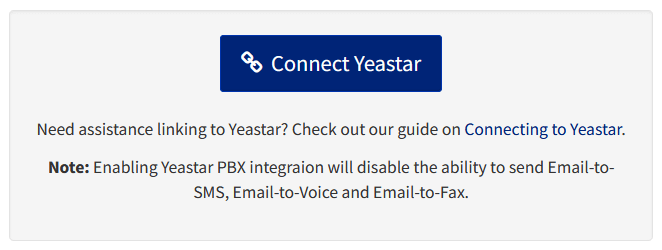
| 3. Click Connect Yeastar. |
| 4. Keep this window open. You will copy the API Key and API Address into Yeastar in the next step. |
⚙️ Step 2: Configure the Yeastar Message Channel
Now tell Yeastar to use TNZ as its SMS provider.
| 1. Log in to your Yeastar web client. |
| 2. Switch to the Access Management Portal view. |
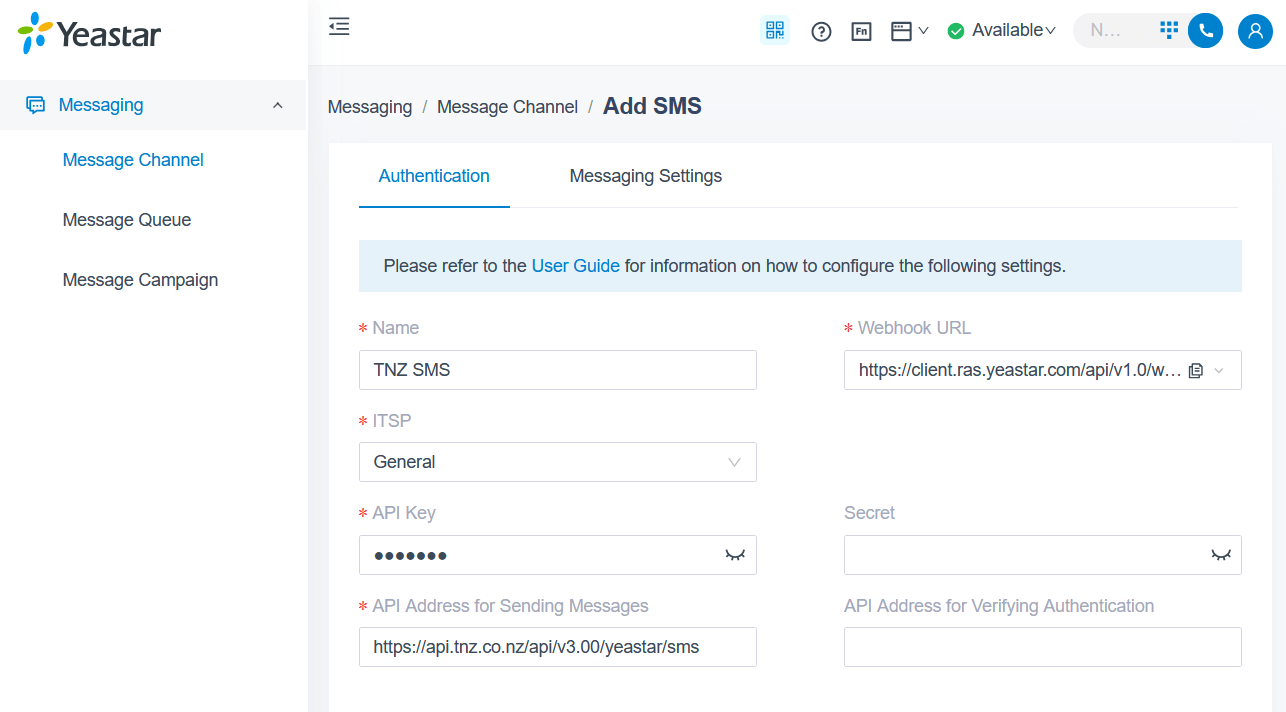
| 3. Under Messaging, select Message Channel, click + Add, then SMS. |
4. Enter these settings:
| Field | TNZ | Yeastar |
|---|---|---|
| Name | TNZ SMS | |
| ITSP | General | |
| Webhook URL | Paste into TNZ | Copy from Yeastar |
| API Key | Copy from TNZ | Paste into Yeastar |
| Secret | Copy from TNZ | Paste into Yeastar |
| API Address for Sending Messages | Copy from TNZ | Paste into Yeastar |
| API Address for Verifying Authentication | Copy from TNZ | Paste into Yeastar |
⚠️ Save Both Sides
After you paste the Webhook URL from Yeastar into the TNZ Dashboard, click Update in TNZ and Save in Yeastar. Both sides have to be saved for the handshake to complete.
After you paste the Webhook URL from Yeastar into the TNZ Dashboard, click Update in TNZ and Save in Yeastar. Both sides have to be saved for the handshake to complete.
📞 Step 3: Configure Numbers and Routing
With the channel in place, register your SMS number and decide how inbound messages reach your staff.
| 1. In the Yeastar Management Portal, click the new TNZ SMS channel, then open the Messaging Settings tab. |
| 2. Click + Add to register your SMS number. |
| 3. Extensions Allowed to Create Messaging Sessions: Toggle on the team members who need to start outbound SMS chats. |
| 4. Click Save. |
Number — what to enter
⚠️ Enter
+0000, Not Your Real Number+0000 is the default for TNZ's shared numbers and works for most setups. Don't enter a real DDI (for example, 095005000) - it will fail. Only replace +0000 if you have purchased a dedicated TNZ number (short code or virtual mobile), in which case enter that number here.
Destination for Inbound Messaging — pick one
👥 Message Queue
Best for support teams where any available agent can pick up the chat. The first agent to respond owns the session.
👤 Extension
Best for direct lines where messages should go to a specific person.
Your team can now use Linkus chat to send SMS.
💬 Using Linkus SMS
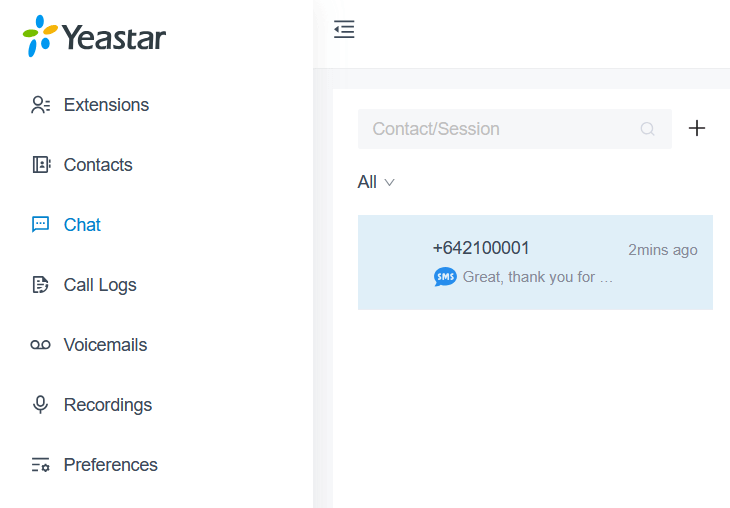
Once configured, an SMS option appears in the Chat sidebar of the Linkus Web Client.
📤
Outbound
Click the New Chat icon, enter a mobile number, and select the TNZ SMS channel to start the conversation.
📥
Inbound
Customer replies land in the chat window. If the number is routed to a queue, the first agent to respond owns the session.
🔧 Troubleshooting
Message not sendingCheck the API Key in Yeastar matches the one in the TNZ Dashboard exactly. Open View Messages in the TNZ Dashboard to confirm the request reached our servers. |
Inbound not receivedConfirm the Webhook URL copied from Yeastar has been pasted into the TNZ Yeastar integration settings and saved. Without it, TNZ has nowhere to push incoming messages. Webhook changes apply to new messages only, so send a fresh outbound SMS and reply to test. |
User can't see SMSReview the Extensions Allowed to Create Messaging Sessions setting from Step 3. Only enabled extensions see the SMS option in Linkus. |
📞 Need a Hand?
Setting up a dedicated number, a short code, or a higher-volume rollout? Talk to the TNZ team and we'll point you in the right direction.
Topics: Installation SMS
Start your free trial today!
Ready to revolutionise your messaging?
Connect with people anywhere - boost engagement, responses and conversations.
20 credits over 14-days. No obligation. No credit card required.