





















Setting Up TNZ SMS as a Notification Provider in PRTG
Integrate your Paessler PRTG Network Monitor with TNZs SMS API to receive critical alerts directly via text message.
Receiving instant SMS notifications from your PRTG Network Monitor for critical system alerts is essential for maintaining uptime. This guide will walk you through setting up TNZ SMS as a custom notification provider in PRTG.
Generate Your TNZ API Key
To enable PRTG to send messages via your TNZ account, you need a dedicated Sender and APIKey pair. This is created as a Legacy API Key within your user profile in the TNZ Dashboard.
-
Log in to your TNZ Dashboard.
-
Navigate to the Users section.
-
Click on your user in the list.
-
Under the API Access options, toggle the Enable API switch to 'Yes'.
-
Enable the Sender/APIKey option and click the 'Create Legacy API Key' button.
-
A new Sender and APIKey will be generated and displayed. Take careful note of both of these values, as they will be required for the PRTG setup.
Note: Treat your API Key like a password. Do not share it publicly.
Configure TNZ SMS Delivery in PRTG
Let's configure the custom SMS provider settings in PRTG.
-
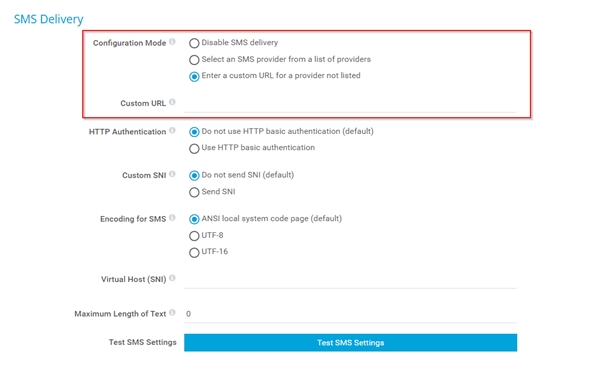
In your PRTG installation, go to Setup (the gear icon), then System Administration, and finally Notification Delivery.
-
Under the SMS Delivery section, set these options:
| Field | Value/Setting | Notes |
| URL | https://api.tnz.co.nz/api/v2.04/HttpApi/SMS?sender=[your sender]&token=[your apikey]&number=%SMSNUMBER&message=%SMSTEXT |
The URL contains custom commands: |
| HTTP Authentication | Do not use HTTP authentication | The authentication is handled directly within the URL parameters (sender and token). |
| Custom SNI | Do not send Custom SNI | This is not required for the TNZ API. |
| Encoding | UTF-8 | Standard encoding for text messages. |
| Virtual Host | Not required (leave blank). | |
| Maximum length of text | 160 | We recommend setting this to 160 for single-part SMS, but you can set it up to 1530 if you expect longer alerts. Note that messages longer than 160 characters are billed as multiple SMS parts. |
Set Up the PRTG Notification Trigger
The last step is to create a Notification Template that uses your newly configured TNZ SMS provider.
-
Go back to Setup > System Administration > Notification Templates.
-
Click 'Add Notification Template'.
-
Give your new template a name, e.g., 'TNZ SMS Alert'.
-
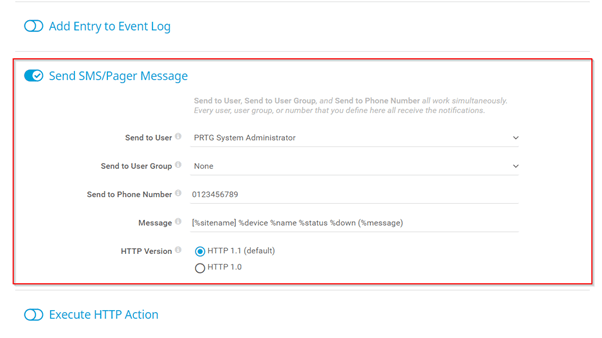
In the Actions section, select the 'Send SMS Message' option.
-
In the dropdown menu under SMS Delivery Provider, select the TNZ SMS provider you just configured (which will appear as the URL you entered).
-
Define the message content you want to send in the Message field (e.g.,
%downtime.sensor (%probe) is %status on %device. Message: %status.message). -
Save the template.
You can now apply this 'TNZ SMS Alert' template to sensors, devices, or groups in PRTG to trigger a text message notification whenever a specified alert condition is met (e.g., a sensor enters a 'Down' state).
Topics: Installation SMS