









REST API Docs
WorkflowSMSEmailVoiceText-to-Speech (TTS)FaxWhatsAppRCSWebhooksAddress BookOpt-OutPartner APIAPIs, Libraries & SDKs
 REST API
 TypeScript
 SMPP
SMPP Python
 MCP
MCP .NET
.NET SMTP Gateway
 VBA
VBA Flexi API
 HTTPS API
 SOAP API
 Other Tools REST APITypeScriptSMPPPythonMCP.NETSMTP GatewayVBAFlexi APIHTTPS APISOAP APIOther Tools
 n8n allows you to connect thousands of apps and services to create sophisticated workflows.
You can easily connect to our powerful communications platform using the HTTP Request node.
This article provides a comprehensive, step-by-step guide to setting up TNZ's SMS, Email, and Voice APIs within your n8n workflows.
Before you can configure your n8n workflow, you need to generate an Auth Token from your TNZ Dashboard. This token acts as a secure, private key that authenticates your API calls.
Log in to your TNZ Account at https://my.tnz.co.nz.
From the menu, navigate to Users.
Click 'Enable' next to 'Auth Token'.
Click 'Create Auth Token' and confirm the action.
'Copy' your newly created Auth Token. Keep this token secure, it is a secret credential.
Since the TNZ API is a RESTful API that works over HTTP, you will use n8n's HTTP Request node to connect.
Log in to your n8n instance or cloud account and open your Workflow, or create a new one.
Ensure your workflow has a Trigger node (the workflow's first step).
Click the '+' icon and search for the HTTP Request node.
Note: You can copy the "Send SMS" example node from the "Examples" section.
{
  "Message": "Hello {{ $json.customerName }}, your order has shipped! Tracking: {{ $json.trackingNumber }}",
  "Destination": "{{ $json.mobileNumber }}"
}
(Replace these values as appropriate)
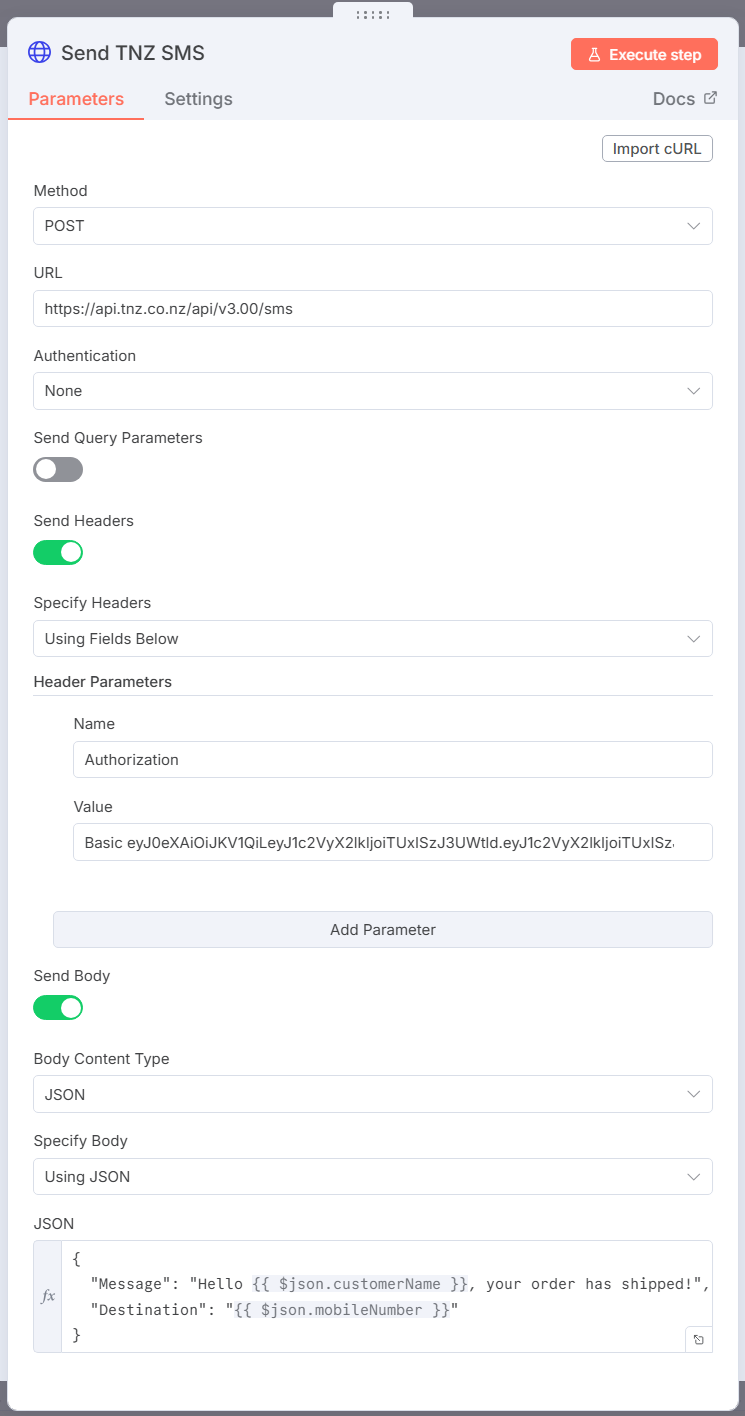
Each message type (SMS, Email, Voice) has unique variables you can include to customise your message.
For example, in an Email you can customise the EmailSubject, FromEmail, CCEmail, and in a Voice call you can customise the Caller ID, Voice that is used, etc.
Refer to the TNZ REST API Documentation for all available parameters.
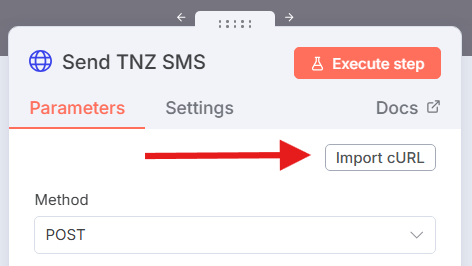
Tip: You can copy the cURL samples from the TNZ API documentation directly into n8n:
When configuring your message, you may wish to receive a callback when the message delivery completes, or if an SMS Reply is detected.
Set these values:
"NotificationType": "Webhook",
"WebhookCallbackURL": "Your n8n Webhook URL"
Example:
{
  "Message": "Hello {{ $json.customerName }}, your order has shipped! Tracking: {{ $json.trackingNumber }}",
  "Destination": "{{ $json.mobileNumber }}",
  "NotificationType": "Webhook",
  "WebhookCallbackURL": "https://localhost:5678/webhook/95c28040d2f4-0d7c-47e7-8e5d"
}
(Replace these values as appropriate)
When you submit a message, use the NotificationType and WebhookCallbackURL parameters to tell TNZ where to send status and reply webhooks.
Set these values on your outbound message:
"NotificationType": "Webhook",
"WebhookCallbackURL": "Your n8n Webhook URL"
Log in to your n8n instance or cloud account and open your Workflow, or create a new one.
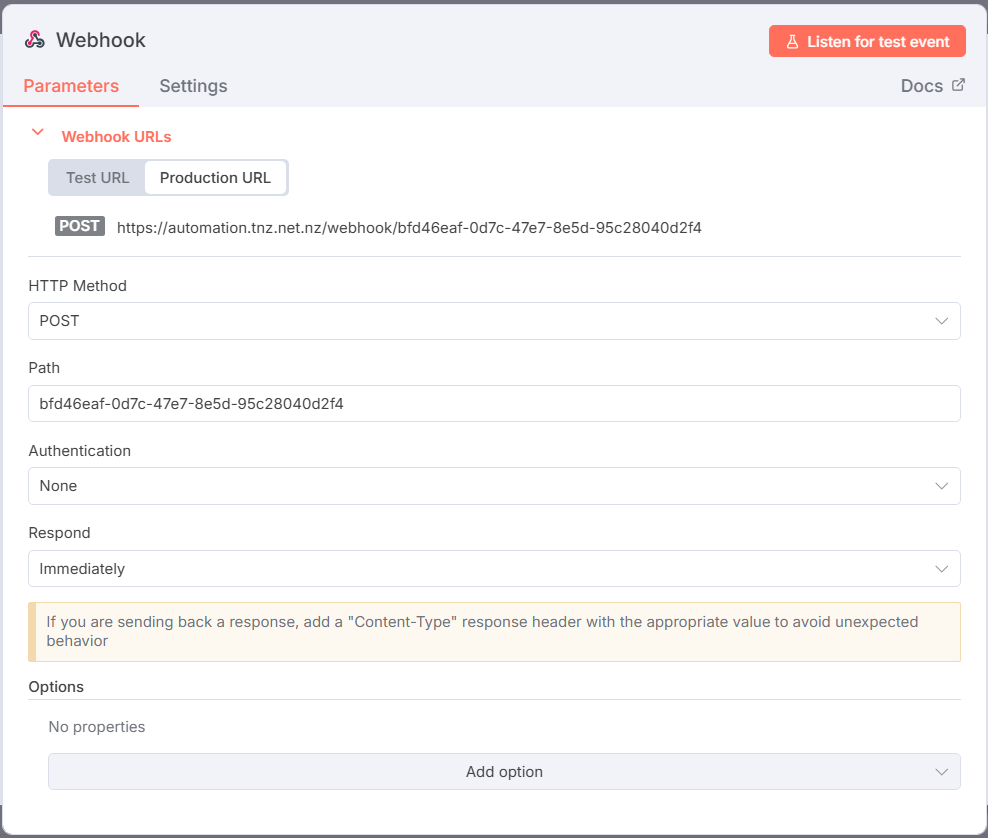
Now that your n8n Workflow's Webhook URL is set up, you need to advise TNZ to use it.
When sending an outbound message from n8n, you may specify the URL in the "WebhookCallbackURL" body parameter.
Your user in the TNZ Dashboard can also have a default Webhook URL configured.
Follow the Configuring Webhooks and API Notifications for full instructions.
After your n8n workflow executes the API call, you can review the status and details of the sent messages directly in the TNZ Dashboard:
Log in to the TNZ Dashboard.
Select 'View Messages' from the menu.
Select 'Detailed Messages Sent' to view comprehensive delivery and usage reports for all messages sent via the API (including those from n8n).
This detailed log allows you to monitor delivery status, costs, and any replies received from your customers.
When triggering your n8n node to TNZ, if you receive a JSON syntax error:
JSON parameter needs to be valid JSON
Check your node is using correctly escaped fields. The Fixing JSON Errors in n8n HTTP Requests guide outlines the best options.
These are some simple nodes you can copy and paste directly into your n8n Workflow.
Uses the HTTP Request node to send an SMS message. Update the credentials with your TNZ Auth Token.
{
  "nodes": [
    {
      "parameters": {
        "method": "POST",
        "url": "https://api.tnz.co.nz/api/v3.00/sms",
        "authentication": "genericCredentialType",
        "genericAuthType": "httpBearerAuth",
        "sendBody": true,
        "bodyParameters": {
          "parameters": [
            {
              "name": "Message",
              "value": "=Hello {{ $json.name }}, this is a test."
            },
            {
              "name": "Destination",
              "value": "={{ $json.mobile }}"
            },
            {
              "name": "NotificationType",
              "value": "Webhook"
            },
            {
              "name": "WebhookCallbackURL",
              "value": "=[[ n8n Webhook URL here]]"
            },
            {
              "name": "Reference",
              "value": "Message from n8n Send SMS Node"
            }
          ]
        },
        "options": {}
      },
      "type": "n8n-nodes-base.httpRequest",
      "typeVersion": 4.3,
      "position": [
        1,
        1
      ],
      "name": "Send SMS",
      "credentials": {
      }
    }
  ],
  "connections": {},
  "pinData": {}
}Uses the Webhook node to catch a TNZ Status Webhook and passes this to a Filter node for sorting. Update your message sending nodes to specify the Webhook node's production URL in the `Webhook Callback URL` parameter.
{
  "nodes": [
    {
      "parameters": {
        "rules": {
          "values": [
            {
              "conditions": {
                "options": {
                  "caseSensitive": true,
                  "leftValue": "",
                  "typeValidation": "strict",
                  "version": 3
                },
                "conditions": [
                  {
                    "leftValue": "={{ $json.body.Status }}",
                    "rightValue": "S",
                    "operator": {
                      "type": "string",
                      "operation": "equals"
                    },
                    "id": "e8af6a7b-0135-4fbf-87bf-a803d17b375f"
                  }
                ],
                "combinator": "and"
              },
              "renameOutput": true,
              "outputKey": "Success"
            },
            {
              "conditions": {
                "options": {
                  "caseSensitive": true,
                  "leftValue": "",
                  "typeValidation": "strict",
                  "version": 3
                },
                "conditions": [
                  {
                    "id": "abbdc2db-2f7a-43c6-9997-fd03e7145d06",
                    "leftValue": "={{ $json.body.Status }}",
                    "rightValue": "Failed",
                    "operator": {
                      "type": "string",
                      "operation": "equals",
                      "name": "filter.operator.equals"
                    }
                  }
                ],
                "combinator": "and"
              },
              "renameOutput": true,
              "outputKey": "Failed"
            }
          ]
        },
        "options": {}
      },
      "type": "n8n-nodes-base.switch",
      "typeVersion": 3.4,
      "position": [
        300,
        1
      ],
      "id": "8db30851-6aed-4ed5-ab4a-1defd51a8b4b",
      "name": "Tracking Success/Failed"
    },
    {
      "parameters": {
        "httpMethod": "POST",
        "path": "statuswebhook",
        "options": {
          "responseCode": {
            "values": {}
          },
          "responseData": "OK"
        }
      },
      "type": "n8n-nodes-base.webhook",
      "typeVersion": 2.1,
      "position": [
        1,
        1
      ],
      "id": "a33de494-a48f-41f2-b6f9-c127742f7293",
      "name": "Status Webhook",
      "webhookId": "f72fabaf-740d-4e6b-8cc5-ff84aa80c750"
    }
  ],
  "connections": {
    "Status Webhook": {
      "main": [
        [
          {
            "node": "Tracking Success/Failed",
            "type": "main",
            "index": 0
          }
        ]
      ]
    }
  },
  "pinData": {},
  "meta": {
    "templateCredsSetupCompleted": true,
    "instanceId": "ad79ed91b9cbd19087d082ec74a8bbe3d374cf96a8c5d1373a7deb6f8415ac9f"
  }
}Uses the Webhook node to catch a TNZ Inbound SMS Webhook. Update your message sending nodes to specify the Webhook node's production URL in the `Webhook Callback URL` parameter.
{
  "nodes": [
    {
      "parameters": {
        "httpMethod": "POST",
        "path": "inboundsmswebhook",
        "options": {
          "responseCode": {
            "values": {}
          },
          "responseData": "OK"
        }
      },
      "type": "n8n-nodes-base.webhook",
      "typeVersion": 2.1,
      "position": [
        1,
        1
      ],
      "id": "674447fd-f507-4356-9108-0bffce07ba3c",
      "name": "Inbound SMS Webhook",
      "webhookId": "f72fabaf-740d-4e6b-8cc5-ff84aa80c750"
    }
  ],
  "connections": {
    "Inbound SMS Webhook": {
      "main": [
        []
      ]
    }
  },
  "pinData": {},
  "meta": {
    "templateCredsSetupCompleted": true,
    "instanceId": "ad79ed91b9cbd19087d082ec74a8bbe3d374cf96a8c5d1373a7deb6f8415ac9f"
  }
}
Topics: Installation
Ready to revolutionise your messaging?
Connect with people anywhere - boost engagement, responses and conversations.
20 credits over 14-days. No obligation. No credit card required.