









REST API Docs
WorkflowSMSEmailVoiceText-to-Speech (TTS)FaxWhatsAppRCSWebhooksAddress BookOpt-OutPartner APIAPIs, Libraries & SDKs
 REST API
 TypeScript
 SMPP
SMPP Python
 MCP
MCP .NET
.NET SMTP Gateway
 VBA
VBA Flexi API
 HTTPS API
 SOAP API
 Other Tools REST APITypeScriptSMPPPythonMCP.NETSMTP GatewayVBAFlexi APIHTTPS APISOAP APIOther Tools
 If you're using Microsoft Outlook, Outlook.com or Microsoft 365 for your calendaring, scheduling, and event tracking, you can leverage the TNZ Calendar Automation feature to automatically send SMS, Voice, or Email reminders directly from your calendar events.
This article specifically focuses on syncing your Outlook/Microsoft 365 Calendar and using the SMS= command to override default reminder settings for specific events.
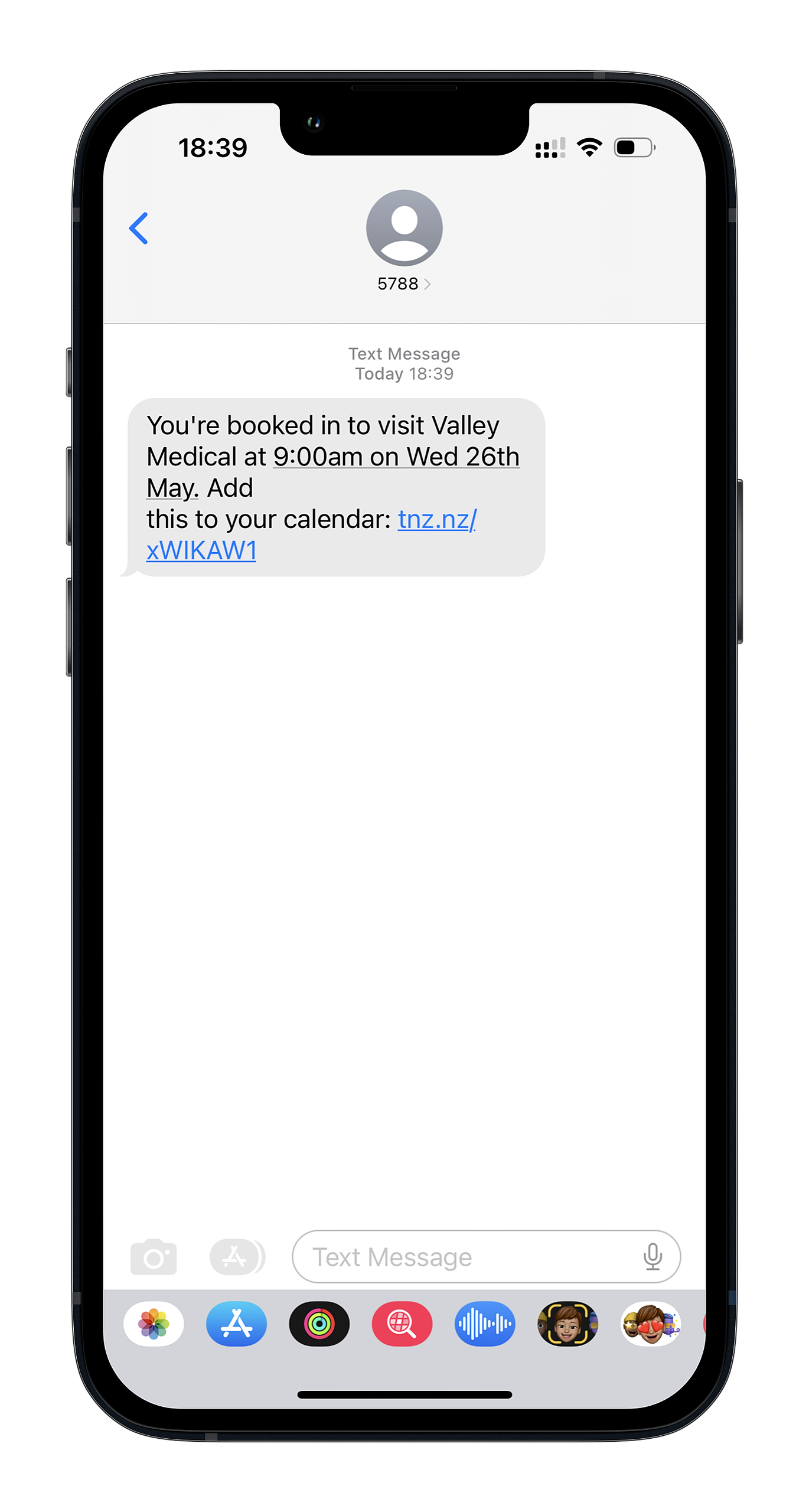
Before you can automate reminders, your Outlook Calendar must be successfully synchronised with your TNZ Dashboard.
Only cloud-hosted calendars (Microsoft 365 and Outlook.com) are supported for real-time, bi-directional sync.
Local Outlook desktop calendars (ICS/VCS files) can be manually imported using the TNZ Dashboard.
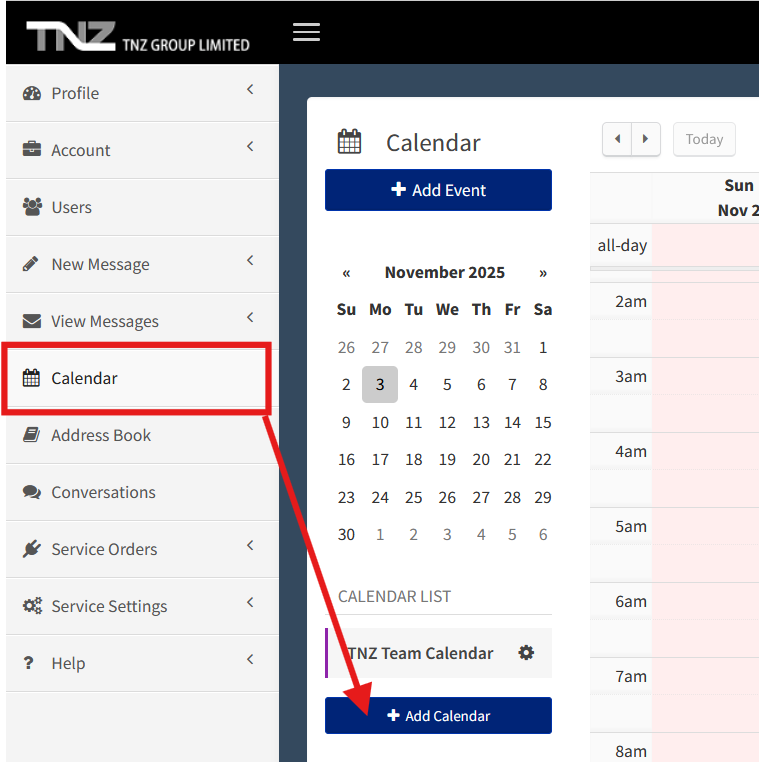
Log into the TNZ Dashboard.
Select 'Calendar' from the main menu.
Select '+ Add Calendar'.
Choose 'Outlook Calendar'.
You will be prompted to log into your Microsoft account. Log into your Outlook account and select the appropriate calendar you wish to sync.
Setting the calendar's Default Reminder options (see the 'Default Reminder Settings' section below).
Once synced, any event you create or modify in your Outlook calendar will be instantly reflected in the TNZ Dashboard.
Note: If you need to sync multiple Outlook calendars, repeat this process for each one. If your calendar isn't listed or you see the 'Failed to get calendar list' error, confirm that you have the necessary access permissions in the Microsoft 365 Admin Center.
SMS= CommandWhen creating a calendar event, you can insert the SMS= command into the event's Notes field.
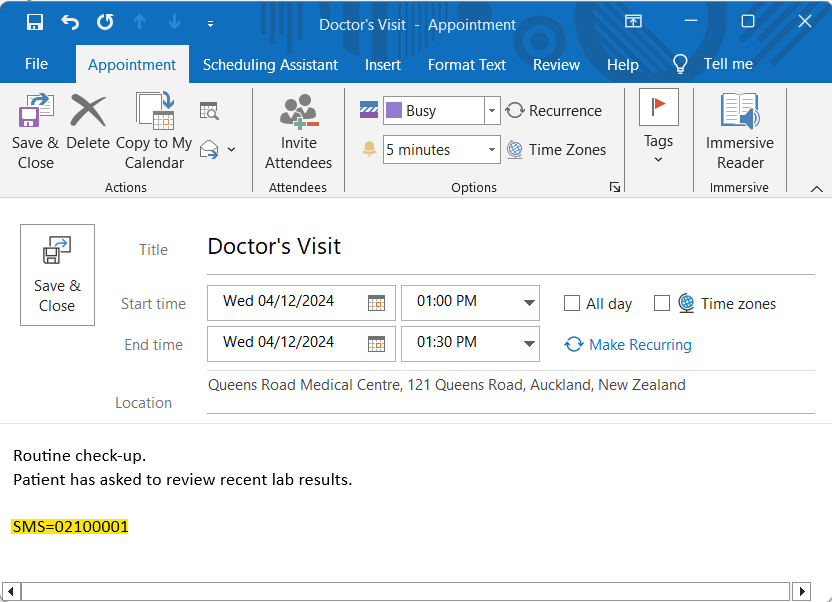
Placement: The command must be entered into the event's Notes field in Outlook (or the event's body/description field, depending on your Outlook client).
Format: Ensure the mobile number is in the correct format for your region. For New Zealand, this is typically 021, 022, or 027 followed by the rest of the number.
Similarly, you can override with other simple commands for different communication types:
Email: Email=demo@example.com
Voice: Voice=09 555 4444
[[Reminder]] CommandFor the highest level of control, including customising the reminder message, timing, and destination per event, you should use the Advanced Overriding Command: [[Reminder]].
This command allows you to define all parameters for a specific event's reminder, entirely overriding the calendar's defaults.
Place the entire block of text below into the Notes field of your Outlook event:
[[Reminder]]
Type=SMS
Destination=<Mobile Number>
Notify=<Time Before Event>
Message=<Your Custom Reminder Message>
| Field | Description | Example Value |
| Type | The communication channel. | SMS (or Email, Voice) |
| Destination | The mobile number, phone number, or email address. | 021000001 |
| Notify | How long before the event the reminder should send. | 1 Day (or 30 Minutes, 2 Hours, etc.) |
| Message | The exact reminder text to send. | Hi John, your appt is tomorrow at 3pm. Reply NO to cancel. Auckland Consulting |
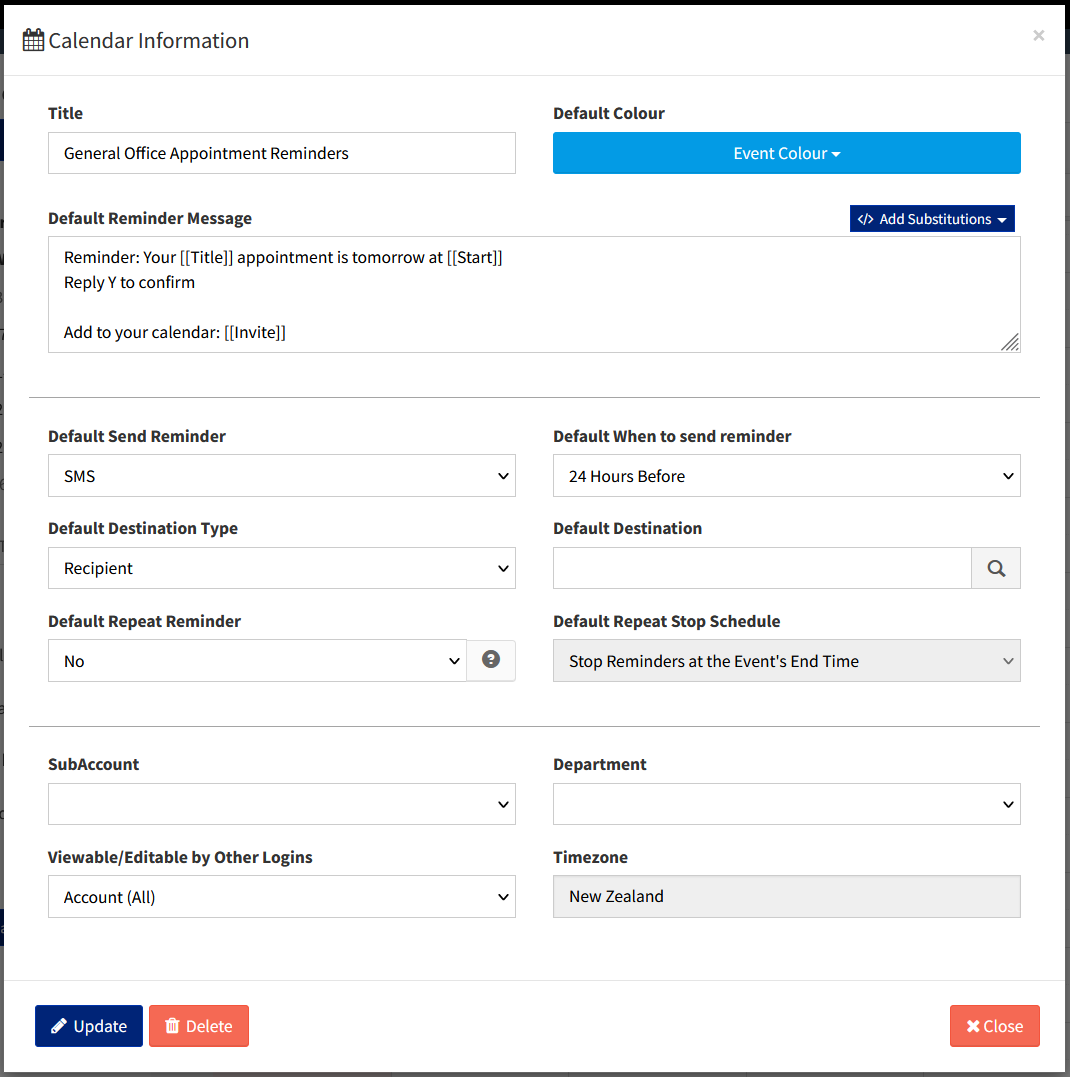
When configuring your calendar, you can set default reminder rules.
Fields:
Either your logged in user has no Calendars (or no rights to view calendars), or the appropriate TNZ Calendar app scopes are not approved.
Disconnect your Outlook account from the TNZ Dashboard, then ask for an Admin user to reconnect the app, approving the TNZ Calendar access.
Check Sync Status: In the TNZ Dashboard, go to 'Calendar' and ensure your Google Calendar shows a successful sync status.
Check Event Timing: Ensure the Notify time you set (e.g., 1 Hour) has not already passed before the event was synced.
Check Default Settings: If you are using the simple SMS= command, ensure your calendar's Default Reminder Message and Default When to send reminder are correctly configured in the TNZ Dashboard.
Check Logs: Check the TNZ Dashboard message logs for any failed messages - the reminder might have been generated but the SMS failed!
You can use mail-merge substitutions in your Message= line. The TNZ system will automatically replace these tags with the correct event details.
[[Title]]: The event's title (e.g., "Meeting with Bob").
[[Location]]: The event's location field.
[[Start]]: The event's start date and time.
Example:
Message=Your appointment [[Title]] is [[Location]] at [[Start]].
You can use the [[Invite]] command. This is replaced with a link to an ICS file, which automatically blocks out time in the mobile's calendar, ensuring they don't double-book.
Example:
Message=Your appointment [[Title]] is [[Location]] at [[Start]]. Add this to your calendar: [[Invite]]
You can ask recipients to reply directly to the reminder. Their reply will be captured and logged against the event in the TNZ Dashboard, giving you an overview of which appointments are potential no-shows.
Example:
Message=Your appointment [[Title]] is [[Location]] at [[Start]]. Reply Y to confirm.
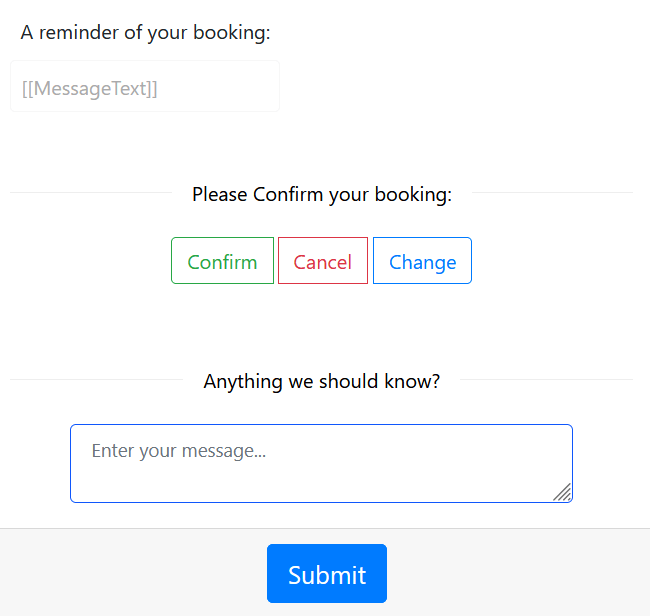
You can also use a confirmation link, giving the recipient a web-page they can use to update their attendance.
Example:
Message=Your appointment [[Title]] is [[Location]] at [[Start]]. Click [[CustomPage]] to confirm.
Yes. This is supported when setting up reminders using the TNZ Dashboard.
Instead of using the Destination= field, you can use the Group= field to send the reminder to a pre-defined Address Book Group.
Topics: Installation
Ready to revolutionise your messaging?
Connect with people anywhere - boost engagement, responses and conversations.
20 credits over 14-days. No obligation. No credit card required.