Introduction to Excel & Visual Basic
In this API, we have included instructions using a Excel spreadsheet with Visual Basic scripts - our up-to-date, industry-standard, supported approach.
Using VBA scripting, users can send Email, SMS and Voice (Text-to-Speech) messages using MS Office and other Windows based applications.
Older versions of this API used a DLL Library, which can be found by selecting v2.01 from the menu (deprecated - use at your own peril).
Getting started
Register your account
If you don't have an account, head to https://www.tnz.co.nz/Customer/SignUp/ and register.
Create Your Sender/APIKey Credentials
To use the VBA API, a Sender and APIKey is required for authentication.
- Login to the TNZ Dashboard
- Navigate to 'Users'
- Create a new user or select an existing one
- Enable API access (if it's not already enabled)
- Click on the 'API' tab
- Enable 'Sender/APIKey' and create a new APIKey
- Click the ' Copy' button to copy the API Key to your clipboard
- Paste the Sender and APIKey into the relevant section in your application or code
Example: Microsoft Excel Spreadsheet
Included below is an Excel spreadsheet with Visual Basic scripts. You can utilize this spreadsheet as a template to implement our VBA API into other Office and Windows apps.
Download the sample spreadsheet
-
Save the sample spreadsheet to your Windows computer
TNZ API Functions - VBA.xlsm
Add API Credentials
Start by adding your TNZ User access credentials (your Sender/APIKey above).
-
Open the sample spreadsheet

View full-size screenshot -
Review any SECURITY RISK notices
View full-size screenshot -
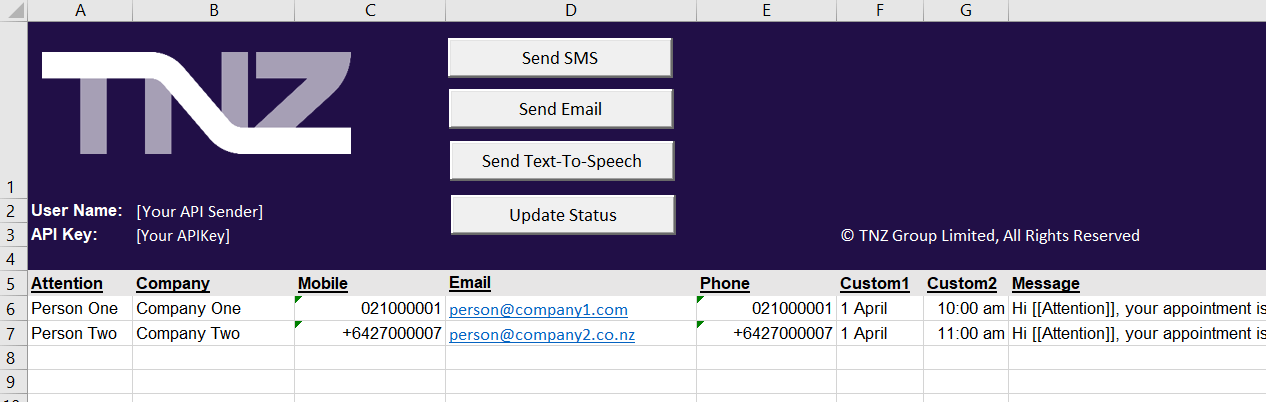
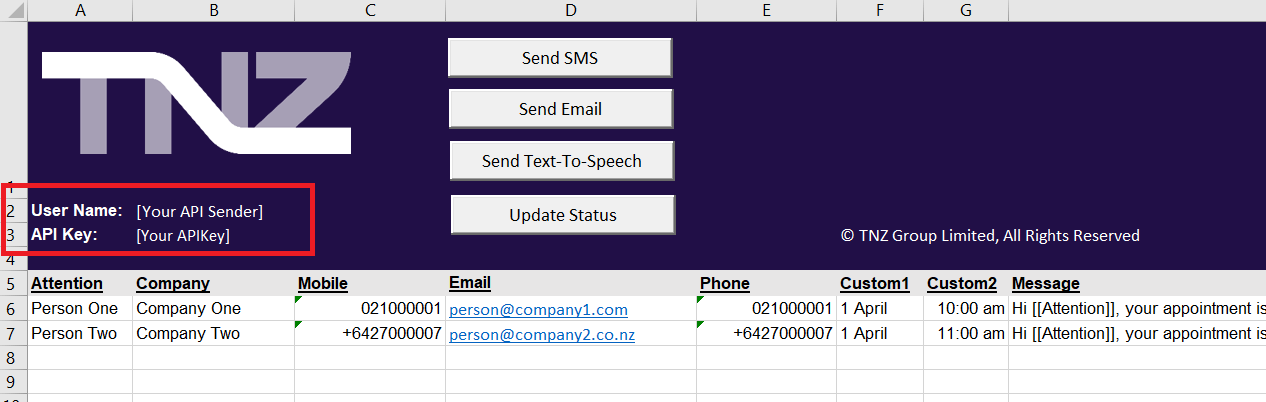
Place your Sender and APIKey into cells B2 and B3
You can find your Sender and APIKey by following the instructions in the Sender/APIKey section above
View full-size screenshot

Send a Test Message
Let's try and trigger a test message!
-
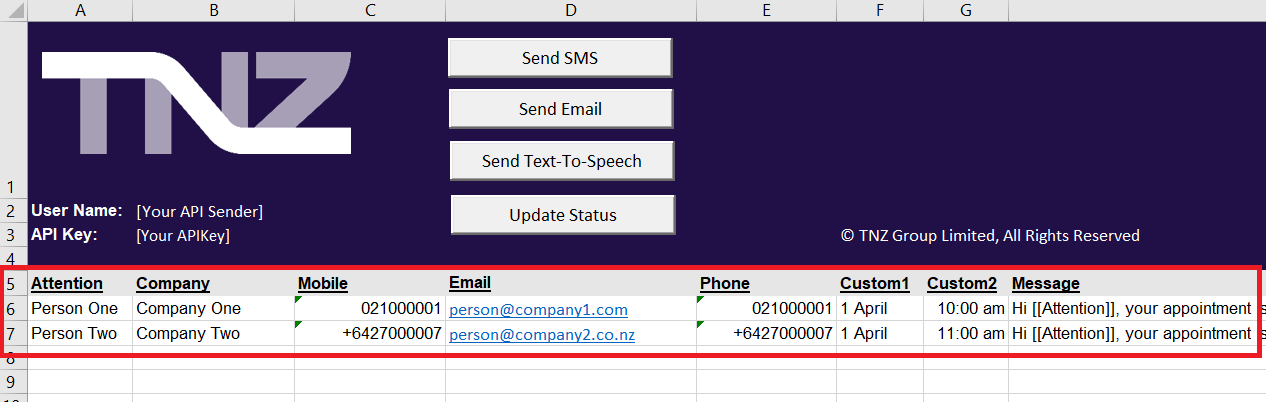
Edit the Attention, Company, Mobile, Email, Phone, Message, and Email Subject fields as appropriate
View full-size screenshot -
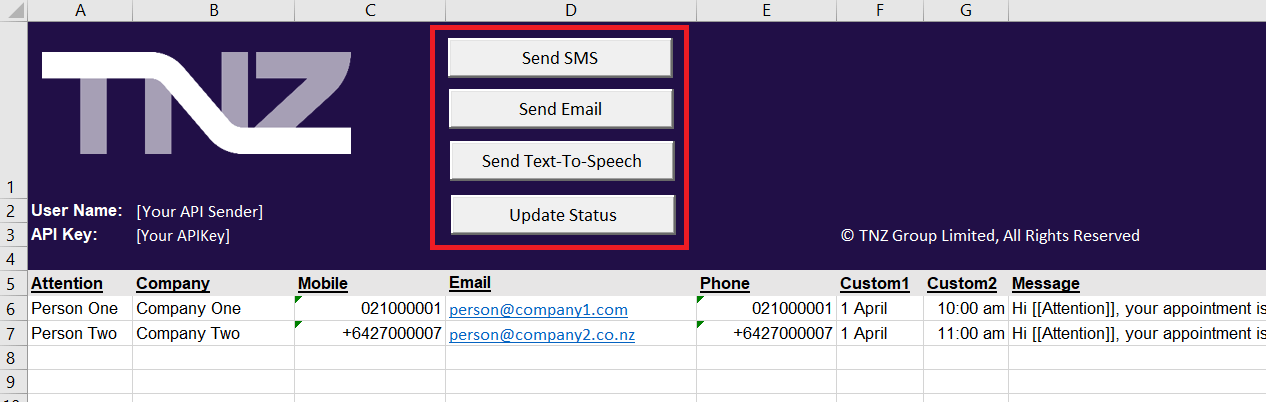
Click the "Send SMS", "Send Email" or "Sent Text-To-Speech" button as appropriate. This will submit your messages for sending.
View full-size screenshot -
You can then click the "Update Status" button to view results
It will use the MessageID column to map results
View full-size screenshot
Review VBA Scripting
Now that you have a working spreadsheet, you can either:
- Modify the sample spreadsheet to suit your needs, or
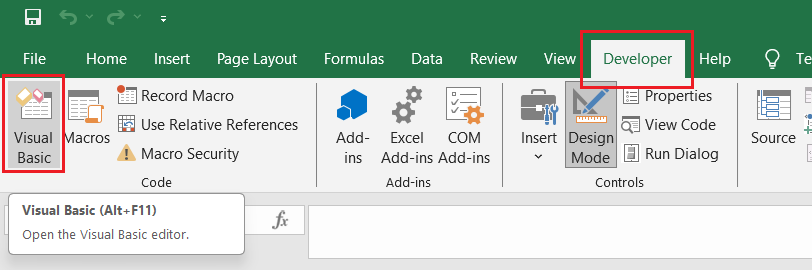
- Review the VBA Scripting to extrapolate the spreadsheet's scripts into other VBA, Microsoft and Office applications.
Versioning
As new versions of the APIs are released, this API reference guide will be updated to reflect the latest version and features supported:
API Version ChangeLog